



Question
FAQ: How do I create a multilayered graphic with the Essential Graphics panel?
Create a multilayered graphic by doing the following:
- Create text
- Select the Type tool
- Click in the Program Monitor
- Type your title
- Stylize the Title in either the Essential Graphics panel or the Effect Controls panel
- Essential Graphics panel: contains basic stylizing controls
- Effect Controls panel: contains same controls in addition to keyframes for animating certain text parameters under the Transform section
- Create round, rectangular, or free form shaped graphics
- Drag with the Ellipse or Rectangle shape tools
- Click points in a pattern to form a shape with the Pen tool
- Stylize, animate, and/or reorder these graphics in either the Essential Graphics panel or the Effect Controls panel
- Import any clips, graphics or other items by clicking the New Layer button, and choosing “From File” in the Essential Graphics panel.
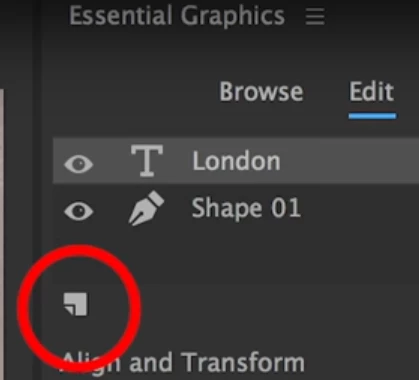
- You can also drag items from the Project panel into the Essential Graphics panel
- Stylize, animate, and/or reorder these graphics in either the Essential Graphics panel or the Effect Controls panel as you did with text and shape layers
Optional steps: create a template from the graphic you just created
4. Save the graphic as a template Graphics > Export as Motion Graphics Template
5. Name the template and save to the appropriate directory
 AdChoices