

FAQ: How to solve Time Remapping issues with Premiere Pro 14.3.2?
Update: This issue has been fixed in Premiere Pro v 14.4. Please update to the latest version using the Creative Cloud Desktop app.
We are investigating an issue with Premiere Pro (v 14.3.2) where the Time Remapping line doesn’t respond to click and drag actions.
Here is the workaround for this issue:
Instead of clicking on the Time Remapping line to adjust the speed, try clicking slightly above the line and you will be able to adjust the parameters.
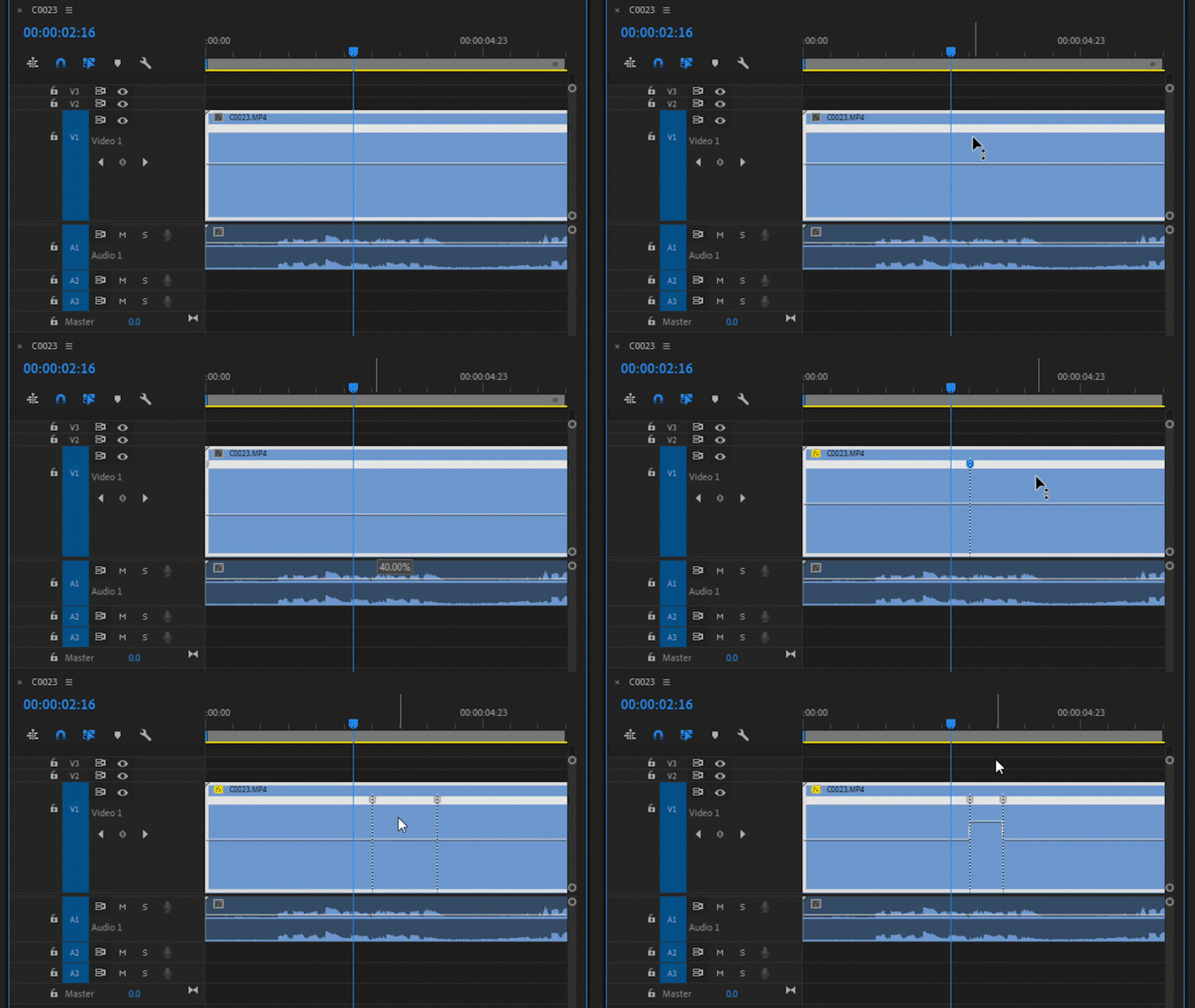
If this doesn't help, you may install the previous version of Premiere Pro from the Creative Cloud Desktop app and check if it's working properly in that.
Note:
This is only applicable to Premiere Pro 14.3.2. If you are experiencing any Time Remapping issues with the other versions, please create a new post describing your issue.
Hope this helps in solving the issue. Let us know if you have any questions.
Thanks,
Sumeet


 AdChoices