



Question
FAQ: Why does audio or video not go to the track where I drop it?
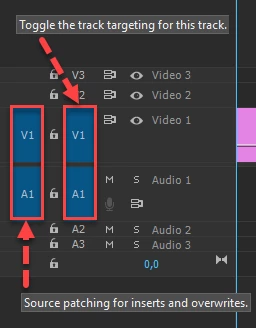 Issue
Issue
Some users have trouble dragging an audio-video clip into the Timeline. For example, when the clip is dragged in to the Timeline, only the video or audio portion of the clip appears. Very frustrating, but there's a simple fix. It's called Source Patching.
Solution:
Make sure source audio and video (blue boxes - far left) are patched in the Timeline before dragging or editing the clip to the Timeline.
- Patching is indicated when the blue boxes are selected in the V1 and A1 tracks and are viewed as "V1" and "A1"
- If selected, boxes indicate that audio and video are patched to specific tracks, which are by default, V1 and A1.
- You should now be able to drag the clip (or use the Insert or Overwrite buttons) to edit the clip into the Timeline properly.
Article: Quick Fix: Video Clip Audio Not Appearing in Premiere Pro Timeline
Having trouble importing a file where only audio is present, see this video.
Source Patching Video
Notes:
- If an A1 or V1 box is not able to be selected, try double clicking the clip in the Project panel to load the clip into the Source Monitor (see the video above).
- After the clip is in the Source Monitor, the V1 and A1 Source Patch boxes should appear.
- You can then drag or use buttons or shortcuts to add the clip to the Timeline.
- The boxes should appear automatically after selecting the clip in the Project panel. If not, click either box that might be unselected.
- The other V1 and A1 boxes are for targeting track selection. When editing a clip into the Timeline, it does not matter if these are selected or not. Only the ones at the far-left are important. The other buttons are for editing functions after the clip is edited into the Timeline.
- You can also run into this problem if the source patching boxes pertaining to the clip you are trying to edit into the Timeline aren't appropriately selected. For example, V1 needs to be selected when editing a video-only clip into the Timeline.
 AdChoices