


Inspiring
October 8, 2025
Question

Film impact Text Animator

  • October 8, 2025
  • 6 replies
  • 795 views

Hello, folks! How are you? I'm currently facing an issue with the new Film Impact: Text Animator tool.

I really enjoyed the Film Impact assets and i tried to use the text animator tool, BUT when I apply it to text layer and play the preview, it inserts the whole phrase at once. Even if I break the text into lines or try to change the subject (letters, word, line) on advanced options is has absolutely zero effect on the setup.

Is it any kind of bug? Or am I doing something wrong? Thanks in advance!

PS: I'm used to do it on after effects, but i'd like to try directly on premiere with this tool just to save time with simple edit hehe
6 replies

valtertoni
Participant
October 31, 2025

Same problem for me, which is not solved even with very simple tests. It's definitely a bug. I suspect an incompatibility with MacOs 26 Tahoe. Because everything happened after installing the new operating system. Coincidence?

R Neil Haugen
Legend
October 31, 2025

Question:


Did you go through the steps around this outlined by the staffer above?

Everyone's mileage always varies ...
Adobe Employee
October 9, 2025

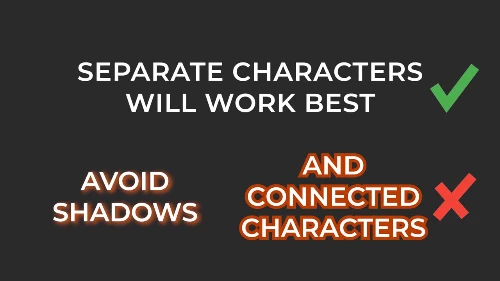
To resolve your issue, please ensure each letter has a small amount of spacing around it.
E.g., Add some character spacing.
 
The Text Animator and the Typewriter effect both try to isolate each letter by checking the transparent areas around it.
Typically, blurs (drop-shadow effects) or resolutions of 1/2 or even 1/4 tend to cause the elements to cluster together.
 
Character Detection
The plugin automatically detects characters on a transparent background. Avoid drop-shadows or characters that are interconnected. 
This will cause entire words to be written at once.


What if you still want to apply a drop shadow effect

  1. Nest the Text and Text Animator transitions together as one clip.
  2. Then apply the Drop Shadow effect to the nested clip.

 
Does this help you?

R Neil Haugen
Legend
October 9, 2025

Thanks for the clarification, this is information that is really needed for many of us. As always, the devil is in the details ... and if we don't have the details, we get surprised.

Everyone's mileage always varies ...
Participant
October 8, 2025

Yup, also seems to be an issue if you have a stroke (or background) on the text from the properties panel. Huge let down that I will have to stick with After Effects to do something as simple as animating on "tiktok style" text. Hopefully this get's fixed soon.

Peru Bob
Community Expert
Community Expert
October 9, 2025
Inspiring
October 8, 2025

@R Neil Haugen another update about the bug: it happens when you apply shadow from properties panel. i tried clean first and the animator did good. when applied the shadow it disorted the whole box.

R Neil Haugen
Legend
October 8, 2025

Excellent sleuthing! Unfortunately not good behavior though of Premiere . 

Everyone's mileage always varies ...
Inspiring
October 8, 2025

@R Neil Haugen thanks for your reply!

I took a time off while i was wondering about reinstall Premiere and before it I gave a try to to purge the cache and reset Premiere. Suddenly it has worked. So, I guess it was Premiere Cache problem hehehe - because just close the project and open again wasn't working to fix it.

R Neil Haugen
Legend
October 8, 2025

Weird! When I've tried that, I just typed the text, then grabbed that from the FilmImpact extension panel ...  dropped it on the text ... and voila! ... animated text.


Puzzled as to what isn't working on that rig of yours. Hoping that someone has an idea ...

Everyone's mileage always varies ...