



flappingtrout
Participating Frequently
February 9, 2024
Released

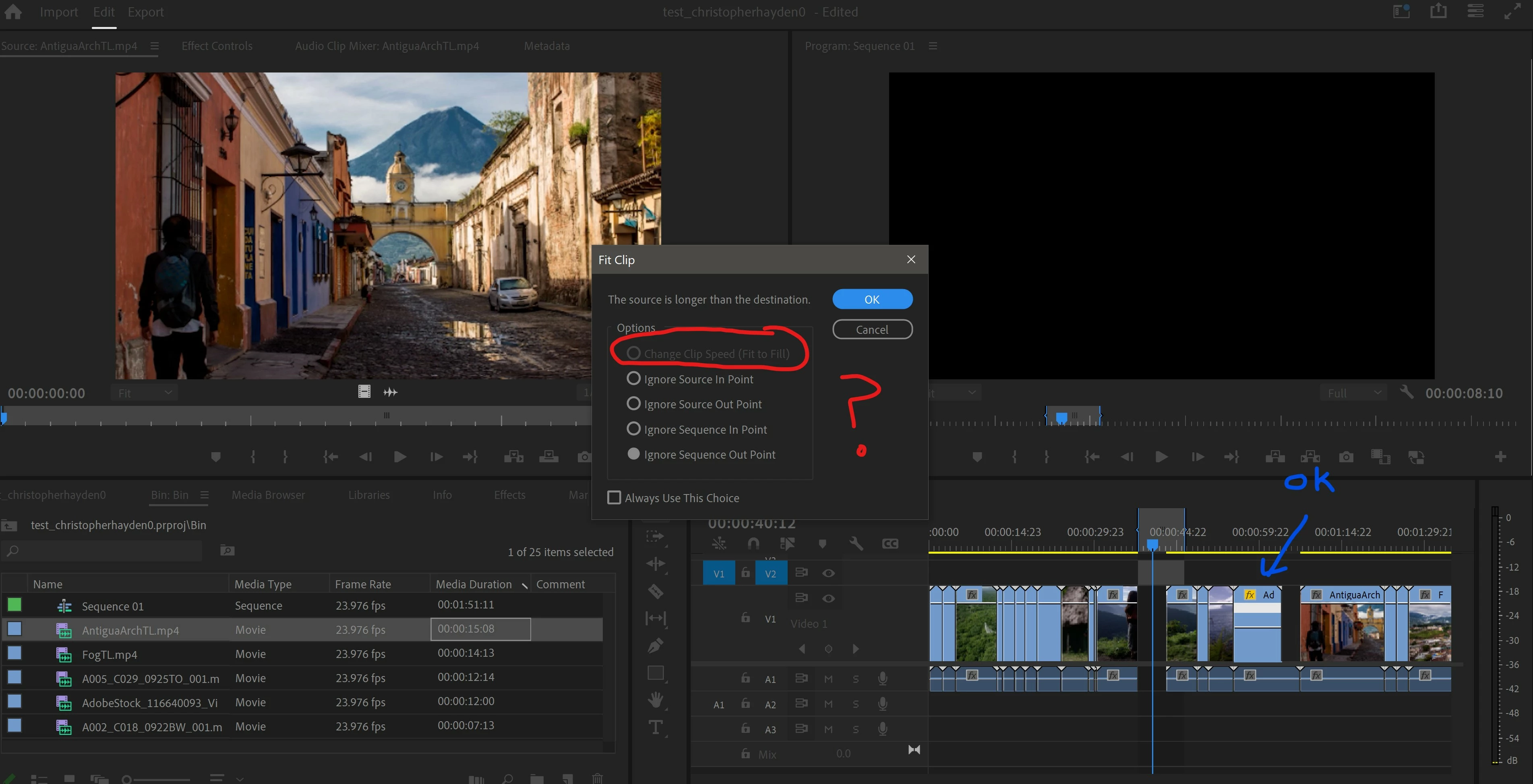
Fit to fill (Change clip speed) Grayed out?!?!? But manual Time remapping (blue arrow) works fine??

What could possibly be causing this helpful feature to gray out? Time remapping works, but for some reason fit to fill doesn't? Version 24.2.0 build 93 - Windows 10
 

Pinned Reply By Amy the Stuv

Hello everyone,


Thanks for taking the time to report this, and apologies for the long silence on the thread.
Good news - the issue you reported here has been fixed in 26.3, and the fix is available in the latest release of Premiere.

If you update and still see the problem, please reply here with your exact version (Help > About Premiere Pro) and your OS, and we will take another look.

Thanks again for flagging it - reports like yours are what get these fixed.

Best,

Amy

20 replies

Amy the Stuv
Community Manager
Community Manager
September 28, 2026

Hello everyone,


Thanks for taking the time to report this, and apologies for the long silence on the thread.
Good news - the issue you reported here has been fixed in 26.3, and the fix is available in the latest release of Premiere.

If you update and still see the problem, please reply here with your exact version (Help > About Premiere Pro) and your OS, and we will take another look.

Thanks again for flagging it - reports like yours are what get these fixed.

Best,

Amy

Translate
Christine Steele
Participating Frequently
February 6, 2025

Update: I'm still having this issue in v25 when auto-transciption is enabled. Turning off transcription makes "fit to fill" and 4-point editing dialogue box options available again, but when I'm text-based editing and want to use "fit to fill" I must turn off transcribe features to activate the 4 point edit. Not critical, just annoying. 

Translate
Keep Creating...
Kevin J. Monahan Jr.
Legend
February 6, 2025

Thank you, @Christine Steele.  I checked on the bug. They are still working on it. I will continue to advocate for a fix on this one.


Thanks,
Kevin


Translate
Kevin Monahan - Sr. Community and Engagement Strategist – Adobe Pro Video and Audio
Participant
March 3, 2025

Yes, please keep advocating for that fix. Appreciate the effort, thank you.

Translate
Christine Steele
Participating Frequently
September 24, 2024

I am having this issue too, using Premiere 24.6.1 (build 2) on Apple M3 Max. I've also tried creating a brand new project, recutting in the clip, resetting all 4 points, checking durations, replacing the proxy clip with full res, etc. etc.  No other effects on timeline clip. You are not crazy -- 'fit to fill" is not available (grey) in Fit Clip dialogue box!

Translate
Keep Creating...
Known Participant
September 25, 2024

I'm 99% sure Adobe "solved" this in another posting if this is the issue I think it is. I put solved in quotes because there is no solution yet, but they seem to have narrowed down the root cause of the problem to be something to do with transcription. If you have that feature turned on it somehow screws up fit to fill. As far as I know there is no solution available yet. I can't remember for sure, I've had to roll back to 23.x because of larger MXF issues with version 24.

Translate
Participating Frequently
June 8, 2024

I'm having the same problem. Windows 10, Premier Pro Version 24.4.1 (Build 2).


I have narrowed down the issue enough to replicate it. What's happening for me is this:

  1. I open a project. I have one Sequence with one video track (source patching and track targeting is ON) and two audio tracks (source patching and track targeting is OFF), none of them are synced.
  2. I set an In and Out point for the Sequence on the timeline and I leave the playhead marker at the In point.
  3. In the Project panel, I double click on the clip I want to insert.
  4. I set the In point and the Out point for the Clip in the Source panel.
  5.  I tap the period key to Overwrite. The Fit Clip options appear, and all options are available, including Change Clip Speed (Fit to Fill)
  6.  I select "Change Clip Speed". It works perfectly fine.
  7.  If I undo or attempt to repeat these exact same steps a second time, Change Clip Speed is now greyed out, no matter what I try. 
  8.  I close the project without saving anything and reopen it.
  9.  Repeat. The exact same thing happens.


It seems that Change Clip Speed works fine. Once. After that, it's greyed out until I close and reopen the project.

However, after writing out these steps, I tried it again and it works fine, even if I undo / redo / repeat / try again on a different part of the timeline. So... now I can't replicate the issue apparently? Premiere is haunted I guess. 😂 I'm still posting this info in case it's helpful to anyone. 

Translate
MyerPj
Community Expert
Community Expert
April 22, 2024

Working here also...

Win 23H2, PP: 24.3

Translate
Community Expert
February 9, 2024

A fit-to-fill edit requires an In and Out marking the source clip AND an In and Out marking where it goes in the timeline.

check here for more details:

https://larryjordan.com/articles/create-a-fit-to-fill-edit-in-adobe-premiere-pro/

Translate
Known Participant
March 6, 2024

I have had this same issue recently, Fit to Fill was working fine up until a few weeks ago, I use it semi often in news when file video isn't quite long enough, and now all of a sudden it is always greyed out? 

Translate
Community Expert
March 6, 2024

I can't replicate the problem, is it happening with all projects or a specific one?

Some thoughts: test with a new sequence. Test with a new project. Reset preferences.

Translate
Community Expert
February 9, 2024

take off all effects applied, either apply them on adjustment layers or use nesting workflows,

so:

01. always try to finish your editing without any effects applied

02. do your speed stuff

03. apply effects on adjustment layers or nest your edits then apply effects to nested.

04. render -> export

Translate
flappingtrout
Participating Frequently
February 9, 2024

I actually don't have any effects setup. I am following along with training material, and my test sequence is just barebones videos. On the fit to fill lesson, I followed instructions dozens on times; simply set in/out on source and in/out on sequence. Set track targeting and overwrite. it's supposed to let me select fit to fill so that my source selection gets either sped up or slowed down to fit the sequence selection. Very simple task. But Premiere has a problem with it for some reason. How do I get fit to fill enabled? Thanks.

Translate