


Inspiring
July 30, 2018
Answered

Frame rate issues with PNG image sequences

  • July 30, 2018
  • 4 replies
  • 10967 views

To give some context, I use Adobe Flash/Animate to add animations to video footage. I'm not formally trained, so I've been figuring it out as I go.

My process: I'll trim a video file down to several small clips and embed a clip into the Animate timeline. I'll animate some scenes, and export the scenes as a PNG image sequence. I'll then import those image sequences into Premiere Pro and sync it up with the original video file. The end product looks really cool.

I'm having a particular difficult time with the current project though. The original video file is 29.97 fps, I trim them into clips that are 29.97 fps, and I put them into an Animate project that is 29.97 fps. I don't see any way to control the way it's exported, but when I import the image sequence into a Premiere Pro project that's timebase is at 29.97, they show up by default as 24 fps. I change the default to "assumed frame rate" and mark it as 29.97, but there's a huge discrepancy between the image sequence and the original video file.

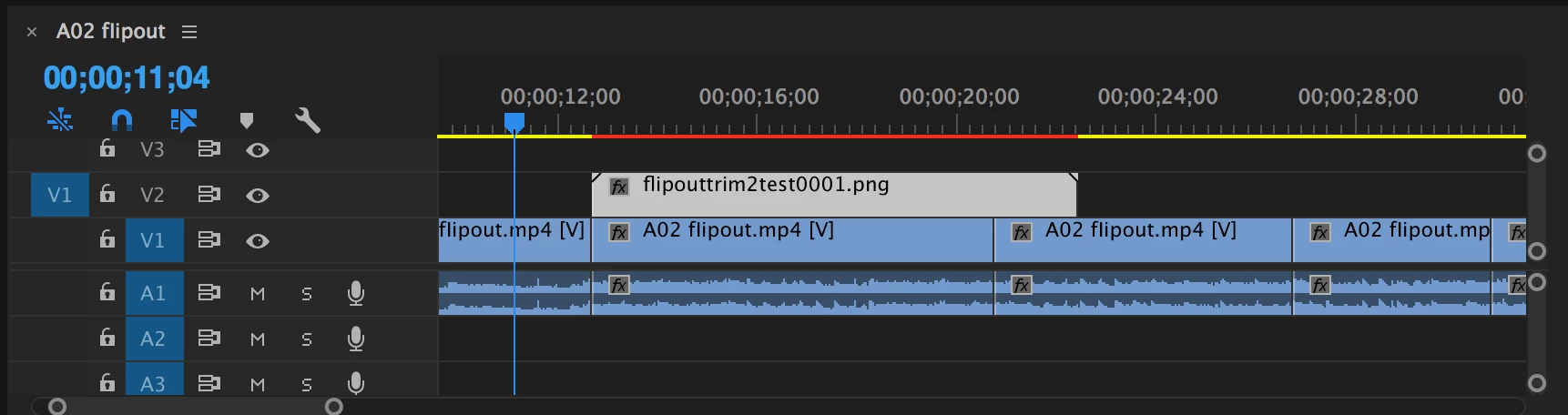
Here's a picture of the image sequence in the timeline at its default 24 fps. If everything was working correctly, it would match up perfectly with the clip right below it.
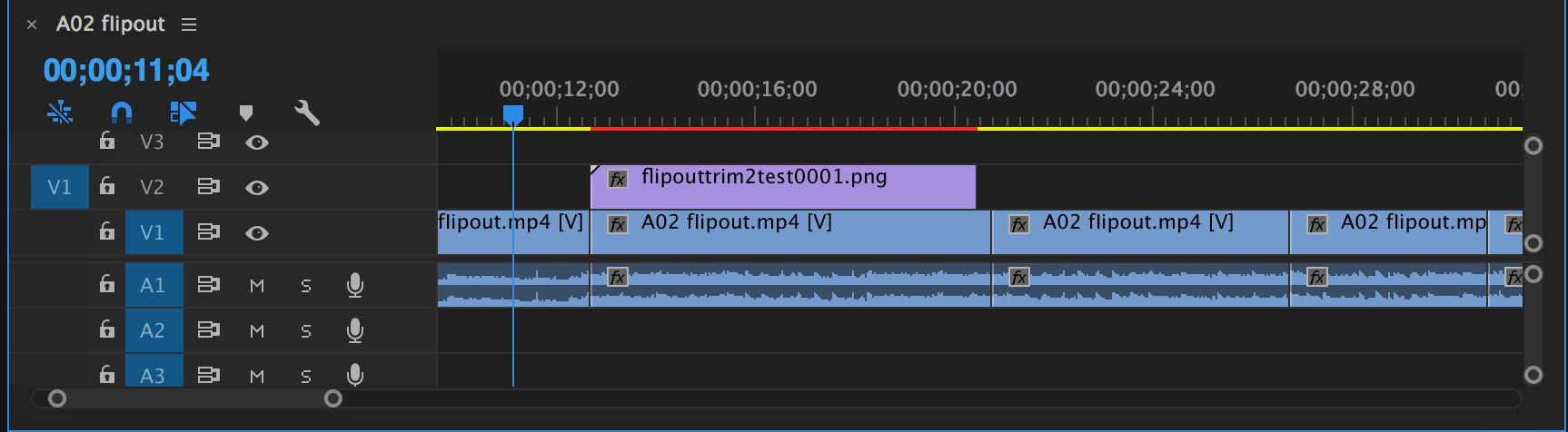
Now I've changed the settings on the image sequence, to an assumed frame rate of 29.97. That's the frame rate of the project and the clip right below it. Again, they should match up perfectly. Somehow they don't even come close.
I'm tearing my hair out on this one. Maybe this is more convoluted than it has to be, and someone can suggest an easier way? I can't figure out what I'm doing wrong here. Everything should be at 29.97 fps, but it's not.

Any help you can give me would be greatly appreciated; I'm sort of under a time constraint here. This is work for a client.

This topic has been closed for replies.
Correct answer aralessbmn

Thank you everyone for taking time out of their days to help me out. I came across a slightly more time consuming but much more effective fix. Instead of trimming the original video file down to smaller clips, then dropping them into Animate, I'm going to be exporting out of Premiere as image sequences. If I import those images into Animate and distribute them to keyframes, I can animate and then export as another image sequence. When I import back into Premiere, everything syncs up perfectly!

4 replies

Participant
October 27, 2021

What if you try this:

After importing the image sequence, right-click on the sequence in the project window, then do Modify > Interpret Footage. Then tick "Assume this frame rate:" and type in the frame rate you want it to be.

Inspiring
June 22, 2023

This worked perfectly.  That said, I've never had to do this before until very recently.  I'm not sure what changed with Premiere.

aralessbmnAuthorCorrect answer
Inspiring
August 1, 2018

Thank you everyone for taking time out of their days to help me out. I came across a slightly more time consuming but much more effective fix. Instead of trimming the original video file down to smaller clips, then dropping them into Animate, I'm going to be exporting out of Premiere as image sequences. If I import those images into Animate and distribute them to keyframes, I can animate and then export as another image sequence. When I import back into Premiere, everything syncs up perfectly!

yenaphe
Inspiring
July 31, 2018

Very weird indeed.

Could you share your project with the png and video file so we can test it on our side see if we can fgure something out?

yenaphe
Inspiring
July 30, 2018

Hi,

in the second screenshot, your clip seems to not be extended to it's full length (it is missing the small notch on the upper right corner. So my first guess would to try to extend your clip.

Also, there's a setting that is going to help you. In edit > preferences > Media, you can set the Indeterminate Media Timebase paramater to 29.97 instead of 24. That way, your png sequences will be interpreted as 29.97 by default

Hope this helps,

Seb

Inspiring
July 31, 2018

Hey Yenaphe,

I wish that did help. The clip in the second screenshot is indeed fully extended. I changed the indeterminate media timebase to 29.97; it was at 24fps. Unfortunately, it didn't help. The image sequence is now coming in as short, just like in the second screen shot. I can't figure out what is going on here. Something between importing the video clip into Animate and exporting the image sequence is screwing with the frame rate. I am trying to animate over the existing video, so they need to be synced up. I cannot for the life of me figure out what the problem is. All of the projects are set at 29.97 fps, and all the files SHOULD be 29.97 fps, but they're not syncing up.

Is there anything else I may be missing?

R Neil Haugen
Legend
July 31, 2018

Try this in a new project file with the indeterminate time settings at 29.97. I think after adding those in at 24, PrPro is still seeing them as that internally.

Neil

Everyone's mileage always varies ...