

Question
Framerate encoding glitch when slowed down
Premiere Pro 2024
Macbook Pro 2023, Apple M2 Pro, Sonoma 14.0
I'm an amateur videographer working to produce some content for a company. We shot footage at 100fps to be slowed down in post. The encoded framerate turned out to be 25 fps. When I brought the footage into Premiere Pro and slowed it down 50% with optical flow (other options are too choppy), I noticed that it creates this unpleasant burn effect on some of the frames like below.
What are the best settings I can use to get the most out of this footage when slowed down? Everything I've experimented with has this same problem.
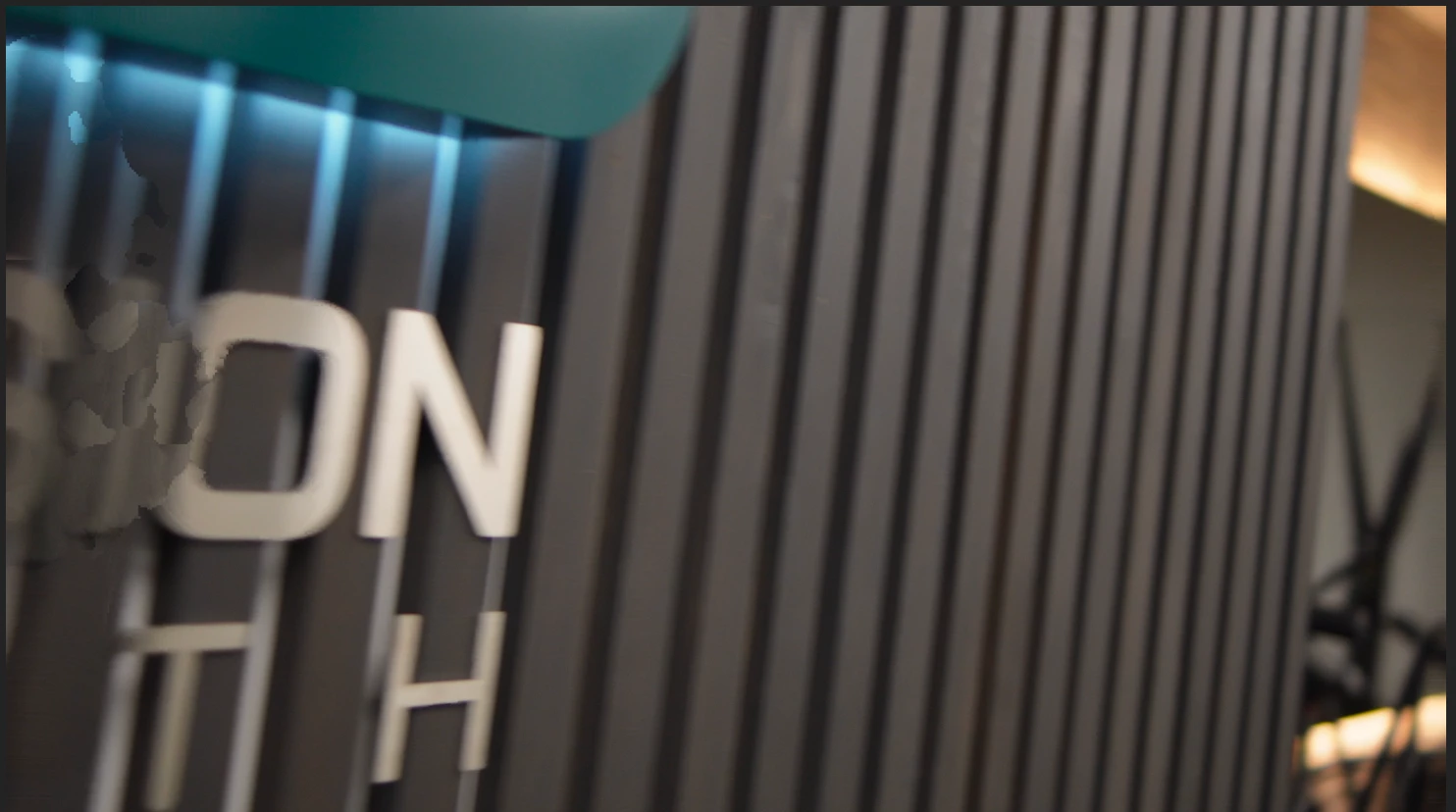
A few workarounds I've tried:
- A previous adobe operator explained that this was due to the mismatch of framerates and that I should download Handbrake to change the framerate of the footage to 100fps. I did this and brought it into Premiere Pro and its still got that same effect when slowed down.
- Changing the sequence timebase to 60fps, using HandBrake to change the footage framerate to 60fps to allow for the footage and sequence settings to be on as similar a page as possible. Still has the burn effect on frames
- On the original file which is encoded at 25fps, going Modify -> Interpret Footage -> Assume this framerate 100fps. This just makes it go black.
Please help, I am supposed to edit 5 videos by the end of this week.
 AdChoices