henrikr61207695
Participant
May 11, 2017
Answered

Frames from different clips shows up where its not supposed to

  • May 11, 2017
  • 20 replies
  • 33294 views

Hi

I've been having a problem for a couple of months and its driving me crazy.  Right now I'm using Premiere Pro CC v11.1.0. (Just updated)

Okay so here is the thing. Imagine that u have clip A and clip B next to eachother. Now if u want to extend clip B the last frame from clip A is stuck where clip B used to start. And if i delete that frame and drag clip B back its still the same frame from clip A. Even if i import clip B into the timeline again it will still show that stupid frame. And the same thing will happen to clip B and clip C. Basically every time I cut from one clip to another, the last frame from the first clip is merged into the first frame of the last clip. Ive seen others on here with the same problem, but no answers. Is there anyone out there that can help me cure this disease?

Henrik
    This topic has been closed for replies.
    Correct answer Sethf

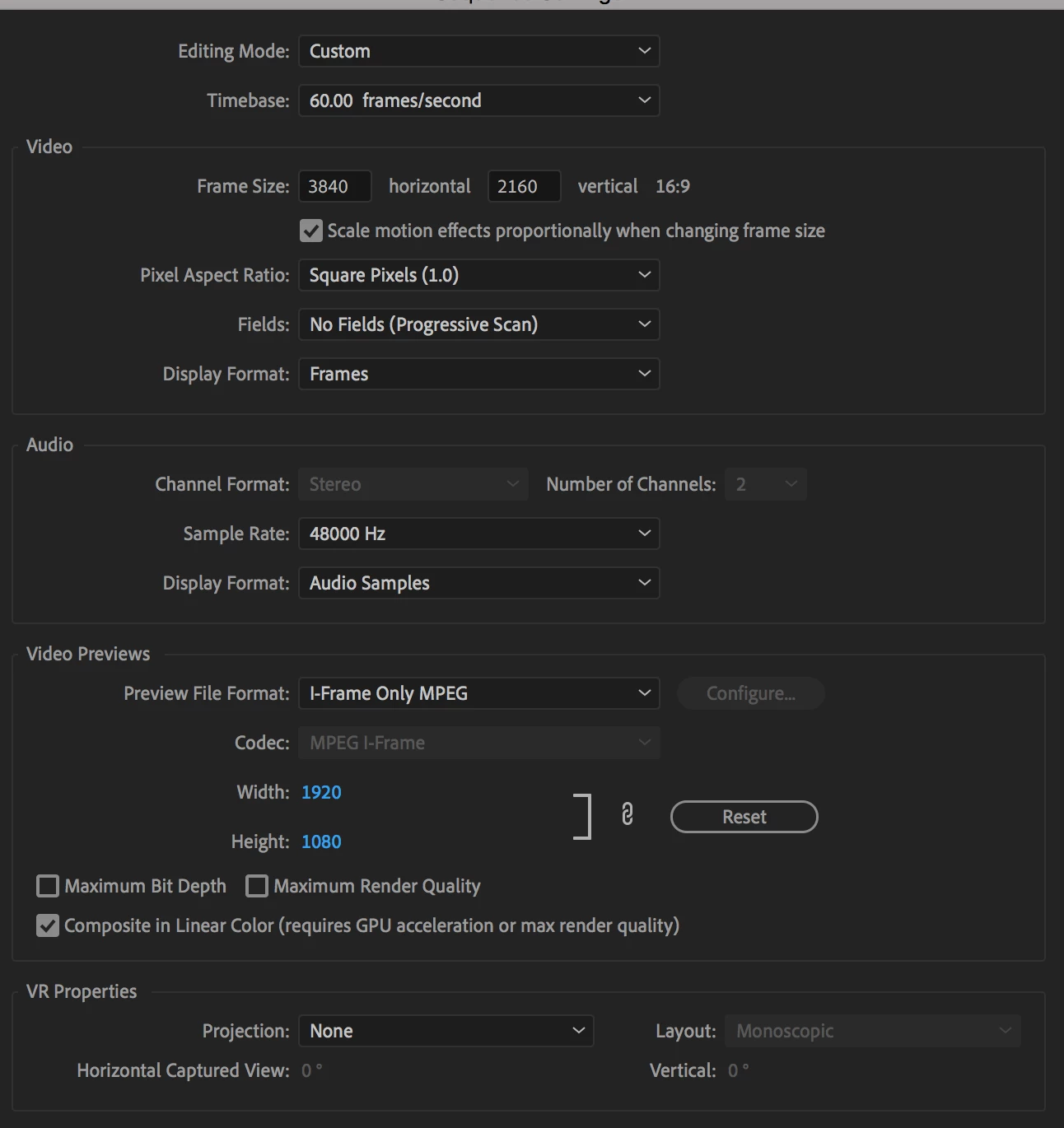
    Hi, I just posted because I was having this same issue but might have found a solution! At least it worked for me. Part of the problem (I think) was that I was working with some 4K footage and some 1080p footage, but all of it was shot in 60fps. In my sequence settings, video frame and video preview were set to 3840 x 2160 and 1920 x 1080 respectively, and my timebase was set to 60.01 frames per second. I set timebase to 60.00 fps, and hit the "Reset" icon in the Video Preview section under sequence settings and that seemed to fix it! 


    I was inspired to check sequence settings vs video preview settings by the poster in the forum linked below, so they may have more information! 


    https://forums.creativecow.net/docs/forums/post.php?forumid=3&postid=926517&univpostid=926517&pview=t

    20 replies

    RadamBrown
    Known Participant
    April 29, 2023

    So I think I tried everything everyone said on here, and nothing was working unfortunately. I'm pretty sure there was some user error for sure, and I messed up the clips and project up when copying files over as well as a copying and using a previous project for this client to try and save time (talk about backfiring!). Then my new drone somehow named clips the same file name as my old drone and I didn't catch it until after I was already well into the project and made all the proxies (which then created another problem...ha, ha!), etc. HOWEVER (I hope you like run-on sentences), what I FINALLY FIGURED OUT that worked for me is the Rate Stretch Tool (R) that I'm not as familiar with...and that did the trick! It's probably just a work-around, but I don't care at this point because it fixed what I was having issues with, and will maybe be helpful and save someone else hours and hours of troubleshooting. So give that a try if nothing else seems to work for you either, because I was able to end and start the clips exactly where I wanted on the beat, without them carrying over incorrectly into the next clip for whatever reason. (Hopefully this makes sense...good luck!)

    Participant
    March 5, 2023

    yes I'm hving this exact same issue at the moment and it's driving me bonkers trying to figure out why these flash frames won't go away> had to come online to look for help 


    Participant
    January 29, 2023

    Mhy clips fully merg into naoither and cereate media that doesnt exist. WTF Adobe. 


    Participant
    October 12, 2022

    Five years on this glitch continues to plague us all - the delete rendered files doesn't quite solve it, nor a few other fixes on this thread. 


    A long awaited patch would be nice Adobe, thank you! 🙂

    Participant
    July 28, 2022

    I just have to say after years of reading solutions and not asking anything, i have activated an account only to say THANKS both for the question and also the answer exposed here. This is really a time saver. Thanks again Seth and Henrik 😉

    Participant
    February 21, 2022

    Solution!!! Delete render files and re render!!! It works!


    https://m.youtube.com/watch?v=2gtJ9qkVr-k

    Participant
    April 30, 2022

    Can't believe this is still an issue in 2022! Had this issue as well recently. The rendering solve needs to be out at the top. Thanks community!

    Participating Frequently
    May 1, 2022

    Yeah, it totally does.

    Participant
    October 28, 2021

    No Cap. God bless ya! 

    Participant
    July 3, 2021

    Hi there,


    I encountered this problem recently and managed to resolve it by adjusting the sequence settings. In my case, I changed the timebase from 29.97 fps to 30fps & this essentially eradicated the issue. You'll need to review and cut your footage accordingly afterwards to ensure everything is still in sync but this is a necessary evil in the grand scheme of things. 

    Community Expert
    February 18, 2021

    I know exactly what you're talking about. It's Feb 2021 and I just had this issue. It seems like this is an issue with the rendered preview files. Setting my In and Out point around the timeline, going to Sequence > Delete Render Files In to Out seemed to fix it. You may need to re-render your sequence but try to edit without if possible to prevent it from happening again.

    Participating Frequently
    May 1, 2022

    This answer needs to be at the top

    Participant
    August 14, 2020

    Nest your clips it should get rid of those unwanted frames 

    Participant
    September 4, 2020

    This worked for me. thanks. 


    Still appalling Adobe DONT fix issues like this for paying subscribers. Every bug has a "work around" that slows your production process. It's an embarrassment.