Starskii
Known Participant
November 9, 2020
Question

Fully Rendered & Saved b4 Close app-Return to parts not-rendered (Image examples)

  • November 9, 2020
  • 4 replies
  • 1339 views

Using: Adobe Premiere Pro CC 2019
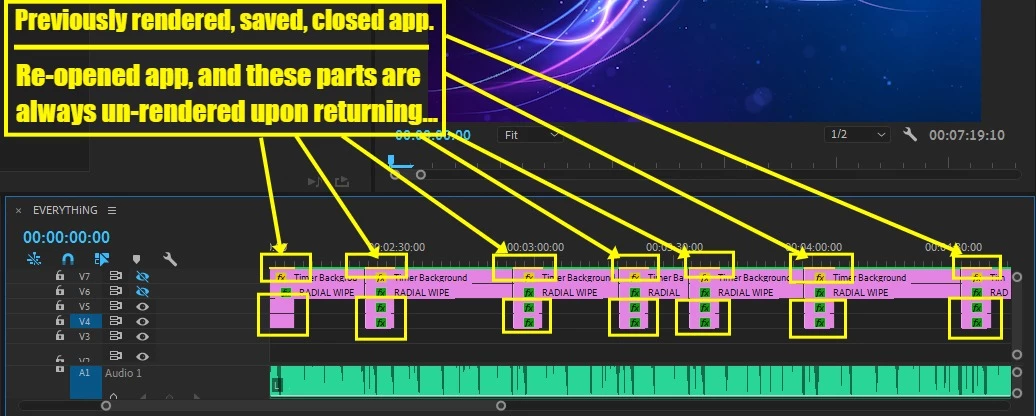
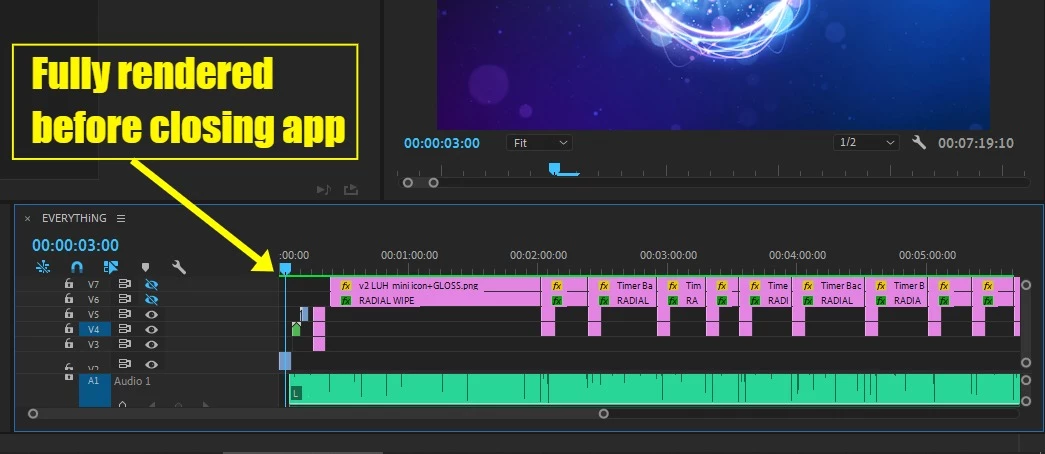
As the title and images explain, I fully render my timeline before saving and then closing Premiere.
I re-open Premiere and these parts are always un-rendered and it requires me to render again.

I also do not move or change any of the files/folders and don't understand why it saves the render of everything else except these same layers upon re-opening? 

This topic has been closed for replies.

4 replies

Peru Bob
Community Expert
Community Expert
November 16, 2020

What effects are you using at those places in the timeline?

Are there any third party effects?


Starskii
StarskiiAuthor
Known Participant
November 17, 2020

The 2 parts that are not rendering have no effects. The 1 part is just text, with transform & position changes, and the other part that is also not staying rendered upon re-opening is the bar/line under the text which is only horizontal scale changes (as shown in image)

Inspiring
November 15, 2020

Try nesting the whole timeline before rendering.

gerikp
Community Expert
Community Expert
November 13, 2020

Curious, when saving are you doing the "Save" command or the "Save As.." Command?

Starskii
StarskiiAuthor
Known Participant
November 15, 2020

After my project is done, I'll clear the media so I just have my default 'template' bascially, then and I will "Save As" (new project) and then I'll contine on with the new project and every so often I'll "Save" with Ctrl+S .. then one final Ctrl+S before closing project and then the render issue upon re-open.

gerikp
Community Expert
Community Expert
November 15, 2020

And if you render, then do a Ctrl+S save and close your project and then reopen it again do your renders stay as expeted?

Peru Bob
Community Expert
Community Expert
November 9, 2020

Delete the Media Cache and Media Cache files:
https://community.adobe.com/t5/premiere-pro/faq-how-to-clear-your-media-cache-in-30-seconds-in-premiere-pro-2020/m-p/11017257/thread-id/260446?page=1

If that doesn't work,try resetting the preferences:
https://community.adobe.com/t5/premiere-pro/faq-how-to-reset-trash-preferences-in-premiere-pro/td-p/8236158?page=1

If that doesn't work, try resetting the Workspaces:
Reset a workspace
Reset the current workspace to return to its original, saved layout of panels.
1. Do one of the following:
• Click the Workspace menu icon and select Reset to Saved Layout.
• Choose Window > Workspace > Reset to Saved Layout.
from here:
https://helpx.adobe.com/premiere-pro/using/workspaces.html

If that doesn't work, try Preferences > Audio Hardware and set Input to None.

If that doesn’t work, try updating or rolling back your graphics driver directly from the video card manufacturer’s site.

If that doesn't work, try creating a new project and import the old one into it.

Starskii
StarskiiAuthor
Known Participant
November 13, 2020

I tried deleting the media cache and my now newest project did the same thing as before. I don't really want to delete my preferences because I have spent alot of time creating custom preferences and would hate to figure out and re-apply those preferences as I just dont see how that or any of the other options have any relation to why the video previews are saving the entire rendered project and then once I close the app and re-open only those exact same adjustment layers (and the copies) are not re-opening rendered
AND
this only happens that 1 time. After I re-render the project, do some more work on the project, render it all again, save, close then - re-open.. those adjustment layers are now fully rendered upon re-opening so why is this happening once at the beginning but working after that?

Thanks.