Participant
July 15, 2021
Answered

Green colour when exporting the video

  • July 15, 2021
  • 3 replies
  • 1996 views

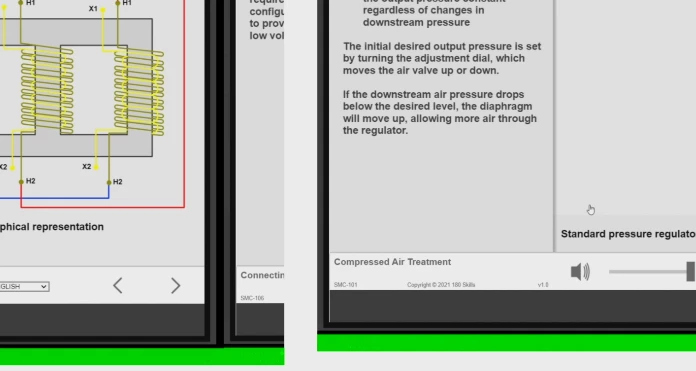
When I export a video a green colour appear at the botton of the image and also a part of duplicated image at the right
 

This topic has been closed for replies.
Correct answer User1_IT

I tried using another software to record the screen and the problem was solved. It seems that it was because of the media I was using. Thank you all for your support.

3 replies

Kartika Rawat
Community Manager
Community Manager
July 16, 2021

Hi there!

Sorry about that. Let us know if the suggestions mentioned by Peru Bob helps. Also, share your system details (OS, CPU, RAM, GPU)? 


Thanks.

Kartika


User1_ITAuthor
Participant
July 19, 2021

I tried all these things but none of them worked...

Here me system details:

OS: Windows 10 Pro for Workstations / 64 bits
CPU: Intel Xeon E5-1620 v4 @ 3.50 GHz
RAM: 16 GB
GPU: Nvidia Quadro M2000
Drivers: R470 U1 (471.11) WHQL | 2021.6.23


Everything was ok until the version of premiere was updated to 2021 version...

Peru Bob
Community Expert
Community Expert
July 19, 2021
Peru Bob
Community Expert
Community Expert
July 15, 2021

Also:


Please use the free MediaInfo and post a screenshot the properties of your media in tree view:
https://mediaarea.net/en/MediaInfo

Many users are having issues with VFR. If the file is variable frame rate, use Hand brake to convert to constant frame rate:
https://handbrake.fr/downloads.php
Here is a tutorial:
https://www.youtube.com/watch?time_continue=34&v=xlvxgVREX-Y

Community Expert
July 19, 2021

I think this might be the right path to take. I'm going to guess that OP's footage game from Windows Game Bar? There's something off about those recordings either from the way Game Bar handles scaling or the VFR in the clips but transcoding should help.

User1_ITAuthorCorrect answer
Participant
July 20, 2021

I tried using another software to record the screen and the problem was solved. It seems that it was because of the media I was using. Thank you all for your support.

Peru Bob
Community Expert
Community Expert
July 15, 2021

Try turning off Hardware encoding in the export settings.


If that doesn't work:

Delete the Media Cache and Media Cache files:
https://community.adobe.com/t5/premiere-pro/faq-how-to-clear-your-media-cache-in-30-seconds-in-premiere-pro-2020/m-p/11017257/thread-id/260446?page=1

If that doesn't work,try resetting the preferences:
https://community.adobe.com/t5/premiere-pro/faq-how-to-reset-trash-preferences-in-premiere-pro/td-p/8236158?page=1

If that doesn't work, try resetting the Workspaces:
Reset a workspace
Reset the current workspace to return to its original, saved layout of panels.
1. Do one of the following:
• Click the Workspace menu icon and select Reset to Saved Layout.
• Choose Window > Workspace > Reset to Saved Layout.
from here:
https://helpx.adobe.com/premiere-pro/using/workspaces.html

If that doesn't work, try Preferences > Audio Hardware and set Input to None.

If that doesn’t work, try updating or rolling back your graphics driver directly from the video card manufacturer’s site. If NVIDIA, do a clean install of the latest Studio Driver (NOT the Game Driver)

If that doesn't work, try creating a new project and import the old one into it.

Also, please help us help you:
https://community.adobe.com/t5/premiere-pro/faq-what-information-should-i-provide-when-asking-a-question-on-this-forum/td-p/3929027?page=1
