


Participant
February 22, 2026
Question

Hand-animated text... Troubleshooting the Ultra Key struggle

  • February 22, 2026
  • 1 reply
  • 12 views

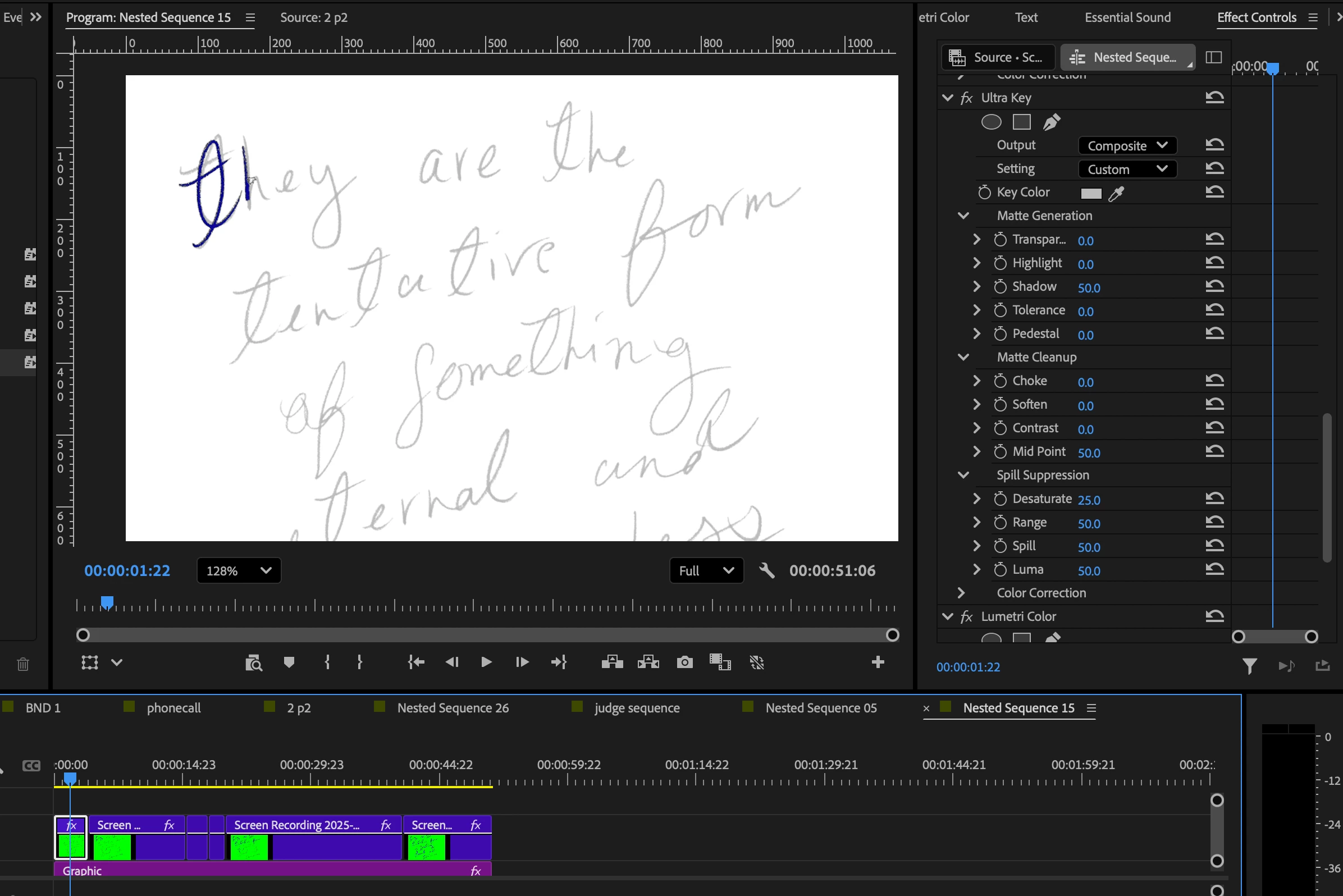
I wanted to have a handwritten animation in my video, so I screen recorded myself writing in photoshop. Green background, wrote a handwriting layer [to trace] in red, and then recorded myself tracing the red with blue. Opaque brushes, no transparency. In ultra-keying the separate colors out, I have found there to be certain elements I am unable to get rid of. As you can see, I have the red-turned-gray selected in the key color, but despite messing around with the sliders in every way, the color won't disappear. Also, I have tried to key out the outline of the photoshop brush cursor in premiere as well, but it oddly disappears and reappears in certain frames, and always blinks away the minute I move my cursor to select it with the dropper tool. Some of these issues seem to go away when I render and replace the composition, but that removes the transparency I've been working to achieve. Why is this so finicky? The keying is also super inconsistent across cuts of the same footage source....
 

    1 reply

    Community Expert
    February 23, 2026

    How did you change the red to gray?


    If you are using a Lumetri Color effect that sits below the Ultra Key effect in the Effect Controls panel, Ultra Key will not see that adjustment. Effects are processed from top to bottom, so anything applied after Ultra Key will not influence what it keys.


    In that case, you have two options:

    • Select the original blue color directly in Ultra Key
    • Move the Lumetri effect above Ultra Key in the Effect Controls panel so the color change happens first


    Rather than stacking multiple Ultra Key effects, a cleaner and more controllable approach would be:

    1. Select your Photoshop tracing layer.

    2. Open the Lumetri Color panel and expand HSL Secondary.

    3. Under Key > Set Color, use the eyedropper to sample the blue, or click the color swatch to isolate it.

    4. Enable the key preview and switch it from Color/Gray to Color/Black. You should now see only the blue strokes over a black background.

    5. Add the Ultra Key effect above Lumetri in the Effect Controls panel.

    Since Ultra Key removes black by default, this should leave you with just the blue handwriting on transparency.