
Participant
February 1, 2017
Answered

Handles/Anchor point not displaying in Premiere CC 2017.0.2
  • February 1, 2017
  • 8 replies
  • 20628 views

Hi Creatives,

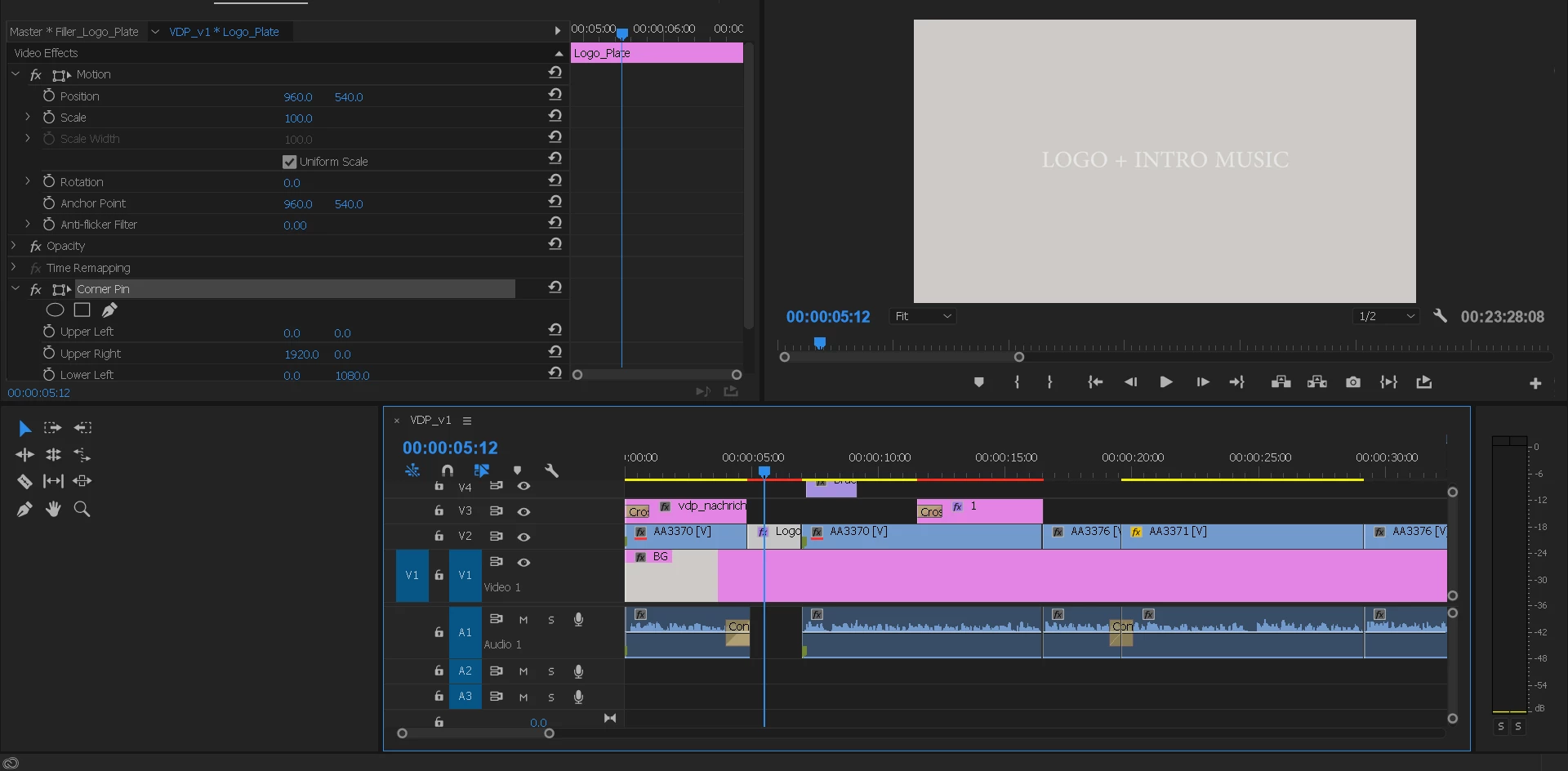
As you can see from the picture, I am unable to find the handles in the program monitor for the corner pin effect. This issue also extends to not being able to see the handles when I click on "Motion" in the effects control panel, which usually also gives me handles in the program monitor. Unlike in After effects, I haven't found any preference to turn these handles on/off.

I am using a Dell Inspiron Gaming Laptop (That's what it is called)
Windows 10 64 Bit Home Edition

16GB Memory

Geforce GTX 960M 4GB

Not using any secondary monitor.

Help is appreciated.

EDIT: They seem to appearing when I maximize the program monitor, but still do not display in the standard editing workspace view.
This topic has been closed for replies.
Correct answer Ann Bens

That is how it is suppose to work...but I watched this user on new project, with new prefs, and he could not activate the motion 'handles' by double click on the single asset in the program monitor or click on the icon in the Effects panel --he inadvertently click on the gray bar next to the word Motion and then it activated...I am sure it was just a bug but very annoying...

So your saying on Windows you have to click on the gray bar to activate the feature? Strange if true because I just tried it on windows computer with the latest version and worked just fine without directly clicking on the gray bar...ah computers...thanks for your comment


8 replies

Participant
March 15, 2023

For me any of these fixes don't work. No matter what, the handels do not appear so I have to adjust the values just entering the values. So frustrating. BTW, I'm using latest Premiere Pro 2023. 

Kevin-Monahan
Community Manager
Community Manager
March 15, 2023

Hi Default! 

Thanks for the note and welcome to Adobe forums. I am one of the community managers here. Sorry for the frustration.


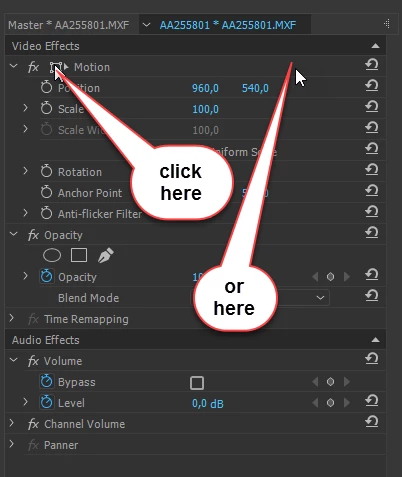
The "secret" here is to click on the name of the effect itself in the Effect Controls panel in order to see the "handles."


Does that work for you? Let me know.


Thanks,

Kevin

Kevin Monahan - Sr. Community and Engagement Strategist – Adobe Pro Video and Audio
Participant
April 17, 2021

The solution for many users (including me) is just here:
(13) Can't See Mask Blue Edges. FIXED !!! Blue Outline now visible with stacked Pannel in Premiere pro - YouTube

Actually it fixes the visibility of mask guideline and dimensional handles+anchor point at the same time.

Participant
August 29, 2020

 HELLO EVERYONE.


I am editing on a windows operating system and neither changing my display resolutions or other tricks didnt helped me see the (blue ) anchor point or the mask. But somehow i did found a trick by creating a black video and use it as a 1st layer, and when i was selecting the text or mask I could see the anchor point.


Hope that works for you too .


I had used it for making a handwriting effect text .


Peace !


Inspiring
April 3, 2017

I just had a student with the same problem on a new dell laptop, and he had to select the clip in the Timeline panel and then ACTUALLY HAD TO CLICK ON THE GREY BAR NEXT TO THE WORD 'MOTION' FOR THE handles to appear...strange

Ann Bens
Community Expert
Community Expert
April 3, 2017

That is how it works or double click in the program monitor.

Inspiring
April 3, 2017

That is how it is suppose to work...but I watched this user on new project, with new prefs, and he could not activate the motion 'handles' by double click on the single asset in the program monitor or click on the icon in the Effects panel --he inadvertently click on the gray bar next to the word Motion and then it activated...I am sure it was just a bug but very annoying...

So your saying on Windows you have to click on the gray bar to activate the feature? Strange if true because I just tried it on windows computer with the latest version and worked just fine without directly clicking on the gray bar...ah computers...thanks for your comment

Participant
March 16, 2017

Well, here's a partial, possible solution. I am having the exact same problem. It just started yesterday. The anchor point and boundary box just vanished from the program monitor. From you I got the idea to try it full screen, and voilà, they reappeared. But it is very difficult to work that way. So, then I tried enlarging the program monitor and it actually started working again when I enlarged it to take up about 1/3 of the entire screen. See second screen shot below. I'm on a Lenovo P50 workstation with 60G RAM, and like I said, it was working normally 2 days ago. Looking forward to a better solution.

Ann Bens
Community Expert
Community Expert
March 16, 2017

Your screendumps are unreadable, too small.

Participant
March 17, 2017

There's nothing to read. You can see clearly that the "handles" on the program monitor are not visible on the first screen and visible on the second.

elfilms
Participant
February 18, 2017

Hi I have this exact same problem. This issue only just started recently, as about a month ago I didn't have any problems.

I have a

Dell Precision T1650

Windows 7 SP1

16Gb RAM

Nvidia Quadro 2000

And no secondary monitor

I haven't changed my screen resolution in the last year. So if it was that, then why did it work in January?  And why has it worked for the past 3 years? Tried the alt-shift option. Absolutely no effect.

This looks like some kind of PP bug if you ask me.

How are we supposed to use this product if the basics don't work?

**I am hoping that someone from Adobe will comment. Seeing as there seems to be no weekend support AT ALL now.

P.S. When program monitor is maximised, the handles etc appear, but the background image disappears. So not very useful.

Ann Bens
Community Expert
Community Expert
February 1, 2017

Try this:

Restart computer, hold down alt+shift while opening Premiere.

(make a backup of all your presets).

Legend
February 1, 2017

I think the issue is your screen resolution.  Take a look at step 4, specifically part A.

Premiere Pro Troubleshooting Guide