Known Participant
March 31, 2020
Answered

How can I edit markers on timeline graphics

  • March 31, 2020
  • 2 replies
  • 1120 views

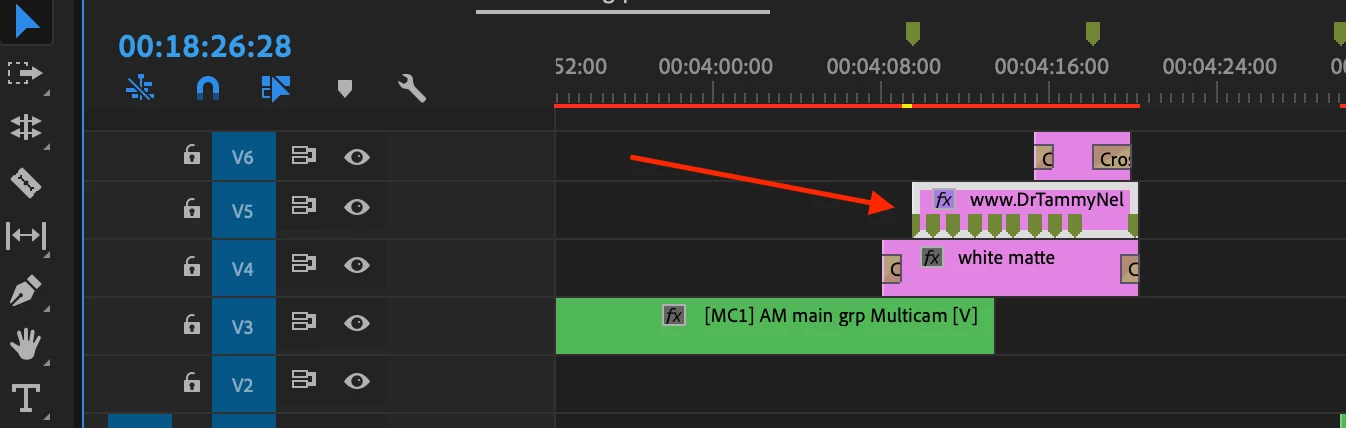
I'm looking to edit the markers that were placed on the (Essential) graphics in the timeline. (PPr v 13.1.4 (Build 2)). The screenshot shows what I'm referring to; arrow pointing to the markers.  I'm looking to eliminate the ones I no longer need.  Anyone know how to do this?
This topic has been closed for replies.
Correct answer Ann Bens

Drag graphics into Source Monitor.

2 replies

Community Expert
March 31, 2020

if you do not get a source monitor when double clicking a clip on the timeline, trash your preferences

chebowitzAuthor
Known Participant
March 31, 2020

Again, thanks for chiming in Carlos.

If I "trash" my preferences, won't that cause all my preferences to be wiped out?  If so, that's not an ideal solution.  This is graphics clip - created via essential graphics.  When I double click on it I see it in a program monitor and able to edit the contents of the essential graphics.  But I don't see anything related to the markers.  Are you sure markers in essential graphics can be edited that way?

Ann Bens
Community Expert
Ann BensCommunity ExpertCorrect answer
Community Expert
March 31, 2020

Drag graphics into Source Monitor.

Community Expert
March 31, 2020

double click your clip or graphics in the timeline to open it in source monitor,

double click on your markers in the source monitor to edit or delete them,

or select your marker in the source monitor, right click and choose

clear selected marker

chebowitzAuthor
Known Participant
March 31, 2020

Carlos: Thanks for chiming in. That's what I thought would happen.  But, unfortunately, double clicking the graphics doesn't open a source monitor.  What does open up is a Program monitor showing the graphic WITHOUT any markers.  The timeline has a multicam sequence in it.  Would that make a difference?