


XilburQost
Inspiring
September 25, 2026
Answered

How do I create a transparent (alpha) mask on a video clip?

  • September 25, 2026
  • 3 replies
  • 19 views

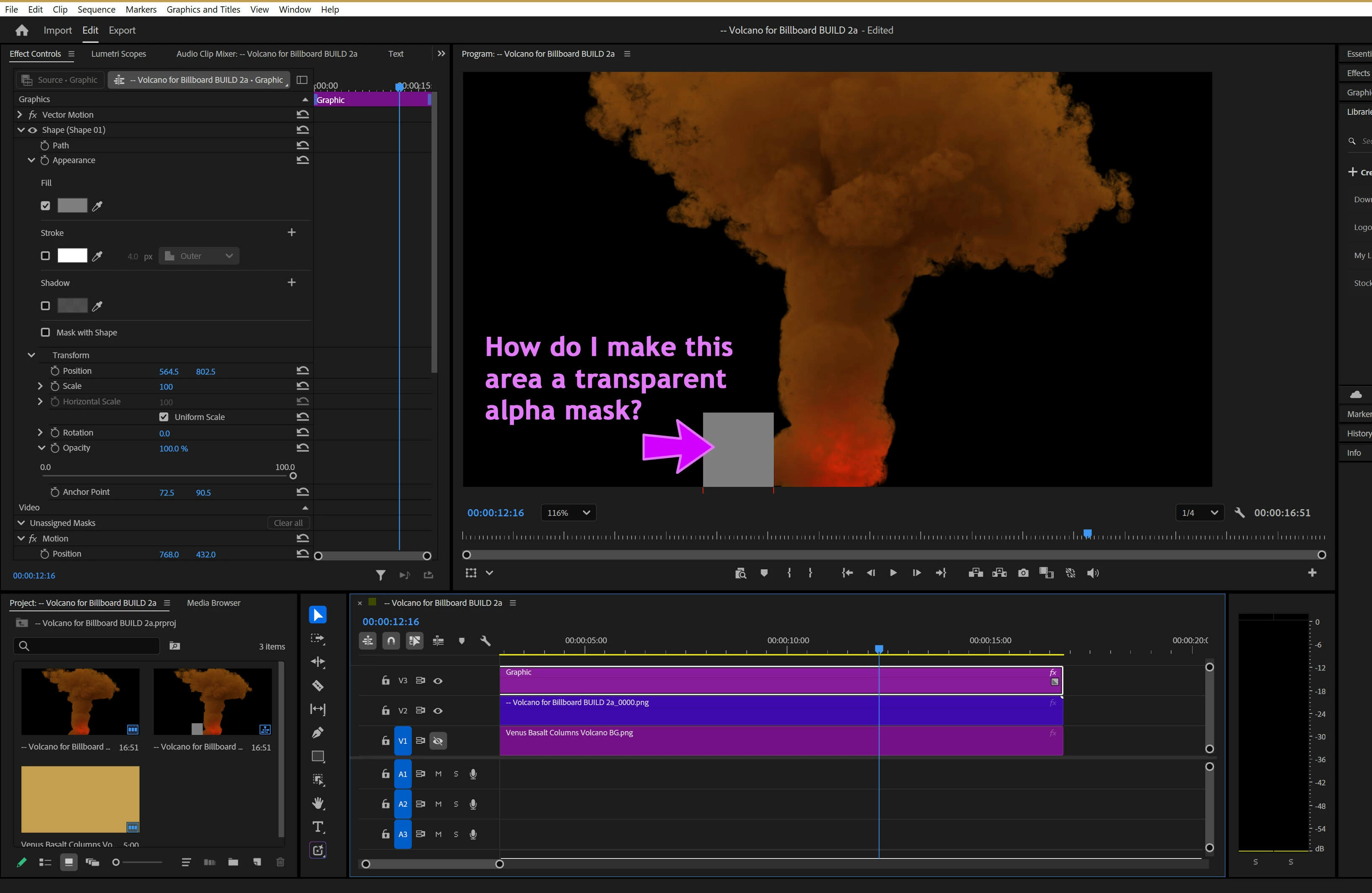
I want to make a simple, rectangular transparent “hole” in a video clip, e.g., I want the rectangle to be a simple alpha mask. I’ve searched all over the web and I keep finding different solutions, but none appear to be relevant to my Windows 11 version of Premiere Pro (26.5.1). I know it can’t be that complicated, but I’m out of ideas. Any suggestions? Thanks.
 

Correct answer Sumeet Kumar Choubey

Hi XilburQost,

Welcome to the community!
To do this, select your clip on the timeline so it's highlighted & then perform these steps.

  1. Open the Effect Controls panel (Window > Effect Controls, if it's not already open).

  2. Select the Rectangle Mask tool from the toolbar and draw a rectangular mask directly on your video in the Program Monitor.

  3. In the Effect Controls panel, under Video > Unassigned Masks, you'll see the Rectangle Mask. Right-click it and select Change to Opacity Mask.

  4. Under Opacity > Rectangle Mask, enable Inverted.

This should create a rectangular transparent hole. If there's nothing below it, you'll see black (or a checkerboard pattern in the Program Monitor if the transparency grid is enabled) & if there's a clip below it, that clip will appear through the rectangular mask.

Hope it helps.

Thanks,
​​​​​​​Sumeet

3 replies

XilburQost
Inspiring
September 25, 2026

Thank you, Sumeet! The part I was missing is that the Rectangle Mask is hidden in the Object Mask tool submenu.

Community Manager
September 25, 2026

Glad it helped! Feel free to reach out if you experience any issues or have any questions. We’re here to help.

Thanks,
Sumeet

Sumeet Kumar ChoubeyCommunity ManagerCorrect answer
Community Manager
September 25, 2026

Hi XilburQost,

Welcome to the community!
To do this, select your clip on the timeline so it's highlighted & then perform these steps.

  1. Open the Effect Controls panel (Window > Effect Controls, if it's not already open).

  2. Select the Rectangle Mask tool from the toolbar and draw a rectangular mask directly on your video in the Program Monitor.

  3. In the Effect Controls panel, under Video > Unassigned Masks, you'll see the Rectangle Mask. Right-click it and select Change to Opacity Mask.

  4. Under Opacity > Rectangle Mask, enable Inverted.

This should create a rectangular transparent hole. If there's nothing below it, you'll see black (or a checkerboard pattern in the Program Monitor if the transparency grid is enabled) & if there's a clip below it, that clip will appear through the rectangular mask.

Hope it helps.

Thanks,
​​​​​​​Sumeet