



How do I hide specific clip keyframes (speed) without hiding the entire thing?
Hi,
I've been using Premiere Pro since fall 2017, and I mostly have the hang of it. But one thing I can't find the answer to is how to hide individual clip keyframes.
This is what I'm dealing with:
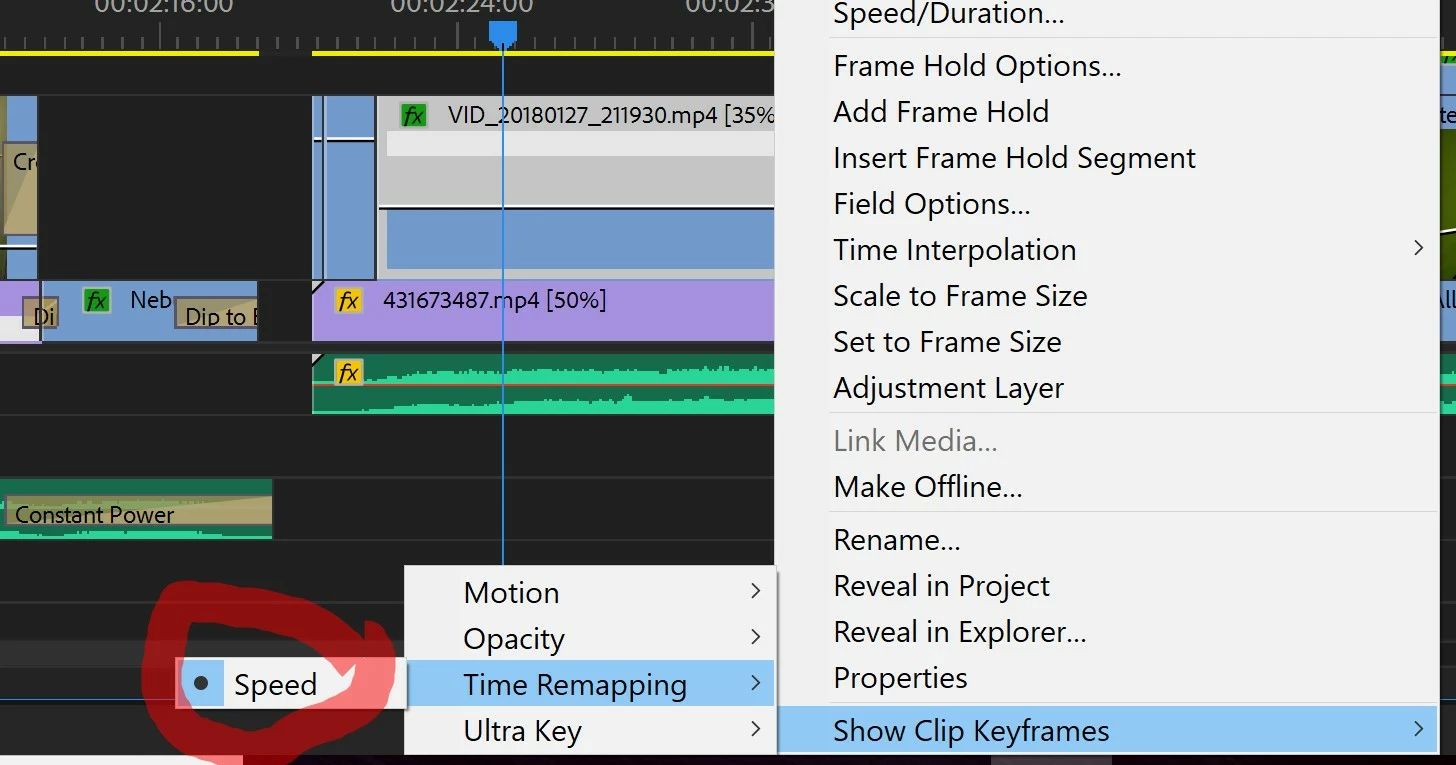
So it appears that there's no way to "deselect" the above option. I don't understand why that would be, as it's inconvenient for me personally.
I was trying to show the speed keyframes of one clip, and I accidentally toggled it for the entire track. I tested it again the right way on one individual clip on the track above, and it did the same thing; I can't deselect the "Speed" option. I also can't undo it with CTRL+Z.
Is there something I'm missing here? Or a workaround? I don't want to just hide all keyframes.
I'm running Premiere Pro CC 12.0.1 on Windows 10.
Any help will be appreciated.
 AdChoices