


Inspiring
May 10, 2024 5:32 PM UTC
Answered

How do I modify motion graphics titles?

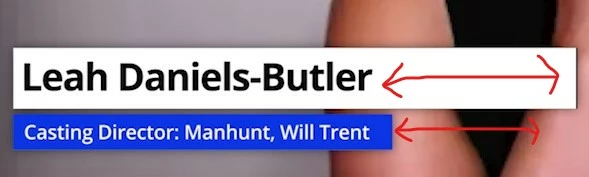
I'm using motion graphics for titles on interviews I do and I can't seem to figure out how to make the masks longer or shorter based on the name for each interviewee. 


Also, I can't figure out how to make the motion graphic title stay on the screen longer than 5 seconds.
Thanks!


AnnikaKoenig
AnnikaKoenigCorrect answer
Legend
May 10, 2024 8:08 PM UTC

Thanks @Peru Bob  but I do not recommend using frame holds and cutting the graphic is also not required. A title can just be trimmed to a desired length.

5 replies

Participant
Aug 29, 2025 10:19 AM UTC

For adjusting the mask length in After Effects, try using an expression linked to the text length—it’ll automatically stretch or shrink the mask depending on the name. For keeping titles longer on screen, just extend the layer duration in the timeline. Worked on a project for global leadership town hall support once, and setting the layer duration correctly saved so much back-and-forth with edits.

Translate
Peru Bob
Community Expert
Community Expert
May 10, 2024 6:11 PM UTC
quote

I can't figure out how to make the motion graphic title stay on the screen longer than 5 seconds.
By @KLC1


Make a cut and do a frame grab.  Place the frame grab between the cut clips and stretch it to the required length.

Alternatively, use a frame hold.

Translate
AnnikaKoenig
AnnikaKoenigCorrect answer
Legend
May 10, 2024 8:08 PM UTC

Thanks @Peru Bob  but I do not recommend using frame holds and cutting the graphic is also not required. A title can just be trimmed to a desired length.

Translate
AnnikaKoenig
Legend
May 10, 2024 6:00 PM UTC

Hi!

  1. Bring up the Essential Graphics panel through the top Windows menu
  2. Make sure you are in the "Selection Tool" (Looks like an arrow)
  3. Click on one of the Text layers in Program Monitor, this will also select it in the Essential Graphics panel


Here you will see all your layers. I assume you have two text layers and two shape layers. Instead of using shape layers, you can just turn on "Background" for the text layer pretty low in the Essential Graphics panel. There are some limitations to using Background over shapes, but if that works for you, that's the easiest.


You can make the graphic longer by clicking at the ending edge of the clip in the timeline and dragging it out.

Let me know if you have more questions!

Annika

Translate
R Neil Haugen
Legend
May 10, 2024 5:52 PM UTC

There are some useful tutorials out on the interwebs ... and some horrificly flawed ones of course.


Premiere can make some pretty awesome graphics now. However, AfterEffects is built to do this sort of thing, and is far more capable and powerful. There's always a consideration how far to try and go in Pr before you simply go to Ae to build them of course.


There's online material by Nick Harauz, Eran Stern, KylesourusRex, and Jarle Leirpoll that are very good. There's also the free ebook of Jarle's Adobe provides on making easy to create but awesome graphics in Ae. (I was spell checker/grammarian/tester for that in creation.)


Jarle’s Making Mogrt’s ebook on Adobe blog


Translate
Everyone's mileage always varies ...