Participating Frequently
January 12, 2025
Answered

How to Create Audio Mixdowns for 8 channel MXF OP1a Export

  • January 12, 2025
  • 1 reply
  • 418 views

Hey gang!


I want to export my sequence with 8 tracks of assigned audio channels for an MXF Op1a master archive file.

My timeline is organized like this:

A1 - VO

A2 - Camera Mic/SOTS

A3 - Natural Sounds

A4 - SFX

A5 - Music

A6 - Music


The 8 channels in the master file will look like this.

Ch 1 - stereo Left (full stereo mix of all tracks combined)

Ch 2 - stereo Right (full stereo mix of all tracks combined)

Ch 3 - Nats

Ch 4 - SOTS

Ch 5 - VO

Ch 6 - SFX

Ch 7 - Music Stereo Left

Ch 8 - Music Stereo Right


I've watched many videos on multichannel audio assignements but I still feel like I'm missing something. The Mix Track Channel in the output assignments are a little confusing I guess. Avid Media Composer does a good job of a handling audio mixdowns but I can't seem to adapt here in Premiere...yet.


I appreciate any insights, thanks!
Correct answer PaulMurphy

Creating audio mixdowns like this can be tricky, because you need certain tracks (like VO or SOTS) center-panned for the full mix but assigned to specific channels for the split. Here’s how you can achieve this:

Step 1: Set Up a Multichannel Sequence

  1. Go to File > New > Sequence.
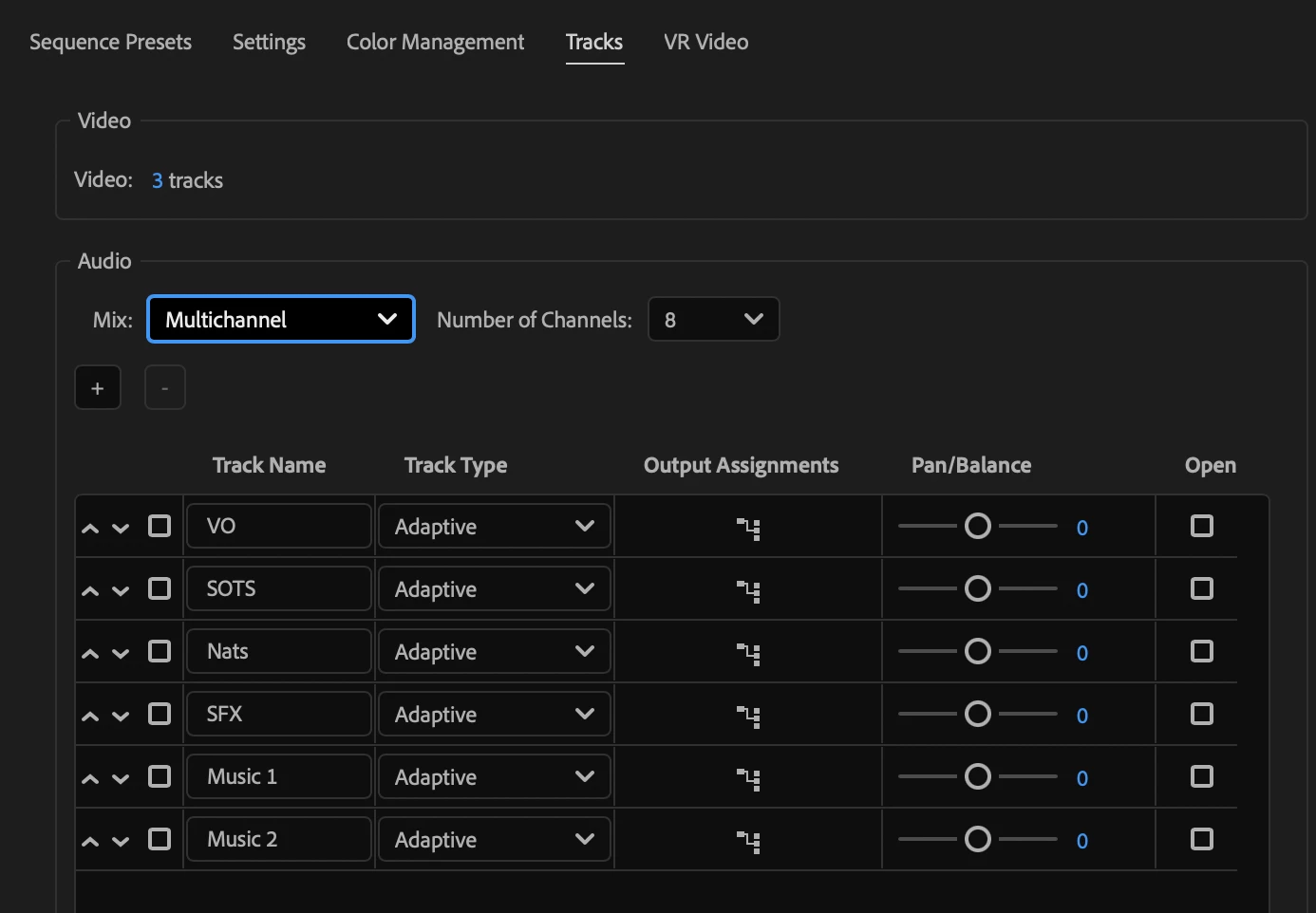
  2. In the Tracks tab, set the following:
    • Audio Mix: Multichannel
    • Number of Channels: 8
  3. In the track list below, add 6 audio tracks and set each track’s Track Type to Adaptive.

Step 2: Assign Audio Outputs

Assign the output channels for each track:

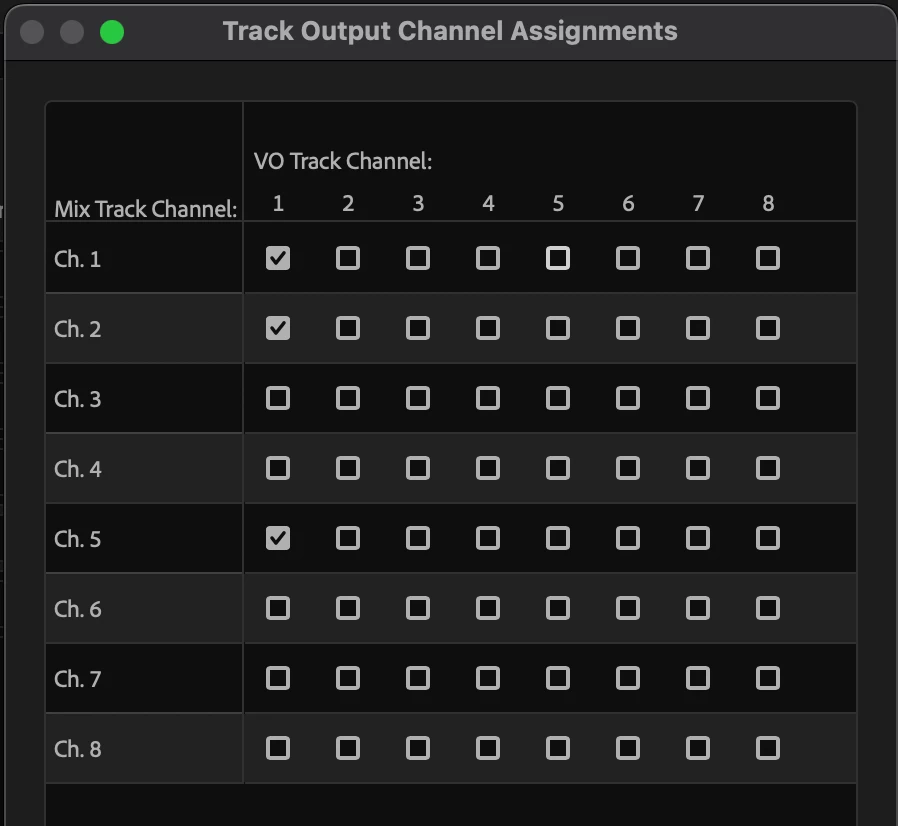
  • For the VO track:
    • Click the Output Assignments button.
    • In the first column, check Ch. 1, 2, and 5 to send audio to these channels in the output
  • For Camera Mic/SOTS, Natural Sounds, and SFX tracks:
    • Follow the same approach as above but assign channels as follows:
      • Camera Mic/SOTS: Ch. 1, 2, and 4
      • Natural Sounds: Ch. 1, 2, and 3
      • SFX: Ch. 1, 2, and 6
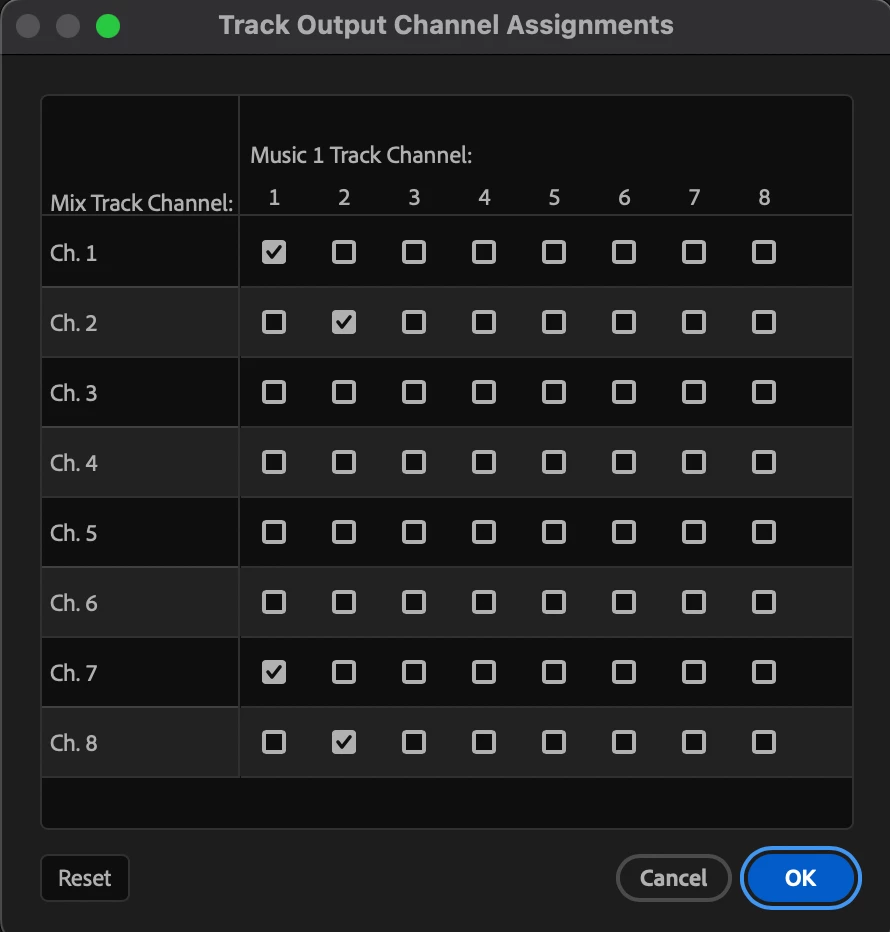
  • For Music tracks:
    • Assign to Ch. 1 and 7 in the first column and Ch. 2 and 8 in the second column.


Channel Assignment for VO


Channel Assignment for Music

Step 3: Export Settings

  1. When exporting, go to the Audio section.
  2. Click the More button below Basic Audio Settings.
  3. Set Output Channels to 8 to ensure your mixdown is correctly assigned.

1 reply

PaulMurphyCommunity ExpertCorrect answer
Community Expert
January 13, 2025

Creating audio mixdowns like this can be tricky, because you need certain tracks (like VO or SOTS) center-panned for the full mix but assigned to specific channels for the split. Here’s how you can achieve this:

Step 1: Set Up a Multichannel Sequence

  1. Go to File > New > Sequence.
  2. In the Tracks tab, set the following:
    • Audio Mix: Multichannel
    • Number of Channels: 8
  3. In the track list below, add 6 audio tracks and set each track’s Track Type to Adaptive.

Step 2: Assign Audio Outputs

Assign the output channels for each track:

  • For the VO track:
    • Click the Output Assignments button.
    • In the first column, check Ch. 1, 2, and 5 to send audio to these channels in the output
  • For Camera Mic/SOTS, Natural Sounds, and SFX tracks:
    • Follow the same approach as above but assign channels as follows:
      • Camera Mic/SOTS: Ch. 1, 2, and 4
      • Natural Sounds: Ch. 1, 2, and 3
      • SFX: Ch. 1, 2, and 6
  • For Music tracks:
    • Assign to Ch. 1 and 7 in the first column and Ch. 2 and 8 in the second column.


Channel Assignment for VO


Channel Assignment for Music

Step 3: Export Settings

  1. When exporting, go to the Audio section.
  2. Click the More button below Basic Audio Settings.
  3. Set Output Channels to 8 to ensure your mixdown is correctly assigned.
kyle_5074Author
Participating Frequently
January 14, 2025

worked perfectly, thanks Paul!