
sarah_williams
Participant
March 13, 2014
Answered

How to get rid of Warp Stabilizer warning?

  • March 13, 2014
  • 10 replies
  • 44906 views

Hello,

I put warp stabilizer onto my video and I got this warning:

warp stabilizer requires clip dimensions to match sequence (fix by nesting)
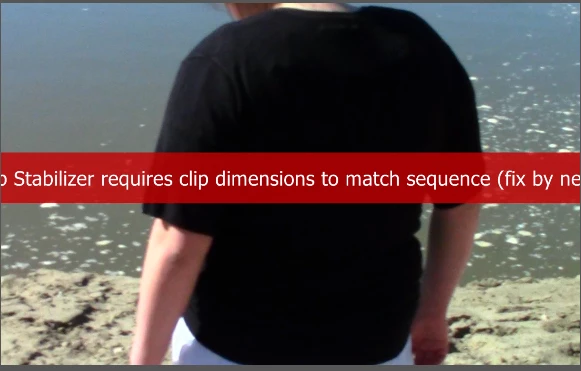
However, after I nested the video and it finished stabilizing, I now cannot get rid of that warning.

I do not know if I need to just redo, would that be best?

Best regards,

Sarah

This topic has been closed for replies.
Correct answer petergaraway

That's what I thought as well, because when I placed the clip in the sequence, it did not change the dimensions.

By what do you mean of formats? Like different titles or video formats or different files, like jpegs or pngs?


Hi Sarah,

I think I know what may have happened here. My guess is, you applied Warp Stabilizer in a sequence that didn't match the clip dimensions and then nested your sequence and applied Warp Stabilizer again without removing the first effect.

Try starting again.

1. Nest the clip that you want to apply the Warp Stabilizer effect to

2. Once nested apply Warp Stabilizer

Let us know how it goes.

Best,

Peter Garaway

Adobe

Premiere Pro

10 replies

mikem59299923
Participating Frequently
July 29, 2021

I applied Warp Stabilizer to 25 clips, after being told to "Nest" them. It did not work and I cannot get the red warning off. I am in a panic and have to have this video done today for presentation.

I did read somewhere that "click warp stabilizer in the pop up box, click " hide  stabilizer warning"...I have no idea were to find this. Any help would be greatly appreciated.

Thanks so much

jia angelicai66775884
Participant
March 31, 2019

Your advice worked! Thank you

Participant
March 28, 2018

Thanks mate!

pahlito
Participant
March 2, 2018

Old thread but here is more specific advice on how to get rid of and avoid this warning:

The easier situation: If you've already applied warp stabilizer and get the error, remove the effect first before doing anything else. Do not nest the clip with the warp still applied.

If you do like I did and nest the clip with the effect (and warning) still in place, you might get stuck with the banner even if you remove the whole effect from the timeline. You need to go within the nested clip to remove the effect to get rid of the warning. You can do this by double clicking the sequence/clip on the timeline and it should open the nested sequence on the timeline on it's own. Now remove the warp and you should get rid of the warning. Then close the nested clip. back on the timeline, reapply warp stabilizer.

I hope that makes sense

Participating Frequently
December 11, 2018

Thanks. That's what I wanted. The original "correct" answer just says to start again. I didn't want to do that!

Participant
October 21, 2017

Hey - I just fixed mine. I applied the warp, got the message, nested the clip and the message wouldn't go away.

Turns out warp was still applied to the clip 'within' the nest.

I didn't delete it before nesting, might be the same thing that tripped you up.

sebastiane43415537
Participant
March 11, 2017

You can right click the Fx button in the sequence with the warning, click warp stabilizer in the pop up box, click " hide  stabilizer warning"

Ann Bens
Community Expert
Community Expert
March 11, 2017

I would advice against turning off the banner.

You can easily see if a clip is done correctly or not.

Admirable_mentor0D45
Participating Frequently
April 13, 2020

Is there an over all preference to turn off the warning? Often when exporting a concert, if there is a hiccup in the warp stabilizer it will print that warning only to ruin a 2 hour export. If I get to that point, I'd just soon turn off the warnings and ignore anything that was ready to show an error.

pedrofp6
Participant
April 9, 2016

I've had a similar issue.
By mistake I had applied the warp stabilizer in the nested sequence.
Just delete the effect wherever you've applied it, and then apply it in the sequence you are working on (not the nested).

Participant
February 13, 2020

you saved the day Pedro! The other advice by the Adobe admins doesn't always apply

mine was NOT working until i tried your solution. My guess is you have to warp stabilize whichever format you want to finish with. my project was mostly 2k and I imported a 4.6k shot and had to stabilize the 4.6k one. however only until i stabilized the nested file in the project timeline, not the nest timeline

sarah_williams
Participant
March 16, 2014

Thank you all for the help!

Zephski
Participating Frequently
September 14, 2015

I get the same non sense. I apply the WS and get the red banner. I follow the banners advice and Nest and apply the WS. Does the banner disappear? No it does not. Does it get exported during rendering? Of course it does. Do I have to do the usually convoluted fix to make it work? yup. It's Adobe.

Kevin-Monahan
Community Manager
Community Manager
September 14, 2015

Do I have to do the usually convoluted fix to make it work? yup. It's Adobe.

Zephiski,

Sorry for your issues, but "Adobe" cannot really hear your complaint unless you file a bug report here. This forum is mainly a user to user forum with sporadic participation by Adobe employees volunteering their free time.

Thanks,

Kevin

Kevin Monahan - Sr. Community & Engagement Strategist – Pro Video and Audio
Ann Bens
Community Expert
Community Expert
March 13, 2014

Nest first then apply Warp.

shooternz
Legend
March 13, 2014

Did you do as the message advised?

sarah_williams
Participant
March 13, 2014

Yes, I already nested the video. After I nested it, PP automatically started the stabilizer. However, once it was finished, that warning wouldn't go away.

Kevin-Monahan
Community Manager
Community Manager
March 13, 2014

Sarah,

Hmmm, that's not typical.

I'm curious. Why does the clip not match your sequence settings? Do you have multiple formats in your timeline?

Thanks,
Kevin

Kevin Monahan - Sr. Community & Engagement Strategist – Pro Video and Audio