lfb_billy
Inspiring
March 27, 2026
Answered

How to mask and add a stroke to an image.

  • March 27, 2026
  • 1 reply
  • 17 views

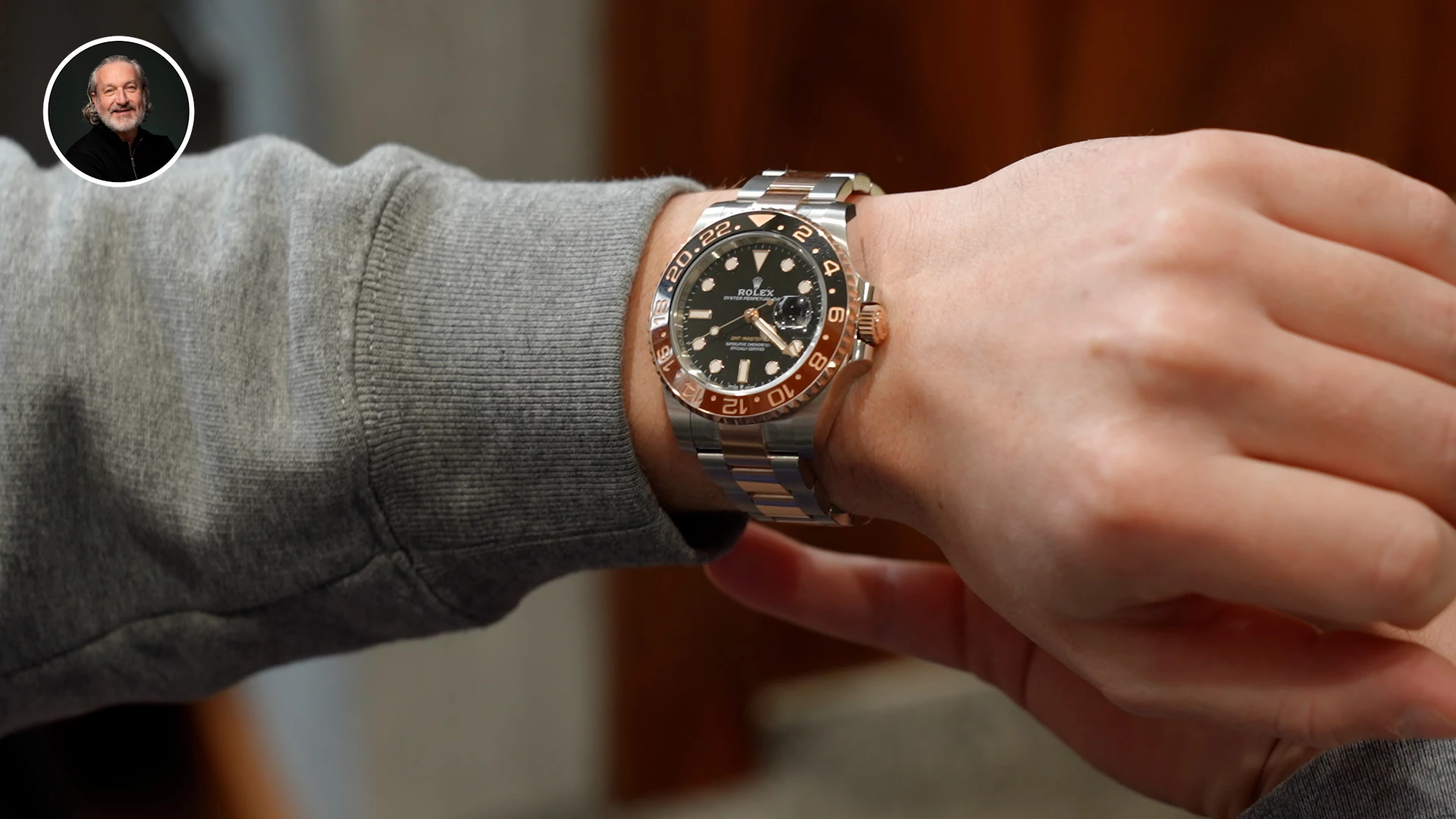
In the version 26 is there a way within Premiere to apply a shape mask to an image and then add a stroke to it? (See the attached image) 

I have tried adding a mask to the image and then adding the stroke effect to the image with zero joy. I then tried to add the stroke effect to the image without a mask. Then had to google why it doesn’t show up on that either. Turns out you have to apply a Pre transform and re-scale it. Which is possibly the most unituitive way to go about out it. So then I tried to add the mask back in and bam, no stroke. 

I gave up and did it in Photoshop instead. But it would be good to see if someone knows how to do this seeminlgy rudimentary task within photoshop. 
 

Thanks

    Correct answer Ann Bens

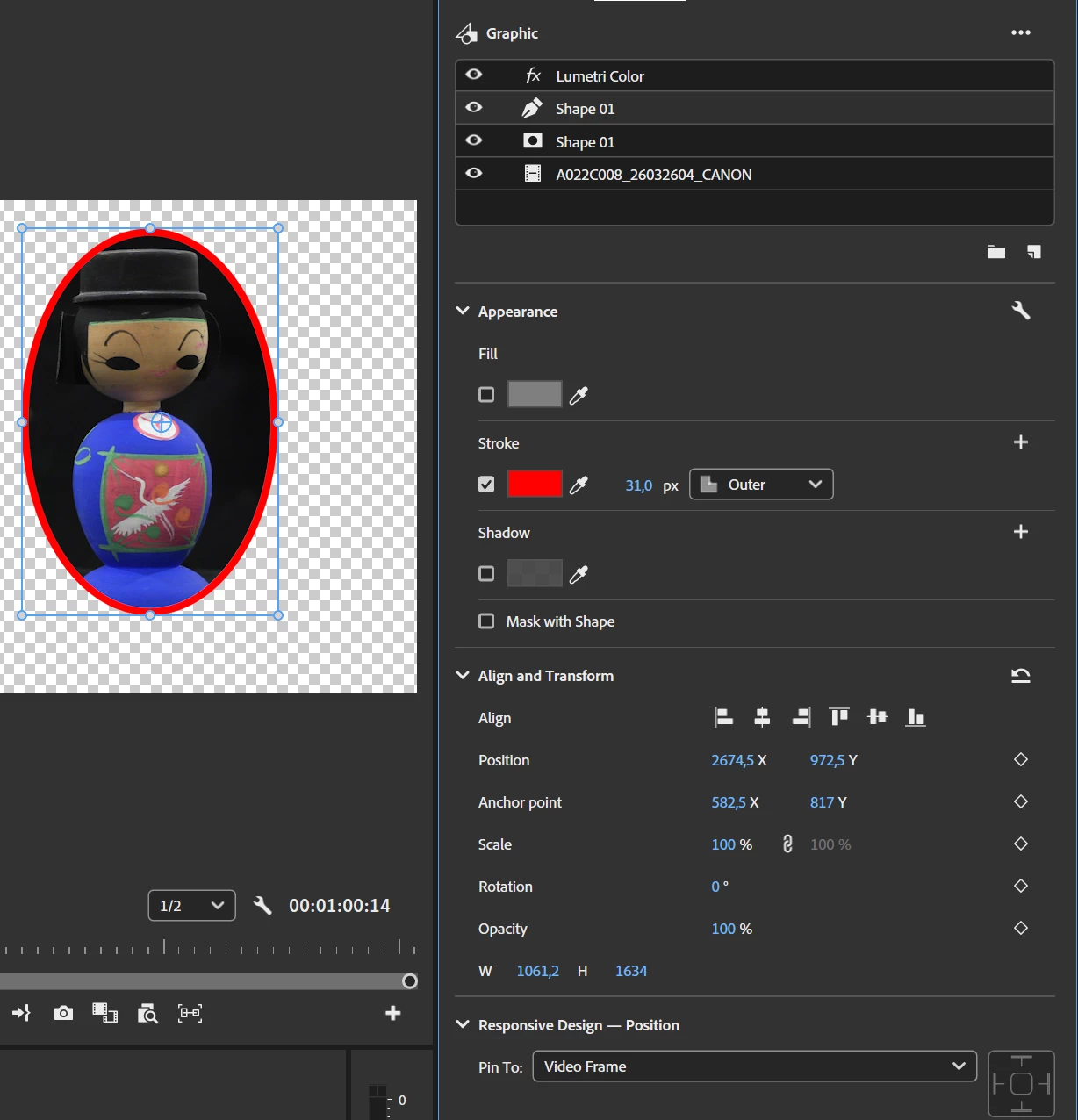
    I find the easiest way to do this in the Properties panel

    Draw a shape, add the image to that shape then Mask with shape,

    Duplicate shape without the mask, uncheck fill and set stroke.


    1 reply

    Ann Bens
    Community Expert
    Ann BensCommunity ExpertCorrect answer
    Community Expert
    March 27, 2026

    I find the easiest way to do this in the Properties panel

    Draw a shape, add the image to that shape then Mask with shape,

    Duplicate shape without the mask, uncheck fill and set stroke.


    lfb_billy
    lfb_billyAuthor
    Inspiring
    March 27, 2026

    Thanks Ann. I’ve just tried this and hey presto it works. I’m glad we now have a searchable method for others who have fallen victim to one of the many inefficiencies of Premiere Pro.