


Inspiring
December 19, 2025
Question

How to prepare final effects with 'rough' take footage?

  • December 19, 2025
  • 2 replies
  • 350 views

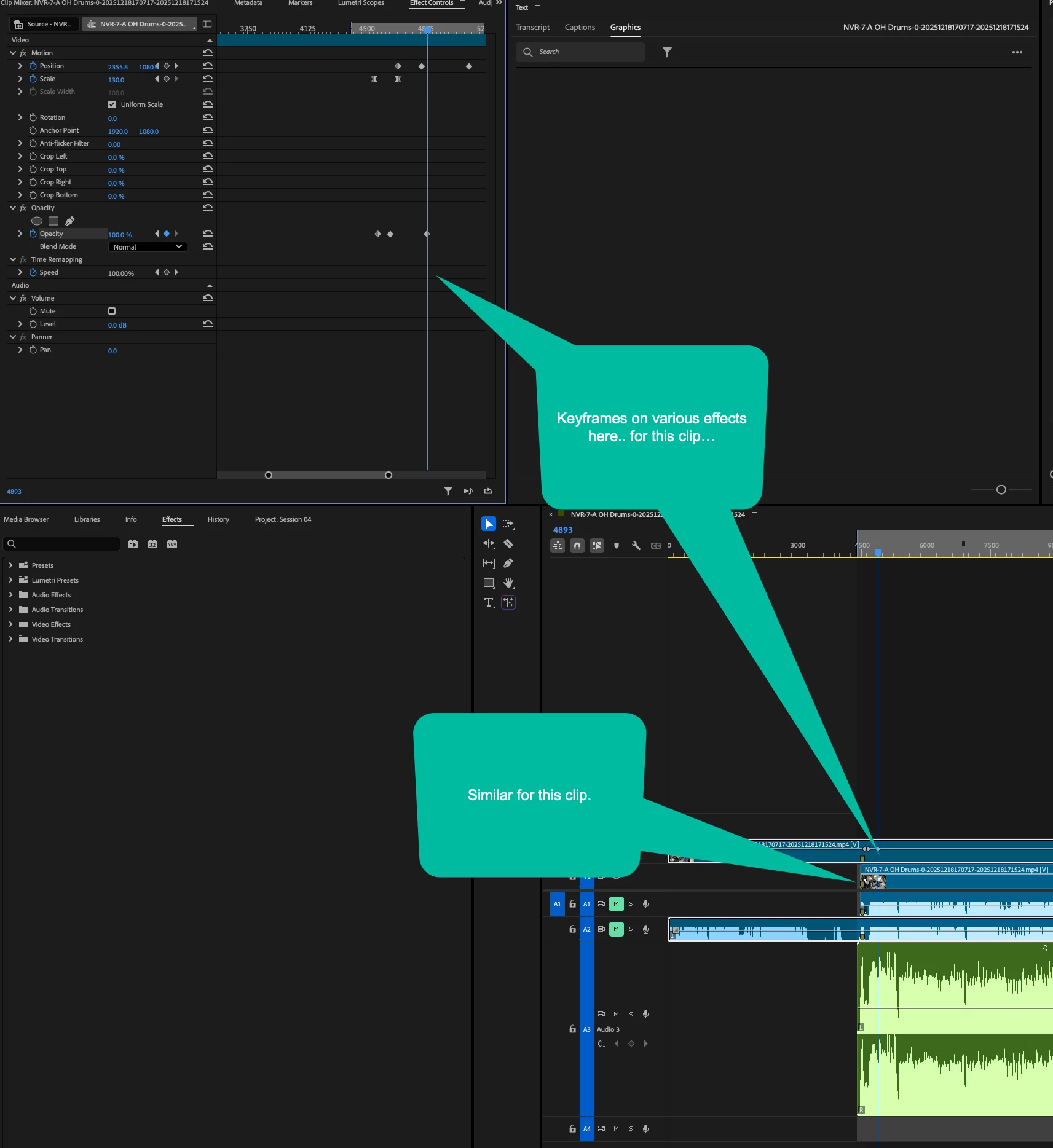
Hi... I am working on a well timed continuous two camera shot of footage that my 'rough' take has the percise timing, etc, and I want to work out my various effects on the footage in premiere (e.g., keyframes on motion, opacity, etc..)... then, when I finally get around to getting a good take (may be days/weeks from now), I want to basically just swap out the old footage and in the new footage.  How might I accomplish that?  As far as I know so far, the effects I'm applying are clip itself, and thus, if I replace it, the effects/keyframes will be lost.

I can't (as far as I know) just swap out the media file, as the pre-roll time may be different.. thus the exact frame where effect keys are will be offset one way or the other in that case.. e.g., my rough take may have 95 seconds of pre-roll, whereas my final may be 215, or 17, or whatever.

Tia!
 

870687i32AE3CE1AD8A2E07.png


2 replies

Averdahl
Community Expert
Community Expert
December 19, 2025

If you Alt+drag the new clip you can just drop it on the old clip. Now the new clip will replace the old clip and all effects and keyframes will still be there.


quote

...then, when I finally get around to getting a good take (may be days/weeks from now), I want to basically just swap out the old footage and in the new footage.  How might I accomplish that?  As far as I know so far, the effects I'm applying are clip itself, and thus, if I replace it, the effects/keyframes will be lost.


By @DoYouLikeHam
Ann Bens
Community Expert
Community Expert
December 19, 2025

@Averdahl 

But if the new clip and old one differ in length it wont have the keyframes in the same place.

Ann Bens
Community Expert
Community Expert
December 19, 2025

Put the new clip in the timeline above the one you want to replace in the exaxct positon you want it to be then copy all the keyframes over

Delete old clip and move the new clip down.

So

Put your cti on the first keyframe and lasso all keyframes in the effect controls

Now double click on the new clip (dont move the cti) select Motion in the effect controls and paste them 

Inspiring
December 19, 2025

Thanks!  I thought perhaps using a sub-clip or nested clip.. would alleviate the need to make sure I copy/paste all the keyframes from all the effects... like all things, I'm sure there are multiple ways... and different people find different workflows work well for them...  would like to undrestand other possibilities too!

Ann Bens
Community Expert
Community Expert
December 19, 2025

I do not see any advantage in using a nest or subclip.


You can also use replace clip from source monitor with matched frame.