Known Participant
October 23, 2018
Answered

How to remove Video part from Audio

  • October 23, 2018
  • 2 replies
  • 2176 views

Hello,

i'm trying to figure something out here.

As you can see in this image:
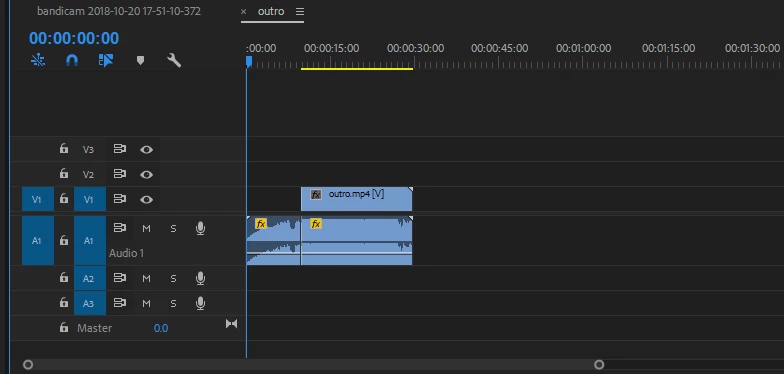
The first part is only audio, no video. that is what i want. 

Now what i'm trying to figure out, if i want to use this file you see above, in another project, how do i get it, so that i have it the same way?

Because if i try to import either the exported file, or the project, it automatically adds a video part to it as well.  It is a hassle to have to un-link and remove the video  every time.

Is there a way to import it the exact way you see it displayed above?

here you can see how it shows up after importing it somewhere else:
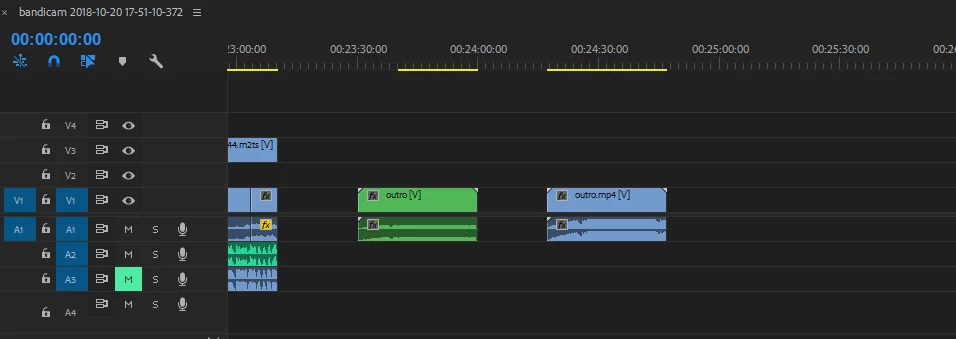
Again, i only want it as displayed in the first image, but it shows up as the 2nd one.

i hope i'm making sense, and someone can help me!

    This topic has been closed for replies.
    Correct answer Averdahl

    Alright, my reason for this was because i use this clip every day, and get tired of having to remove the video part every time. but i guess it is how it is.

    It is important, because i put it all over another video/audio source. because i want to mix the audio with that, But the video shouldn't cover the other source! that's why i have to remove the video part every time ( except for the 2nd bit of the video, since that comes after the other source )


    O.k, it´s time for you to discover how to edit fast without having to unlink and link clips, by using the Alt-key on the keyboard to temporarily override the link between video and audio.

    Here is a demonstration i found for you: The Power of the Alt / Option Key in Premiere Pro - YouTube

    2 replies

    Legend
    October 23, 2018

    I guess you can't. Sorry, I was sorta thinking one project could be made for multiple "edits" (sub projects in a way ).

    That is probably silly and would get very complicated with importing new footage for each sub project.

    Can't think of how to keep what you want otherwise.  Out of ideas.

    Averdahl
    Community Expert
    Community Expert
    October 23, 2018

    What you can do is loading the clip in the Source panel and either drag only the audio part down to the timeline. Use the icon in the attached image, click it and just drag down to the timeline. Or, do the same thing but instead of dragging the clip use track targeting and un-target the video track/s.

    Or, just drag the clip to the timeline and press the Alt-key and while you press it down click on the video portion to select it and then let go of the Alt-key and press Delete. You can also lasso select several clips at once making this process really fast and less fiddlier than the Source panel+track targeting. Do it the way that fit your needs best.

    SpirareAuthor
    Known Participant
    October 23, 2018

    But i still want the 2nd part of the video ( as in the first image )

    I was just wondering, if there was a way to import it as is, instead of having to re do it everytime

    Averdahl
    Community Expert
    Community Expert
    October 23, 2018

    Then the answer is no. There is no way to select audio only or video only upon import. All clips imports as is.