


Participant
March 11, 2025
Answered

How to resize titles?

  • March 11, 2025
  • 2 replies
  • 808 views

I have a project with lots of text/titles that I made in 720p.  Now I need to make a 2160p version.  The audio stays the same, and I've redone the graphics (animation frames) in 2160p, but the titles (cut and pasted from the 720p project) are the wrong size, and when I try to resize them, the move to the wrong places, disappear, etc.  Is there a way make this work without having to recreate all the titles from scratch?
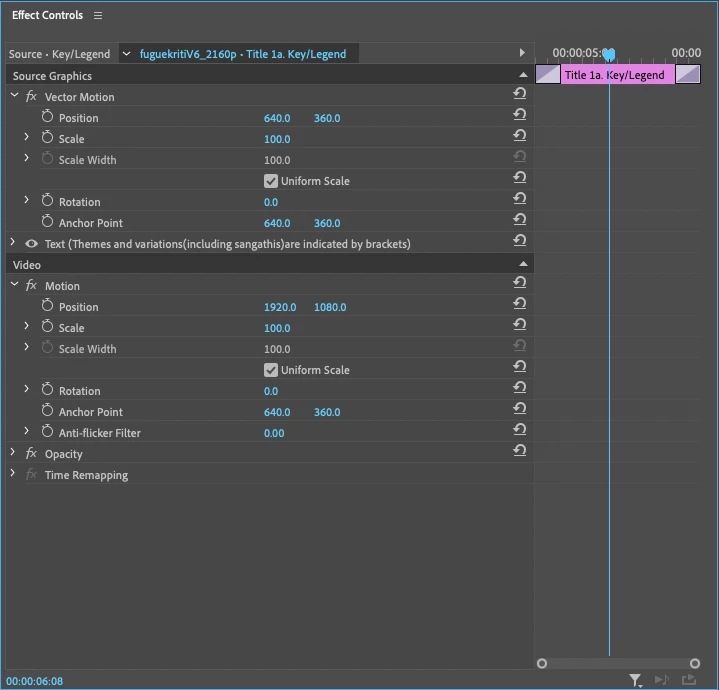
Correct answer PaulMurphy

Sure ... here it is ... 


It looks like the issue is that you're using Source Graphics. These graphics are tied to the original sequence's frame size, so when you paste them into a new sequence with a different resolution, they don't scale automatically.

A simple workaround is to:

  1. In your 720p timeline, select all your graphics.
  2. Go to Clip > Nest to combine them into a single nested sequence.
  3. Copy and paste the nested sequence into your 2160p timeline.
  4. With the nested sequence selected, go to Clip > Video Options > Set to Frame Size.


This method ensures that all your graphics scale proportionally to fit the new sequence size.

2 replies

Community Expert
March 11, 2025

Hey @musanim , as Paul said, copy-paste should scale automatically the text for you.
Also, try the following: in the project panel duplicate the 720p sequence, open "sequence settings" for the duplicated sequence, change "Editing Mode" into "Custom", set the "frame Size" to 2160p.
Premiere Pro should set the text size automatically to preserve the relative size of the text.
Please let us know if that solves the problem.

Community Expert
March 11, 2025

When you paste graphics between sequences, Premiere Pro automatically scales each individual layer within the graphic. This works well for simple designs but can disrupt more complex layouts with multiple layers and specific positioning. Unfortunately, there is no built-in option to disable this behavior.

If you can share a screenshot of one of your graphics along with its layers, we may be able to suggest an easy way to adjust the automatic scaling while maintaining the correct proportions.

musanimAuthor
Participant
March 11, 2025

Hi Paul, thanks for the help.  Here's a frame from the 720p version ... 


... and here's that frame in the 2160p version (as viewed in Adobe Premiere Pro, so not full size) ...

 ... and here's what the timeline for the project looks like ...

Let me know if these are not what you want.  I wasn't sure what you meant by "layers."  In that image, the red line is what's in the imported animation frame (which looks correct) and the text is what's getting resized.  This frame is from near the beginning, where there are two title elements in view.

musanimAuthor
Participant
March 11, 2025

Ooops, I see that drag-and-drop (which I did on the second image) didn't work right ... here's another try on that ... 


Yes, that's better.