
Participant
April 5, 2022
Question

How to save an intro audio with fade effect for using in other videos?

  • April 5, 2022
  • 2 replies
  • 483 views

Hello all together,


I'm a beginner with Premiere Pro and looking for help. I build up an online course with several videos. In my first video there's an audio as an intro with fade out effect and a similar audio as an outro.I did it by myself and now I want so save both of them as a kind of shortcut or edited data for using it in all other videos so I don't have to add the effects and keyframes again and again. How is this possible?
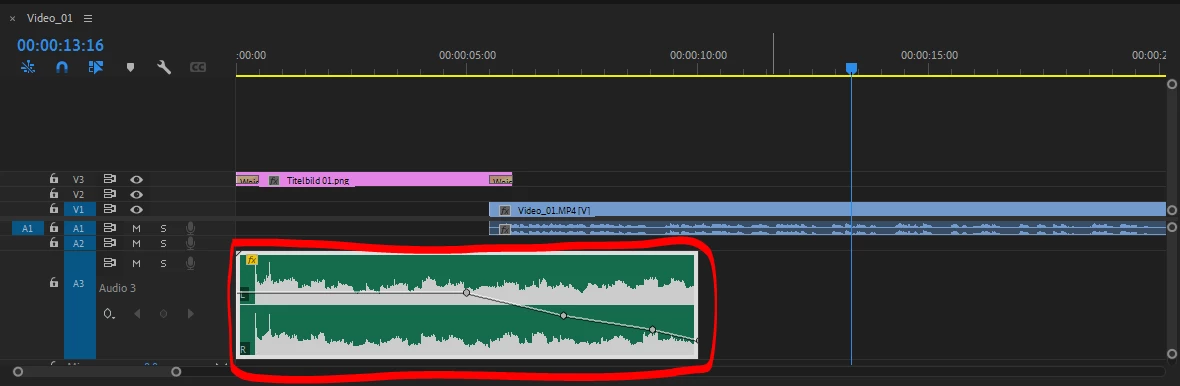


Thanks for your advice!

This topic has been closed for replies.

2 replies

Community Expert
April 5, 2022

There's a couple different things you can do depending on how you want to continue to use this.

1) A direct answer to your question. Set in and out points around the audio clip with i for in and o for out, or by pressing the / key while it's selected (as shown in your picture). Then you can press CTRL M or File > Export > Media. Choose Waveform Audio as the Format. Export that audio clip somewhere on your drive where you can easily find it.

2) Some other options for re-using this.

     - Add the audio clip to your Libraries Panel. You can re-use it from there in other Projects. The downside to this is that it will be duplicated (re-downloaded from CC) each time you do it, at least from what I've seen.

     - Create a template Premiere Pro Project File that has whatever you want in it: Bins, Sequences, Imported Media (including your audio clip - you don't even have to export it first, just leave it as is.) When you go to create a new project, just duplicate your Project File Template and go from there.


MyerPj
Community Expert
Community Expert
April 5, 2022

I was thinking mostly of Phillip's #1 - it's easiest. This is a good use of "Productions" a relatively new feature of PP.

It's more learning right now, at least you can keep it in mind. Here's a link to a handy 'best practices' PDF:


https://helpx.adobe.com/content/dam/help/en/premiere-pro/using/production-panel/jcr_content/main-pars/download_section/download-1/premiere-pro-productions-workflow-guide.pdf


Ann Bens
Community Expert
Community Expert
April 5, 2022

Select audio file

Go into the Effect Controls

Click on the word Volume to highlight

Right click and Save Preset.