Bed30321077z973
Inspiring
February 14, 2024
Answered

How to select an video item located behind an "Essential Graphic" item?

  • February 14, 2024
  • 2 replies
  • 611 views

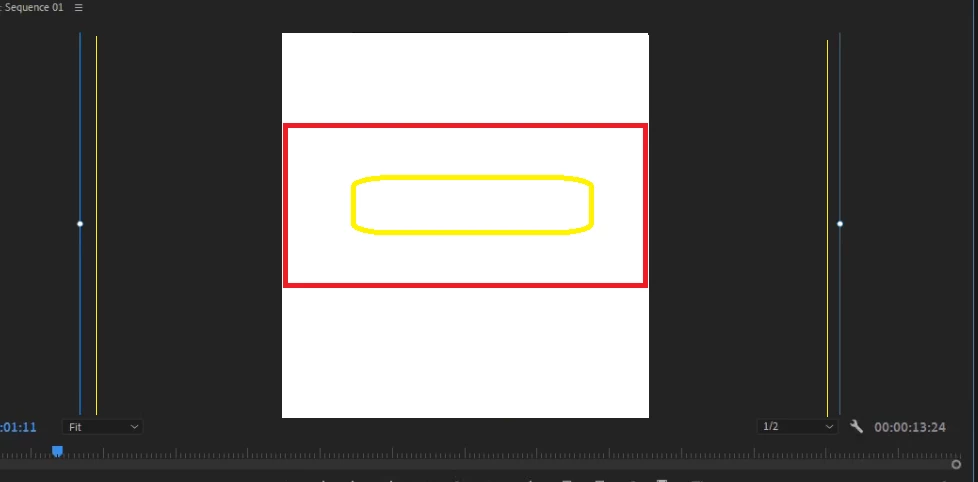
So I got this composition:


The essential graphic is a title that appears on TOP of the red rectangle item. it located in a video track on a higehr position than the yellow one,


I wanted to select the red item without selecting the yellow item, and could not!

Only solution was to reverse their order on the tracks but that's not optimal


Notice how the essential graphic when selected it shows the 2 vertical lines on the right or left (i added yellow lines to show them more)


I want to find a way to select the red item located on a lower video track without having to switch, some other better way if it exists?

(To summariez: when I click the red item, I am always selecting the yellow essential graphic item, and I don't "necessarily" want that)

This topic has been closed for replies.
Correct answer Ann Bens

Go into the KBSC panel and look for Activate Direct Manipulation Program Monitor and set a kbsc.

Select clip on timeline and hit your kbsc, now you can move the clip (or whatever) around in the PM.

2 replies

Ann Bens
Community Expert
Ann BensCommunity ExpertCorrect answer
Community Expert
February 14, 2024

Go into the KBSC panel and look for Activate Direct Manipulation Program Monitor and set a kbsc.

Select clip on timeline and hit your kbsc, now you can move the clip (or whatever) around in the PM.

Bed30321077z973
Inspiring
February 19, 2024

Hello @Ann Bens ,

That's amazing! THanks! I chose CTRL+H
May I ask what are your other shortcuts by any chance?

R Neil Haugen
Legend
February 14, 2024

This is where including them in the same graphic is vastly easier to work with. As then, you simply select which layer in the EGP layer stack, no matter the order they appear in, and you are working with that layer.


Stacking items on different tracks is messy and has ... issues ... like you're running into.

Everyone's mileage always varies ...
Bed30321077z973
Inspiring
February 19, 2024

Same graphic = making them in after effects then bringing them to PPRO?

R Neil Haugen
Legend
February 19, 2024

No ... not at all! Although you  can make them with more spiffy options in Ae, and it's a lot easier than people think ... that's not what I was suggesting.


You are using the EGP ...Essential Graphics Panel ... to build your graphic, right? How about actually using that as it's designed to be used? Which of course is all new material for many users.


At the top of the EGP panel, Edit tab, is the EGP Layer Stack.


Each part of that graphic will have it's own line in that layer stack. Just to the bottom right of the Layer Stack display is an icon ... where you click and get a selection for New Item ... which can be text, shape, or image/graphic item added to that overall graphic.


You can of course drag the layers to a new order so one is on top 'masking' another, all that sort of thing.


So use that ... it's very powerful and fast to use. Create text, select the color/gradients, strokes or background, fill color ... then do the same for the background box. Use another shape animated across to control "reveal" of your text or another shape or whatever.


All in one graphic on the Pr timeline.


Now creating in Ae is pretty easy, and Adobe bought out a great book on this by Jarle Leirpoll (perhaps the father of mogrts ...) and provides it free as an ebook. Heavily illustrated, easy to follow ... from design, using various Ae tools, grabbing fancy scripts without needing to understand how to make them to use them ... all easy to understand.


With every step included, so you can actually do exactly what he's demonstrated.


Jarle’s Making Mogrt’s ebook on Adobe blog

Everyone's mileage always varies ...