
yoyf50075118
Participant
August 23, 2025
Answered

How to set captions at the absolute bottom of the frame? How to avoid captions split into two lines?

  • August 23, 2025
  • 1 reply
  • 279 views

Hi experts, I got two questions about captions. Appreciated your help : )


(1) I wish to place the captions at the absolute bottom of the frame, so it creates minimum disruption to my video subject. However, even when I set properties > align and transform > bottom, there is still a margin between the caption and the bottom of the frame. Is there anyway to fix it? I'm thinking of nesting the captions as a sequence and reposition it like an image, but this workaround seems impossible in the updated PremierPro. 
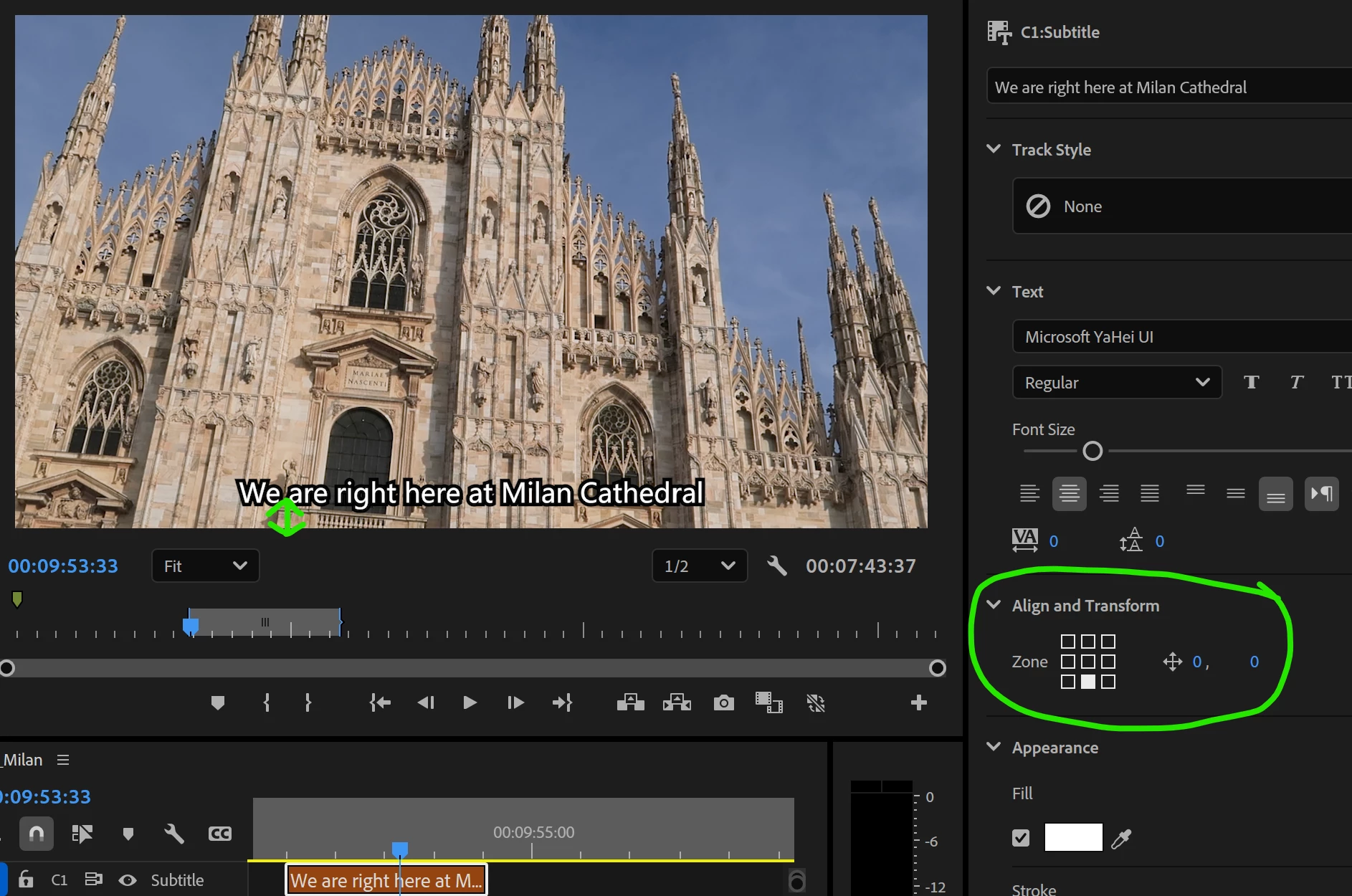

(2) The captions will force my sentance to split into two lines despite there are spaces left in the same line. Is there any solution to remove the safety margin?
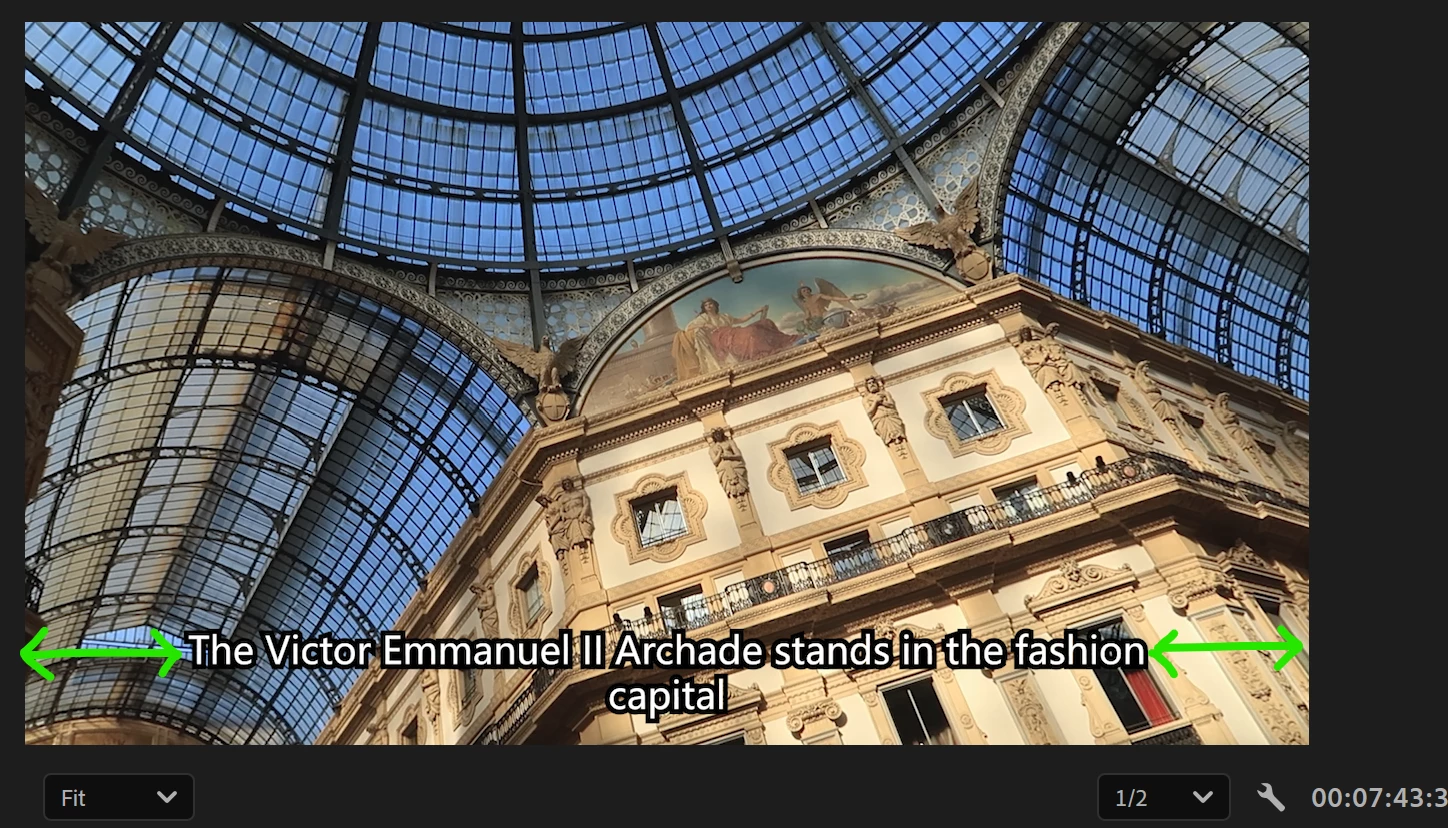
Thanks in advance !


Correct answer Stan Jones

@yoyf50075118,


(1) The PR caption workflow introduced in PR 2021 decreased the bottom from 10% to 5%. But it does not allow moving captions any lower. If you are burning in, you can make this work. See the "updated" section that describe how to do this using the "Upgrade caption to graphic" feature and then nesting the graphic version.


https://community.adobe.com/t5/premiere-pro-discussions/faq-workaround-nesting-to-apply-effect-controls-to-caption-track/td-p/11935335


Here's a very odd workaround that works only for single line captions, and may be limited to only burning with that position:

https://community.adobe.com/t5/premiere-pro-discussions/you-can-t-move-subtitles-captions-below-a-fixed-point-in-premiere-pro-2021/m-p/13676898#M458715


(2) There's the same 5% limit on the sides, but you can decrease that space using the Set Horizontal Size in the Align and Transform section. (This affects the red bounding box.) But there is also a practical limit based on font size and number of characters. Be sure you're using the 72 characters per line max when creating your captions.


Stan


1 reply

Stan Jones
Community Expert
Stan JonesCommunity ExpertCorrect answer
Community Expert
August 23, 2025

@yoyf50075118,


(1) The PR caption workflow introduced in PR 2021 decreased the bottom from 10% to 5%. But it does not allow moving captions any lower. If you are burning in, you can make this work. See the "updated" section that describe how to do this using the "Upgrade caption to graphic" feature and then nesting the graphic version.


https://community.adobe.com/t5/premiere-pro-discussions/faq-workaround-nesting-to-apply-effect-controls-to-caption-track/td-p/11935335


Here's a very odd workaround that works only for single line captions, and may be limited to only burning with that position:

https://community.adobe.com/t5/premiere-pro-discussions/you-can-t-move-subtitles-captions-below-a-fixed-point-in-premiere-pro-2021/m-p/13676898#M458715


(2) There's the same 5% limit on the sides, but you can decrease that space using the Set Horizontal Size in the Align and Transform section. (This affects the red bounding box.) But there is also a practical limit based on font size and number of characters. Be sure you're using the 72 characters per line max when creating your captions.


Stan


yoyf50075118
Participant
October 5, 2025

Hi @Stan Jones , sorry for getting back almost 2 months later. Do you know if "Upgrade Caption to Graphic" is still available in Adobe Premier Pro 2025? I visited your link https://helpx.adobe.com/premiere-pro/using/working-with-captions.html to find out that the session "Upgrade Caption to Graphic" was no longer exists. Thanks for replying~

Stan Jones
Community Expert
Community Expert
October 5, 2025

@yoyf50075118,


Help pages have been reorganized more than once. I cannot find it at the moment!


It is still there: select one or more captions and Graphics and Titles -> Upgrade caption to graphic.


Stan