Participant
November 28, 2019
Question

how to turn off chroma(ultra) key of specific area?
  • November 28, 2019
  • 2 replies
  • 3477 views

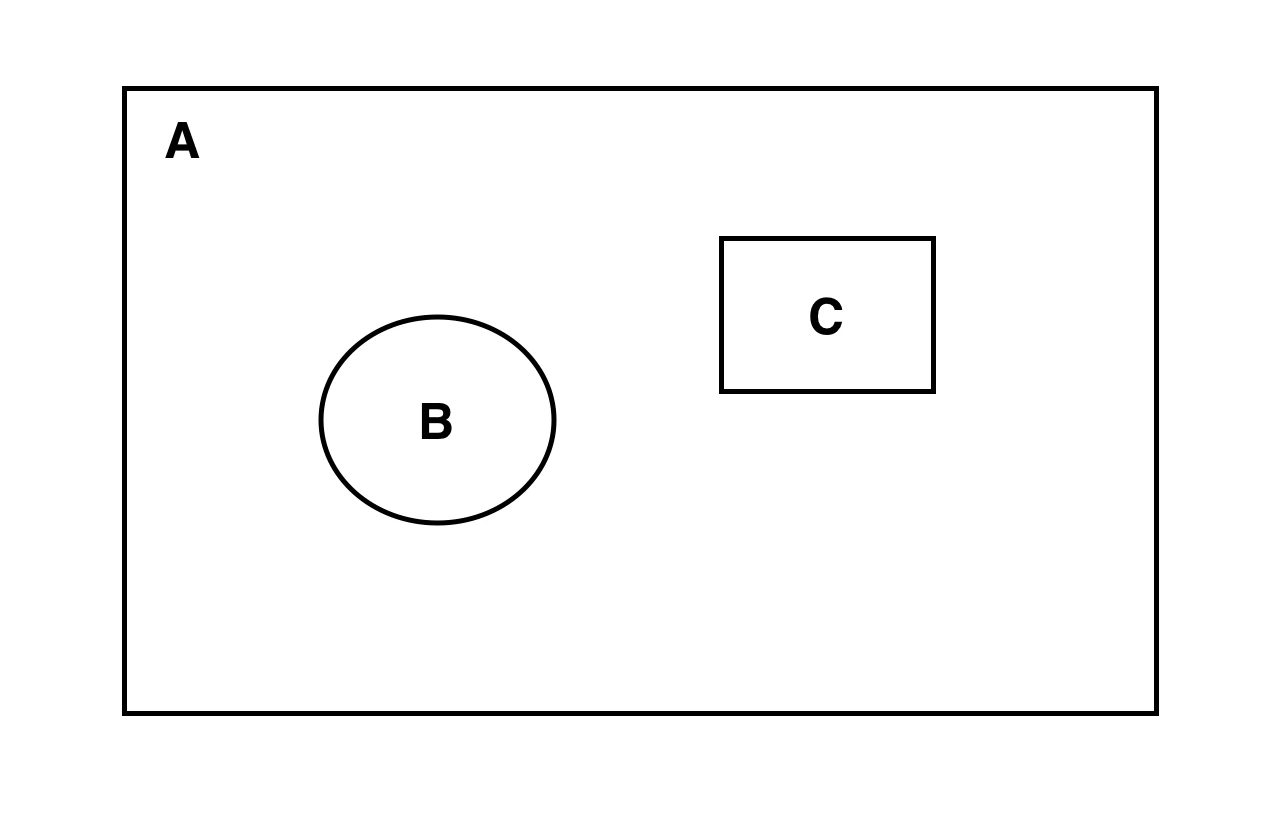
Hi. I want to give ultra(chroma) key effect on A except B and C.

I tried. but failed.

please tell me how to do that.

This topic has been closed for replies.

2 replies

Inspiring
November 28, 2019

Here is another way:

Place your clip with greenscreen on the timeline above your background:

Apply the ultrakey, use an inverted mask to protect area B:

Holding down the Option (Alt) key, click down on the greenscreen clip on the timeline and drag it up a track, this will make an identical copy directly above the original. On the upper clip you just created, remove the Ultra key effect:

Now use an Opacity Mask on the upper clip to protect area C:

If you need to transition to or from this effect, then Nest the clips.

MtD


Ann Bens
Community Expert
Community Expert
November 28, 2019

Due to this lovely forum all your screenshots are unreadable as in too small.


Edit: I edited the images, made them larger. They are now somewhat better to see but still too small and fuzzy.

Ann Bens
Community Expert
Community Expert
November 28, 2019

Alas two or more inverted masks dont work on a single clip.

You need to be creative with one mask:


Multiple inverted masks don't work. - Adobe Support Community