


Inspiring
June 25, 2025
Beantwortet

How to use overlays from “Social Media Template Project.prproj in older Premiere Pro versions?

  • June 25, 2025
  • 2 Antworten
  • 1978 Ansichten

Hi all,

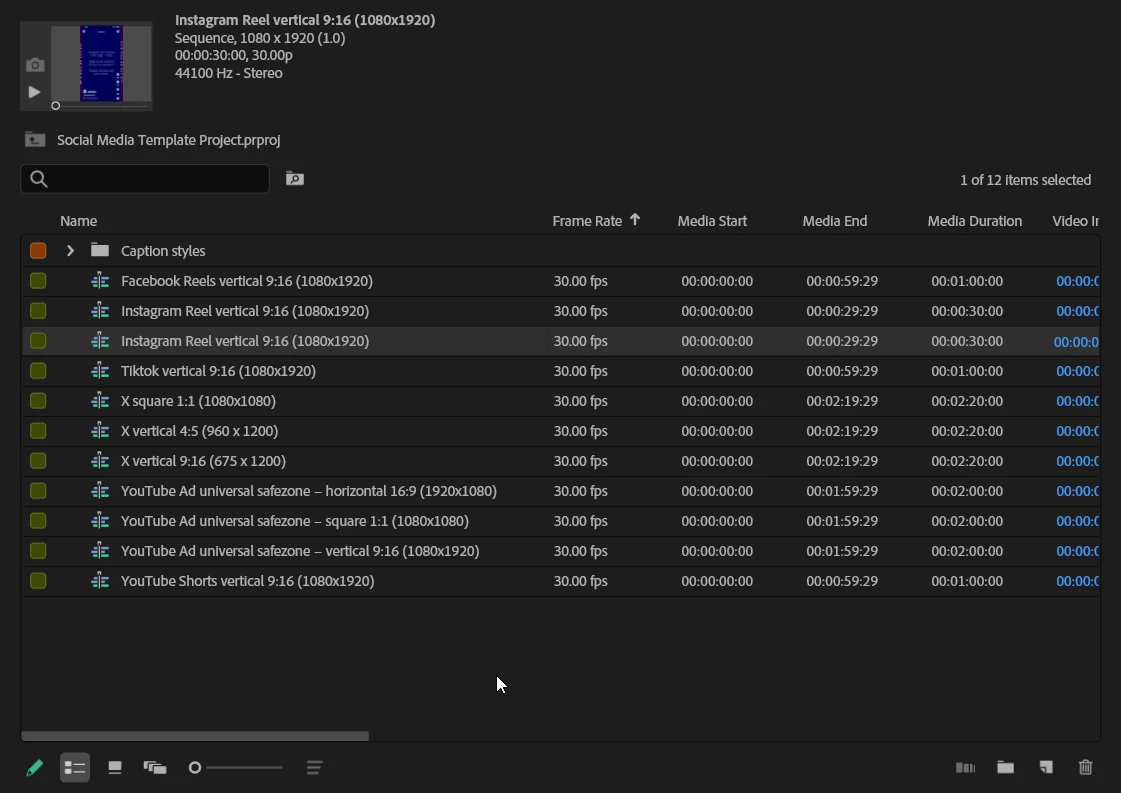
I’m using Premiere Pro 2025 and I’ve noticed the new project template system, including options like "Social Media Template Project.prproj" when creating a new project.

Inside that template, there are prebuilt overlay elements like visual guidelines nd 9:16 formatting helpers.
Is it possible to extract or locate these overlays so I can import and use them in older versions of Premiere Pro?

Is it possible to locate these assets via File Explorer (or any internal directory) so that I can import or reuse them in older versions of Premiere Pro (v22.2)?

Is Premiere storing these templates and overlays as separate media files or are they fully embedded within the .prproj file?

What are the options for extracting or exporting these overlays for backward compatibility?


Thanks in advance.
Beste Antwort von PaulMurphy

The graphics you're referring to are embedded directly within the Premiere Pro project file, so there aren't any separate external files you can access.

However, you can export these graphics as Motion Graphics Templates (MOGRTs) for use in older versions of Premiere Pro:

  1. In the timeline, select the graphic you want to export.
  2. Go to Graphics and Titles > Export as Motion Graphics Template.
  3. Save the MOGRT to a location accessible by your other version of Premiere Pro.


In the older version (e.g., version 22), open the Essential Graphics panel, navigate to My Templates, and import or drag the MOGRT into your timeline. While I haven't tested this workflow specifically in version 22, it should be supported.

Alternatively, if exporting as a MOGRT doesn't work or isn't needed, you can simply export a frame from the timeline by pressing Shift + E.

2 Antworten

PaulMurphyCommunity ExpertAntwort
Community Expert
June 26, 2025

The graphics you're referring to are embedded directly within the Premiere Pro project file, so there aren't any separate external files you can access.

However, you can export these graphics as Motion Graphics Templates (MOGRTs) for use in older versions of Premiere Pro:

  1. In the timeline, select the graphic you want to export.
  2. Go to Graphics and Titles > Export as Motion Graphics Template.
  3. Save the MOGRT to a location accessible by your other version of Premiere Pro.


In the older version (e.g., version 22), open the Essential Graphics panel, navigate to My Templates, and import or drag the MOGRT into your timeline. While I haven't tested this workflow specifically in version 22, it should be supported.

Alternatively, if exporting as a MOGRT doesn't work or isn't needed, you can simply export a frame from the timeline by pressing Shift + E.

Participant
July 23, 2025

Does this solution also apply for the captions? 

caroline_edits
Community Manager
Community Manager
July 24, 2025

Do you mean the text styles that are offered in the Social Media Project template? To export a text style, right-click on it in the Project Panel and select "Export Text Style." Save the .prtextstyle on your computer, somewhere easy to find.


When you open a previous version of Premiere, you can import the .prtextstyle file like it's any other file. Once it's imported, you can select the text style from the Properties panel while you're editing captions. The .prtextstyle file has to be imported to the project, otherwise it won't be available as an option when choosing the Track Style of your captions.


I hope that helps, let us know if you have any other questions.

Caroline

Inspiring
June 25, 2025

I really like the new Social Media Template Project.prproj introduced in Premiere Pro 2025, especially because of how the overlays function. These overlays are added as actual layers inside the timeline and appear in the Essential Graphics panel under Properties, with specific zones like "Section Top", "Bottom left", etc. This gives them more flexibility compared to older guide templates that you import via View > Guide Templates, which are more static and can’t be manipulated as easily.


That said, I tried locating the .prproj file behind these templates by clicking Open templates folder from the project launch window, but nothing is there. I’d like to know:

  1. Where are these new template .prproj files stored on disk?
  2. Is there a way to open these in older Premiere Pro versions (like v22.2), or import the overlay layers as assets manually?

    Would love to repurpose these for legacy projects if possible. Any help would be appreciated.


Kevin J. Monahan Jr.
Community Manager
Community Manager
June 25, 2025

Hi,

I don't know of a way to do that, sorry. Can you set up some guides on the version you have to approximate the safe zones? That's what I would do.


Thanks,
Kevin


Kevin Monahan - Sr. Community and Engagement Strategist – Adobe Pro Video and Audio