Answered
I need one help with a bug in time code!
I can't advance frames in my timeline using the keyboard arrows does anyone know how to solve it?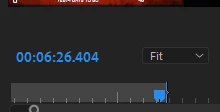
I can't advance frames in my timeline using the keyboard arrows does anyone know how to solve it?
Delete the Media Cache and Media Cache files:
https://community.adobe.com/t5/premiere-pro/faq-how-to-clear-your-media-cache-in-30-seconds-in-premiere-pro-2020/m-p/11017257/thread-id/260446?page=1
If that doesn't work, try resetting the preferences:
https://community.adobe.com/t5/premiere-pro/faq-how-to-reset-trash-preferences-in-premiere-pro/td-p/8236158?page=1
If that doesn't work, try resetting the Workspaces:
Reset a workspace
Reset the current workspace to return to its original, saved layout of panels.
1. Do one of the following:
• Click the Workspace menu icon and select Reset to Saved Layout.
• Choose Window > Workspace > Reset to Saved Layout.
from here:
https://helpx.adobe.com/premiere-pro/using/workspaces.html
If that doesn't work, try Preferences > Audio Hardware and set Input to None.
If that doesn’t work, try updating or rolling back your graphics driver directly from the video card manufacturer’s site. If NVIDIA, do a clean installation of the latest Studio Driver (NOT the Game Driver)
If that doesn't work, try creating a new project and import the old one into it.
Also, please help us help you:
https://community.adobe.com/t5/premiere-pro/faq-what-information-should-i-provide-when-asking-a-question-on-this-forum/td-p/3929027?page=1
Already have an account? Login
Enter your E-mail address. We'll send you an e-mail with instructions to reset your password.
 AdChoices