Participating Frequently
July 28, 2017
Question

Image quality drops when exported at 1080HD setting. Please help.

  • July 28, 2017
  • 5 replies
  • 4733 views

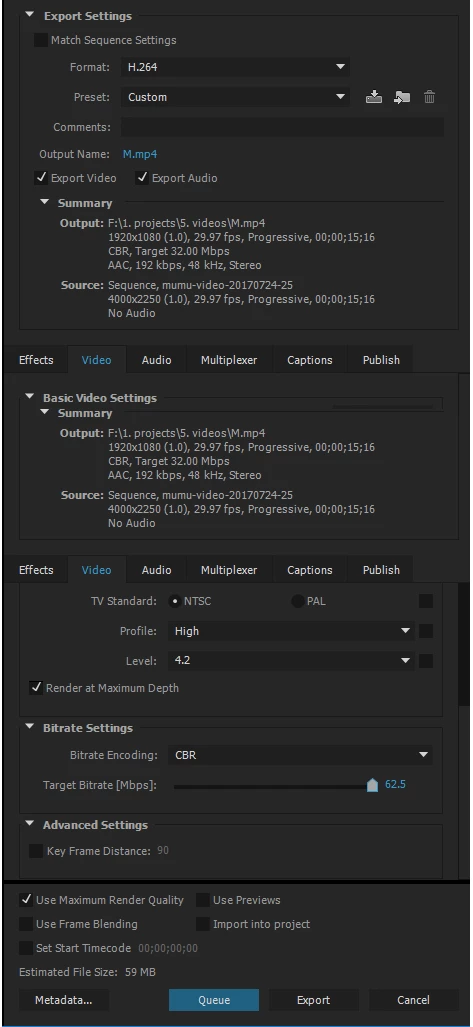
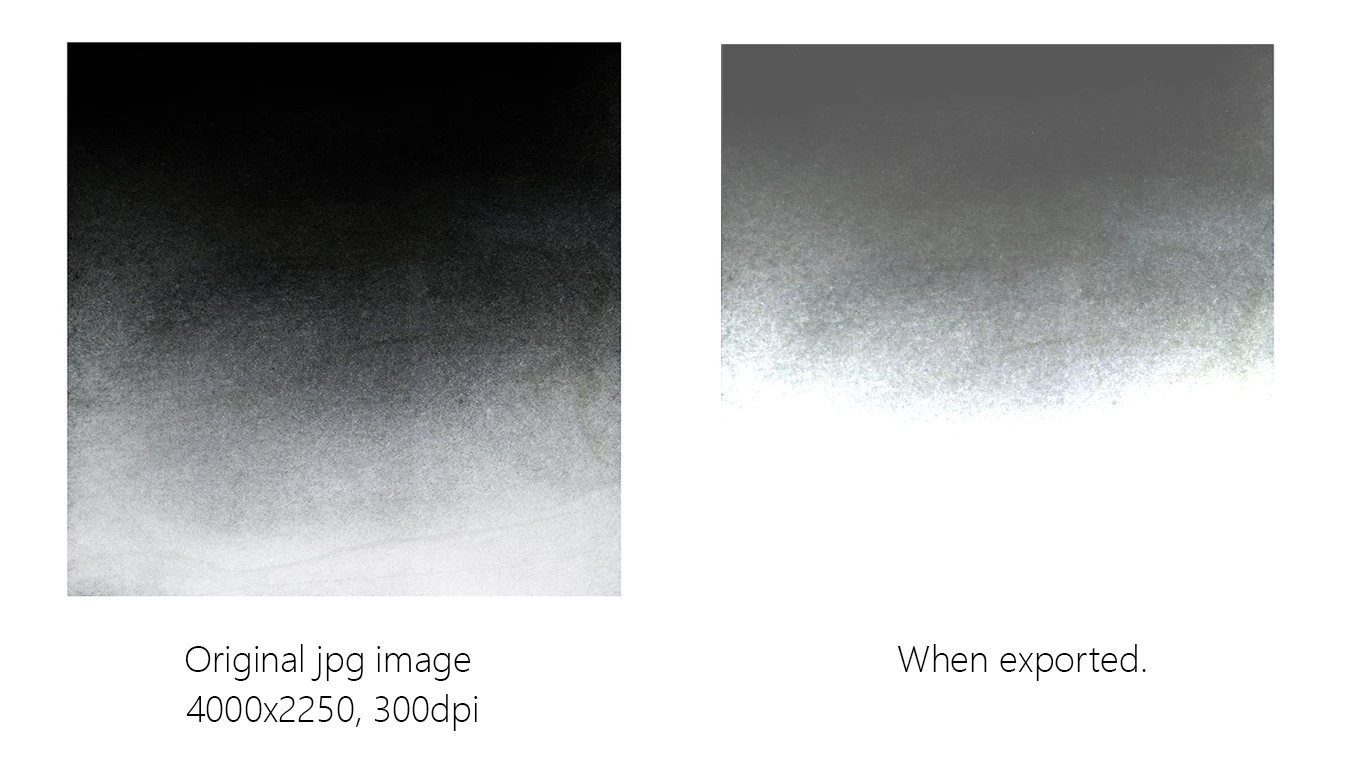
I created a sequence with high resolution jpg images in premiere pro CC 2015, but when I export it, no matter how I adjust the export setting, the quality ends up really bad. (Please see the image comparison and my export setting below.)

Can somebody please tell me how to fix the problem? I'd appreciate any help!
This topic has been closed for replies.

5 replies

smmrdaysAuthor
Participating Frequently
July 31, 2017

Problem solved. it was the video player.

I’ve been viewing the output with Gom Player which is commonly used here in Korea, and after reading your comments, I installed Quicktime and Window Media Player and they all show my images the way they should. Can’t believe it never occurred to me to try other players till now…uh.

Thank you everyone for helping me!

Participant
July 30, 2017

Video resolution is 72 dpi and your jpeg is 300 dpi. I would convert the jpeg to png at 72 dpi. I believe that will alleviate your problem.There will be some degradation in the conversion because so many pixels are dropped.But that's why Premiere is having so much trouble with it.Photoshop or another image editing program will do a much better job and premiere won't need to. 

Ann Bens
Community Expert
Community Expert
July 30, 2017

DPI has no meaning in video. DPi is for printing.

All that matters is height and width in pixels e.g. 1920x1080 pixels.

Best is to make the image fit the sequence.

Legend
July 29, 2017

Let's see the entire frame, not just that one spot.

smmrdaysAuthor
Participating Frequently
July 30, 2017

Hi Jim. You mean something like this?

This particular image is something I created in PSD. I've tried exporting photos and other types of stills, and they all become lighter when exported.

chrisw44157881
Inspiring
July 30, 2017

i think we're all going off on a tangent. I don't know why he has grainy examples for both before and after, but since the dithering quality doesn't change much, I am focusing on the gamma or lightness change. In which case, how are you viewing the export? with quicktime player? its gamma 1.8 and pixel 16-235 doesn't match premiere's 2.2 at 0-255. I'm sure if you imported the render back into premiere, it would look identical. VLC with opengl video output and nvidia control panel set 0-255 should match premiere exactly.

smmrdaysAuthor
Participating Frequently
July 29, 2017

Hi! I've already tried with the same sized images (1920x1080) as well as different sizes and different settings like changing to CBR, VBR 1pass, VBR 2 pass, high profile, main profile, with or without max rendering quality.... but it just doesn't work. I don't get this problem when I export video footages but whenever I export jpg images, the quality goes bad.

Ann Bens
Community Expert
Community Expert
July 28, 2017

Make the image the same size (height and width in pixels, dpi is irrelevant) as your sequence before bringing it into Premiere and try again.

Might want to try with and without max depth and mrq.

smmrdaysAuthor
Participating Frequently
July 29, 2017

Hi! I've already tried with the same sized images (1920x1080) as well as different sizes and different settings like changing to CBR, VBR 1pass, VBR 2 pass, high profile, main profile, with or without max rendering quality.... but it just doesn't work. I don't get this problem when I export video footages but whenever I export jpg images, the quality goes bad.

Ann Bens
Community Expert
Community Expert
July 29, 2017

Video footage is not the same as stills.

Convert the jpegs in psd or png and try again.