Imported Footage Instantly Glitched with Green and Black Strips
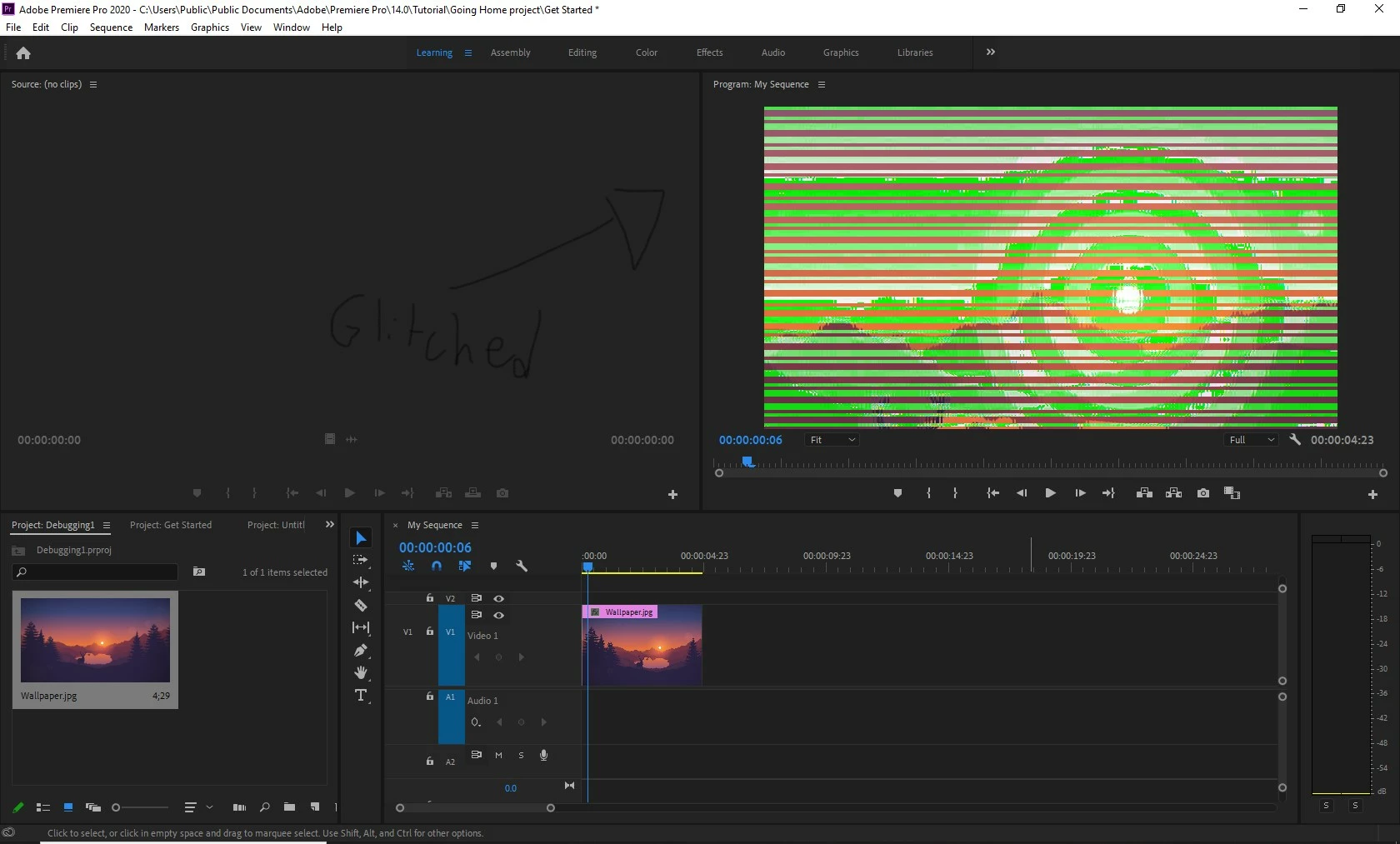
Whenever I import any videos, images, or non-audio media, it gets overlayed with green and black "glitch stripes." This is very hard to explain, but this problem is happening in After Effects as well as Premiere Pro. I have made sure that this problem isn't to do with the media; the media is not corrupted. I've changed my media cache folders in hope that things would change, and later on reinstalled both Premiere and After Effects 5 times each. This is also not a CPU problem, as After Effects and Premiere Pro have been running smoothly for months now. As a last resort, I deleted every single Cloud app and file (including files from regedit) and reinstalled premiere. No avail. These stripes won't go away. The stripes make everything blurred and double. Additionally, when I hover my mouse over clips in the project panel, the stripes also appear. I then proceeded to install a previous version of premiere pro, but this problem is there as well. Interesting to note, though, that when I installed After Effects 2019, the problem was inexistant.
To show you guys the problem in premiere pro, I will import a random full HD photo into a new 1920*1080 project and show you the pictures of what the image is supposed to look like, and what happens to it when it is imported into premiere.
Normal (random) Photo From Google:
What Happens To The Photo When Imported into the Timeline:
A picture of an empty project with nothing:
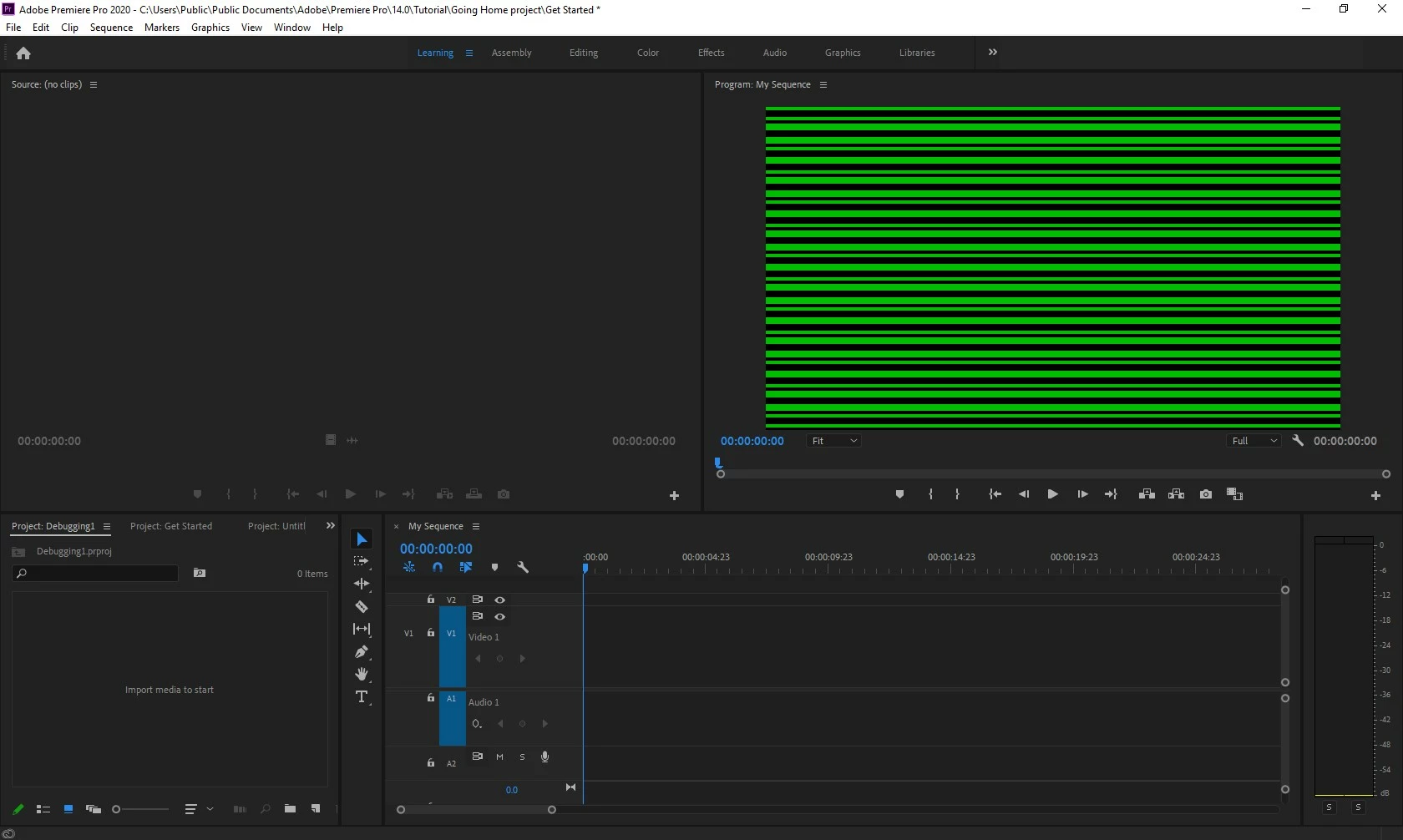
I've tried everything, and I hope for help ASAP.
P.S. I've messed around with project/preference settings, used an antivirus, created a new windows account, tried retreiving all lost adobe files, and: no avail.
Any help would be greatly appreciated. I have three projects upcoming with no editing alternatives...
 AdChoices