
Participant
April 23, 2021
Answered

Imported LOG footage automatically has a color change in Premiere

  • April 23, 2021
  • 4 replies
  • 12187 views

I have been importing footage from a Sony A6300 that was filmed with a Cine2 picture profile.

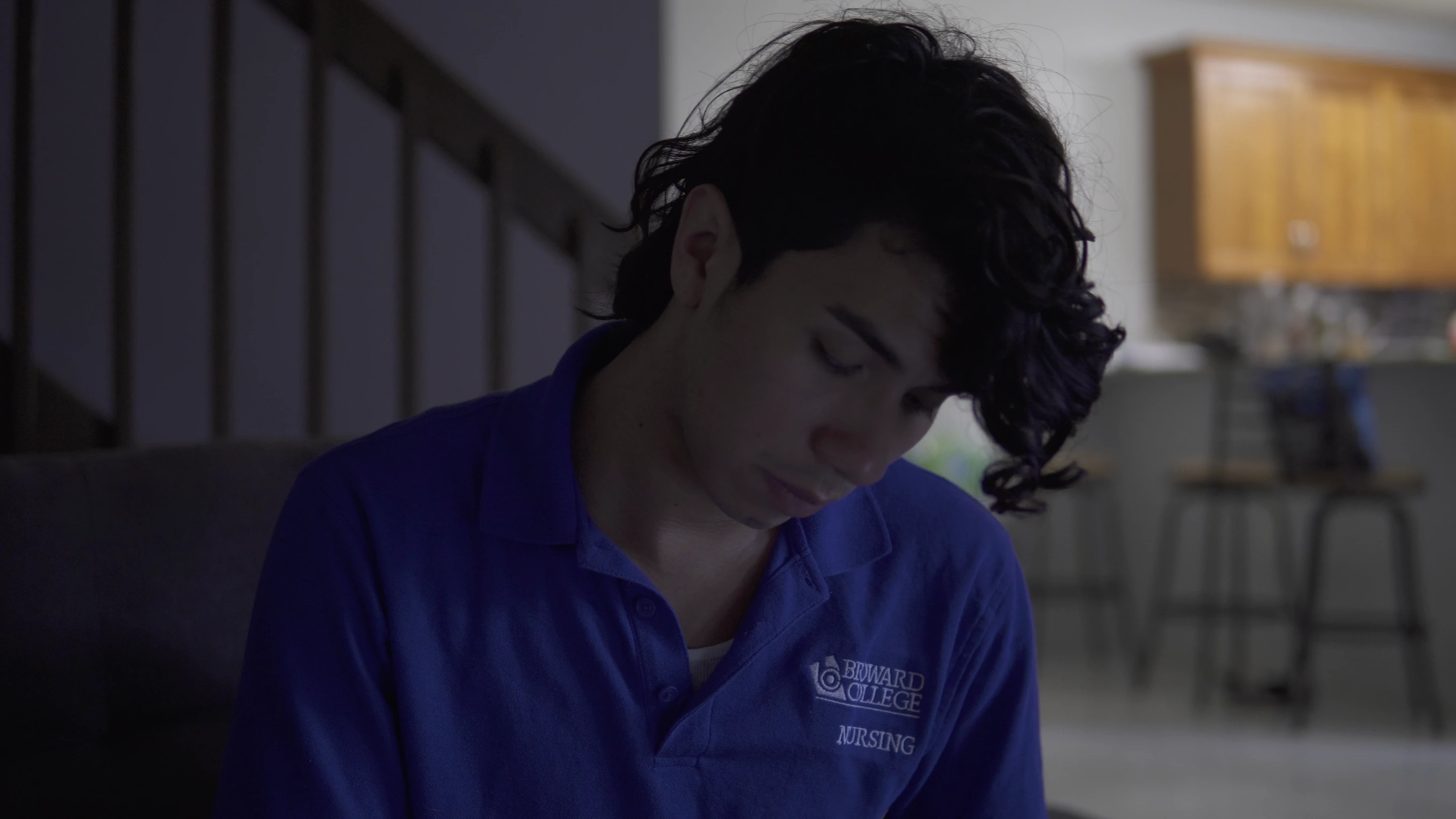
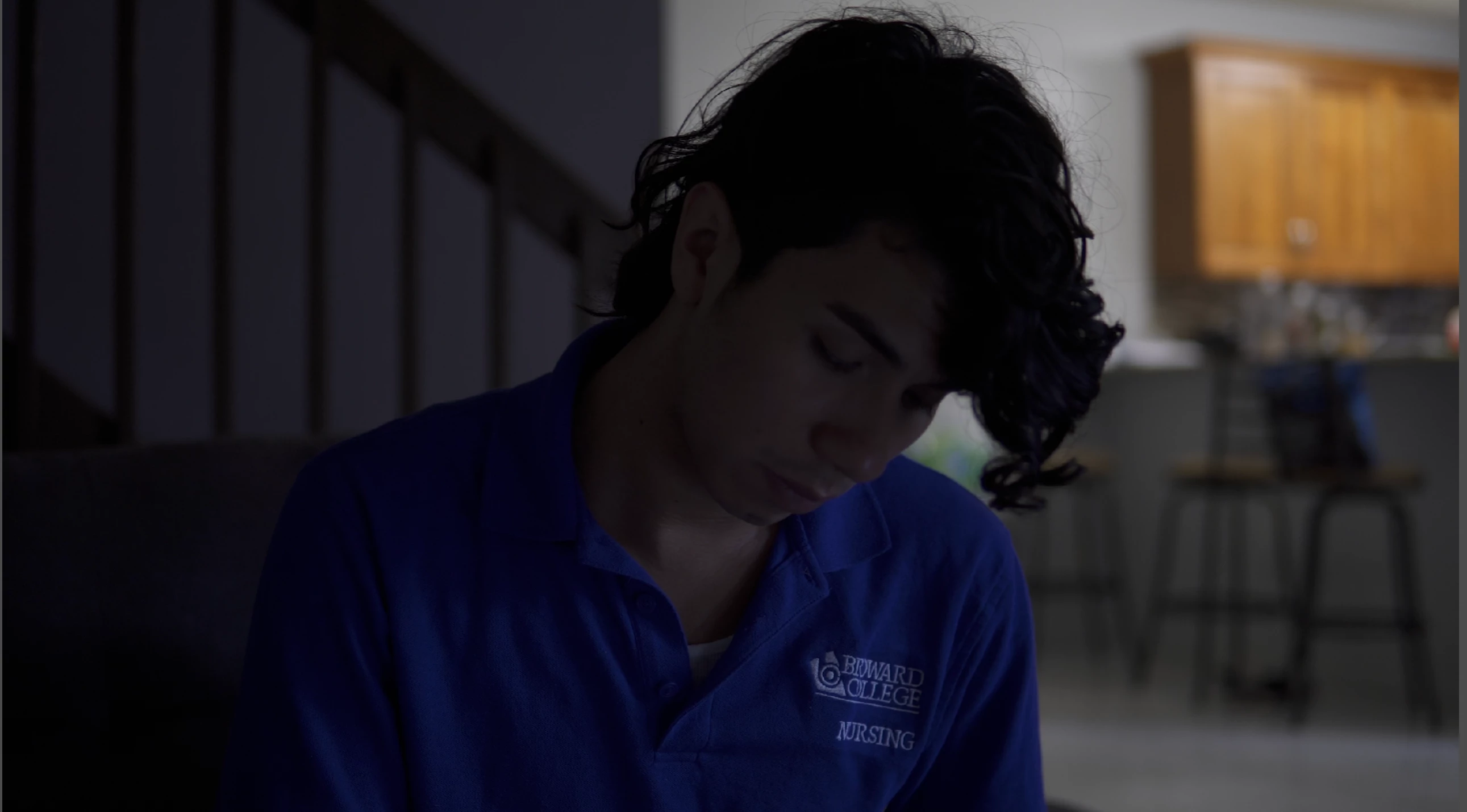
When importing it into Premiere I noticed that the footage has been given high contrast and color.

I do not see any way to turn off this setting with imported clips in Premiere 15.

When exported the clips go back to looking flat. Does anyone have a way to get the imported clip to show up thew same way it looks when I pull it from the camera?

I have attached screenshots below. 


Before import.
After import.
This topic has been closed for replies.
Correct answer R Neil Haugen

I was expecting this. Color management is a morass, and not so easy to do between the Apple ColorSync app that often displays Rec.709 media with a 1.96 gamma. PrPro assumes all Rec.709 is to be displayed on a system with "normal" broadcast-standard Rec.709 which assumes 2.4 gamma.


Within PrPro on a Mac, you do need to have the Preferences option 'display color managment' selected so that PrPro will attempt to present a correct Rec.709 view on the monitor. It won't 'fix' things outside PrPro, but ... there's no real way around this anyone has found. The Mac OS system is ... unique.


Neil

4 replies

tranhoangcalvin
Known Participant
October 28, 2022

So I just figured out what happened for me at least -- it looks like Adobe can read the footage metadata to identify a color management to the specific clip. If you right-click the clip in your project bin, go to "Modify" > "Interpret Footage..." -- at the bottom of the window that pops up is a space for "Color Management" where it will say "Use Media Color Space from File:" and will say what conversion it is automatically making.


Adobe interpreted my footage's file for a media color space -- it was actually really helpful to find this because I had thought this was Canon C300 footage, but it turns out it was actually Sony S-Log3.


For some reason, Adobe presents the footage in the Source Window as the true LOG profile, while in the Program Window will present the footage in the working color space. I'm not a professional colorist, so I can't tell if it's already being converted to true Rec709 or something, but it is bringing it up to some kind of working color space.

R Neil Haugen
Legend
October 28, 2022

Yes, the timeline working space is crucial there.


So ... the way they have it set now ... if you have log media, and use the specific setting for that log format in the clip color management (CM) process in the Project panel ...

  • if you place that clip on a Rec.709 sequence, they do a transform to Rec.709. Note: this is not designed to be pretty, but to be 'safe'. So the clip may well first appear on the timeline to have values exceeding the 100nits/IRE 'top' of Rec.709, but all of that can be easily brought down into proper visual range in Lumetri.
  • If you put the same clip on an HDR timeline, say HLG ... then it will be appearing more as the 'log' look, and will be correctly transformed for color space to that working color space.


And Source window and Program Monitor are nearly always different images, as well, the Source is source. With only any effects applied to the image if you have applied them to either the clip in the bin OR to the Source tab of the ECP. This image never shows 'standard' timeline image effects.


Program monitor shows the image with any Source effects and with any effects applied in that timeline ... including the working color space.


Does this help?


Neil


Everyone's mileage always varies ...
tranhoangcalvin
Known Participant
October 28, 2022

Super helpful, thanks! 

Participating Frequently
October 27, 2021

I´m having the same problem with a sony a7iii using a pc (windows) and a SLOG3 profile, im not an expert, what should i do? attached you can see how i see it from the timeline and how exports it


R Neil Haugen
Legend
October 27, 2021

On my tablet they don't seem that dissimilar. I'll look at them at the shop a bit later today.


Neil

Everyone's mileage always varies ...
Participating Frequently
October 27, 2021

oh thanks ! I see it awful from my pc, much more white and saturated... 

😞

R Neil Haugen
R Neil HaugenCorrect answer
Legend
April 23, 2021

I was expecting this. Color management is a morass, and not so easy to do between the Apple ColorSync app that often displays Rec.709 media with a 1.96 gamma. PrPro assumes all Rec.709 is to be displayed on a system with "normal" broadcast-standard Rec.709 which assumes 2.4 gamma.


Within PrPro on a Mac, you do need to have the Preferences option 'display color managment' selected so that PrPro will attempt to present a correct Rec.709 view on the monitor. It won't 'fix' things outside PrPro, but ... there's no real way around this anyone has found. The Mac OS system is ... unique.


Neil

Everyone's mileage always varies ...
Participant
April 23, 2021

Thank you!

That helped a lot with making it look remotely simliar to the original footage 🙌

R Neil Haugen
Legend
April 23, 2021

From looking at the Sony manual for this, the Cine2 profile is not actually a log encoding, which is a very different thing. The first image in your example is clearly not a log image ... just has a slightly lifted gamma from that in the second image.


So what you're viewing these on outside PrPro matters, as well as your settings in PrPro and your OS/monitor for color management.


What is your OS? Have you done any calibration of the monitor with a puck/software combination? What are you viewing the image on outside of PrPro?


Neil

Everyone's mileage always varies ...
Participant
April 23, 2021

I am sorry LOG was the wrong word to use.

I am viewing the footage in quicktime on OS 10.15.7.