
Participant
November 23, 2018
Answered

Importing mp4 files into sequence, files are not transferring chronologically onto timeline

  • November 23, 2018
  • 1 reply
  • 694 views

I have never had this issue before... However, since I have upgraded premiere pro cc every time I import multiple clips into a sequence they don't transfer over to the timeline in chronological order so it takes me a long time to shuffle the clips. This a time consuming process and feels sloppy to manually rearrange the clips.... Are there settings that can resolve this issue? Thank you
    This topic has been closed for replies.
    Correct answer Kristian Gabriel

    I'm sorry that you are experiencing this issue. I have currently tested this on three systems and it seems to be working correctly. I'm not sure what version you were originally on but the order of clips on your timeline is powered by the order you are selecting them in your Project Window. Here is a breakdown of things to test:

    • SELECT CLIPS MANUALLY in the order you want them in from your PROJECT WINDOW and DRAG them into your TIMELINE.

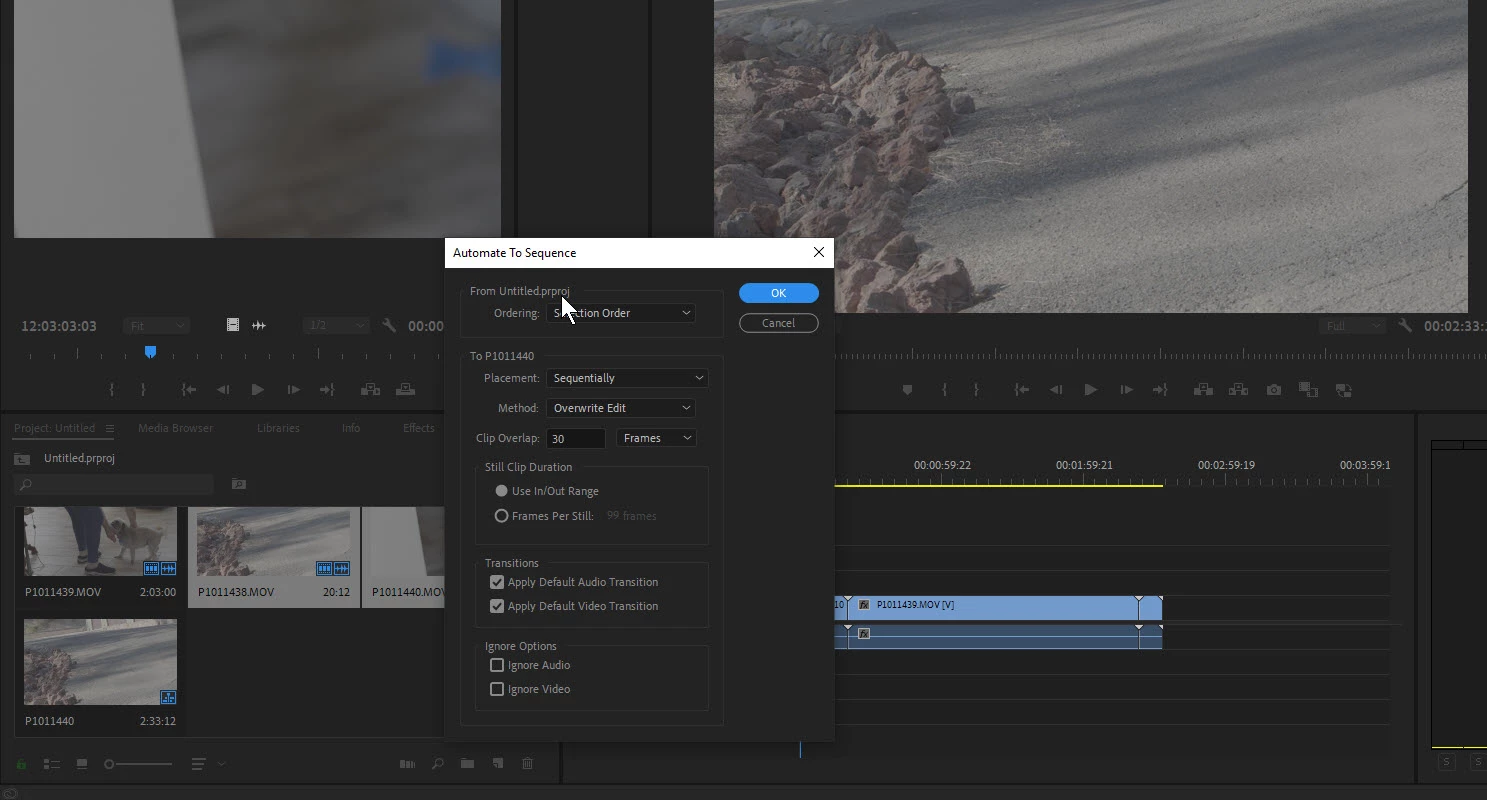
    • SELECT CLIPS ANY WAY you want and then use AUTOMATE TO SEQUENCE at the bottom of your PROJECT WINDOW and choose SORT under ORDER. Note: You can also choose SELECTION ORDER based on the order you selected your clips. This menu is very powerful for ordering your clips in specific ways from a bin to the timeline.

    If these features seem broken, it could also be an install issue and you may want to reinstall Premiere. Hope this helps!

    1 reply

    Kristian Gabriel
    Kristian GabrielCorrect answer
    Participating Frequently
    November 23, 2018

    I'm sorry that you are experiencing this issue. I have currently tested this on three systems and it seems to be working correctly. I'm not sure what version you were originally on but the order of clips on your timeline is powered by the order you are selecting them in your Project Window. Here is a breakdown of things to test:

    • SELECT CLIPS MANUALLY in the order you want them in from your PROJECT WINDOW and DRAG them into your TIMELINE.

    • SELECT CLIPS ANY WAY you want and then use AUTOMATE TO SEQUENCE at the bottom of your PROJECT WINDOW and choose SORT under ORDER. Note: You can also choose SELECTION ORDER based on the order you selected your clips. This menu is very powerful for ordering your clips in specific ways from a bin to the timeline.

    If these features seem broken, it could also be an install issue and you may want to reinstall Premiere. Hope this helps!