Participant
December 11, 2017
Answered

Importing videos and pictures from the Photos app

  • December 11, 2017
  • 9 replies
  • 74732 views

I just need to import pics and videos from my Photos app on my MacBook to adobe premiere pro to edit and make a video. I've tried to drag and drop and it didn't work. I also tried to search the file location through the media browser and once I reached "photos library" I hit a dead end and couldn't open to see the photos.

Correct answer Conrad_C

There are two possible ways to get Mac media files (files from iTunes, iPhoto, iMovie) into Premiere Pro, but they are not the ways that have been discussed so far. Premiere Pro fully supports drag-and-drop import; it works with most applications today and it used to work with iPhoto. What I think happened is that when Apple replaced iPhoto with Apple Photos, they stopped supporting drag-and-drop export of photos, because drag-and-drop no longer works between Apple Photos and non-Apple applications.

I believe the reason the Premiere Pro Media Browser isn't working is for the same reason importing Apple Photos/iMovie media doesn't usually work when using the Import dialog box: The files inside the Photos Library and iMovie Projects are hidden from the Mac file system (the Open and Save dialog boxes), so the Premiere Pro Media Browser can't reach them.

OK, so what are the two ways to import I'm talking about?

A. Use the Media panel of the Mac Import dialog box. In Premiere Pro, after you choose File > Import, look in the left sidebar for the Media section. You may have to scroll the left sidebar if the Media section is hidden. Inside the Media section are three items: Music, Photos, and Movies. Music is your iTunes library, Photos is your Apple Photos library, and Movies is your iMovie library. When you select one, the contents are shown in the right side panel. You can select one item (or multiple items with the Shift or Command keys), and when you click Import, they will be added to the Project panel in Premiere Pro.
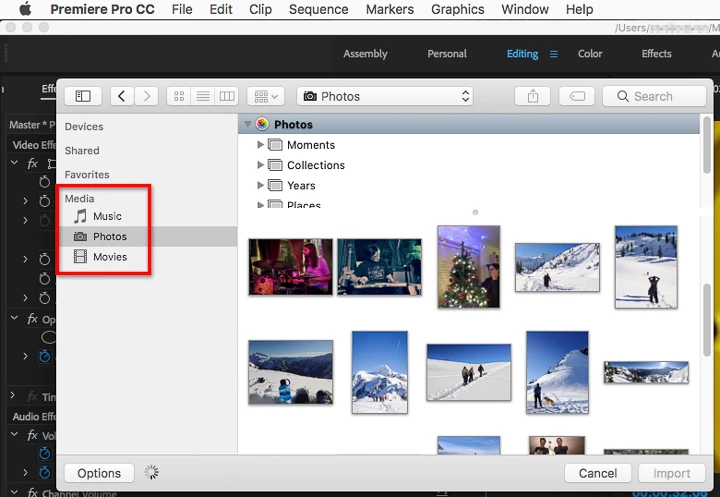
The Media panel is, I believe, how Apple prefers that non-Apple applications reach the media inside the Apple Photos Library and iMovie Library. It’s possible that Apple disabled drag-and-drop to encourage everybody to switch over to using the Media panel to import Photos, iTunes, and iMovie content.

B. From Apple Photos or iMovie, export the media to a normal folder so that it can be seen by all applications, and import to Premiere Pro from there. For example, if you are using a project folder to store media for a specific Premiere Pro project, export the photos and videos you want to use to that folder. This option might be better if you need to copy a project folder of media to other drives or computers, because in option A the files are still inside the locked-away Mac media libraries.


9 replies

Participant
March 12, 2025

EXPORT the photos or videos you need from Photos to a local folder then import from that local folder into your Adobe app


Participant
December 25, 2023

Right mouseclick, select edit with, select premier pro.

Or, select file/video and press command-enter

Participant
January 18, 2024

Eveytime I choose the "edit with" drop down it opens rush, if its not open already, but then I cant find the file.  I tried to change the import destiantion in seetings and that didnt work.  I tried to change firewall and securtiy settings for rush to allow access and that didnt work. Im so confused as to what I am doing wrong lol.  Can Anyone help?  


Participant
January 18, 2024

And drag and drop never works for me.  The phone app seems to work flawlessly with my photos and videos but on my macbook pro it never works. 

Participant
April 24, 2023

Hi there,

I'm new to Rush and Premier pro.  I'm trying to find my videos from Photos.  I have the Media and photos, but when I look there, the photos file isn't showing.  I also have lightroom in the same file and when I click on it, it shows "Nothing to display".  This is so frustrating.  As a user, I shouldn't have to jump hoops to make things work.  It seems like Adobe isn't supporting MAC at all.  This should be easy.  ABOBE people, what are you doing about this?

Participant
April 27, 2023

Agreed, this is absolutely laughable. It literally ignores the Photos app that the whole MacOS world revolves around and makes us export from Photos to flat files, before importing into Adobe apps like Premiere Pro? The idea of even having a Mac product should be, #1, decide to have a MacOS app - #2, connect the MacOS app to Photos. If you're not going to do #2, the app better be absolutely amazing, because the workflow is going to stink. 

Participating Frequently
December 14, 2022

1) Open Adobe Premiere application, create a new project, name your project, select a destination folder, and click Create. 2) Open Mac Photos, control-click (or right-click with mouse) on the desired photo or video, choose "Edit with" in the drop-down menu and select "Adobe Premiere". 3) The video should be in the media pane of Adobe Premiere. 

Participant
January 19, 2023

Thank you so much

Known Participant
May 11, 2021

It's 4 years on and still no solution to this. I'm just so embarrassed to admit at how much of the simplest of things I cannot do after paying such a hefty subscription. I'm just forced to make another folder and waste space! 

Fire Lansky
Participant
March 23, 2021

Just a quick workflow solution I have used to deal with all ofthis… maybe someone will find it helpful: I actually use Premiere Rush on my iPhone (or iPad or MacBook) to begin a new project, and when I do, I import all of the files I want from my camera roll (Photos app) or a number of other places (I don't remember all teh options, butr there are a number of them). I don't do anything inside of Rush except make sure that all the videos play through and get synced with my creative cloud. Then, once it's all there, I open that rush propject in Premiere Pro and edit like a grownup on my Mac Pro. 

Participant
December 18, 2020

This is a fiddle and really impedes workflow.  The fastest solution I've found is to right click the file item in Apple Photo and click 'Edit With'.  If it's a video I select Quicktime and then drag and drop the file name at the top of the quicktime windoe into Premiere.

DRobotGorilla
Participant
March 7, 2021

I found you can achieve the a similar result by right clicking > edit with > premier. However when I came back to the project all media surce files where offline and now way to relink them. Doing the same process again just simply added another version to the project and did not replace it.

Conrad_C
Community Expert
Conrad_CCommunity ExpertCorrect answer
Community Expert
December 12, 2017

There are two possible ways to get Mac media files (files from iTunes, iPhoto, iMovie) into Premiere Pro, but they are not the ways that have been discussed so far. Premiere Pro fully supports drag-and-drop import; it works with most applications today and it used to work with iPhoto. What I think happened is that when Apple replaced iPhoto with Apple Photos, they stopped supporting drag-and-drop export of photos, because drag-and-drop no longer works between Apple Photos and non-Apple applications.

I believe the reason the Premiere Pro Media Browser isn't working is for the same reason importing Apple Photos/iMovie media doesn't usually work when using the Import dialog box: The files inside the Photos Library and iMovie Projects are hidden from the Mac file system (the Open and Save dialog boxes), so the Premiere Pro Media Browser can't reach them.

OK, so what are the two ways to import I'm talking about?

A. Use the Media panel of the Mac Import dialog box. In Premiere Pro, after you choose File > Import, look in the left sidebar for the Media section. You may have to scroll the left sidebar if the Media section is hidden. Inside the Media section are three items: Music, Photos, and Movies. Music is your iTunes library, Photos is your Apple Photos library, and Movies is your iMovie library. When you select one, the contents are shown in the right side panel. You can select one item (or multiple items with the Shift or Command keys), and when you click Import, they will be added to the Project panel in Premiere Pro.

The Media panel is, I believe, how Apple prefers that non-Apple applications reach the media inside the Apple Photos Library and iMovie Library. It’s possible that Apple disabled drag-and-drop to encourage everybody to switch over to using the Media panel to import Photos, iTunes, and iMovie content.

B. From Apple Photos or iMovie, export the media to a normal folder so that it can be seen by all applications, and import to Premiere Pro from there. For example, if you are using a project folder to store media for a specific Premiere Pro project, export the photos and videos you want to use to that folder. This option might be better if you need to copy a project folder of media to other drives or computers, because in option A the files are still inside the locked-away Mac media libraries.

Participant
December 13, 2017

I'm aware of answer "B" already. I just hoping to import it like you import almost everything else on premiere. I didn't want to create a whole new file location for the videos which will take up more space by have two copies on my computer.

Thanks anyways.

Conrad_C
Community Expert
Community Expert
December 13, 2017

But would option A work for you? It imports directly, without needing to make any copies.

kulpreet singh
Inspiring
December 11, 2017

Hi heynicki__,

I've tried to drag and drop and it didn't work. I also tried to search the file location through the media browser and once I reached "photos library" I hit a dead end and couldn't open to see the photos.

Are those photos/media files saved on your machine or iCloud?

If on iCloud, save them on the local drive and try importing from the Media Browser.

Thanks,

Kulpreet Singh

Participant
December 12, 2017

Nope, they are saved on my computer. The problem is that when I used the media browser and reach "photos library" nothing else happens

Participant
December 12, 2017
