Sanika17
Participant
April 16, 2026
Answered

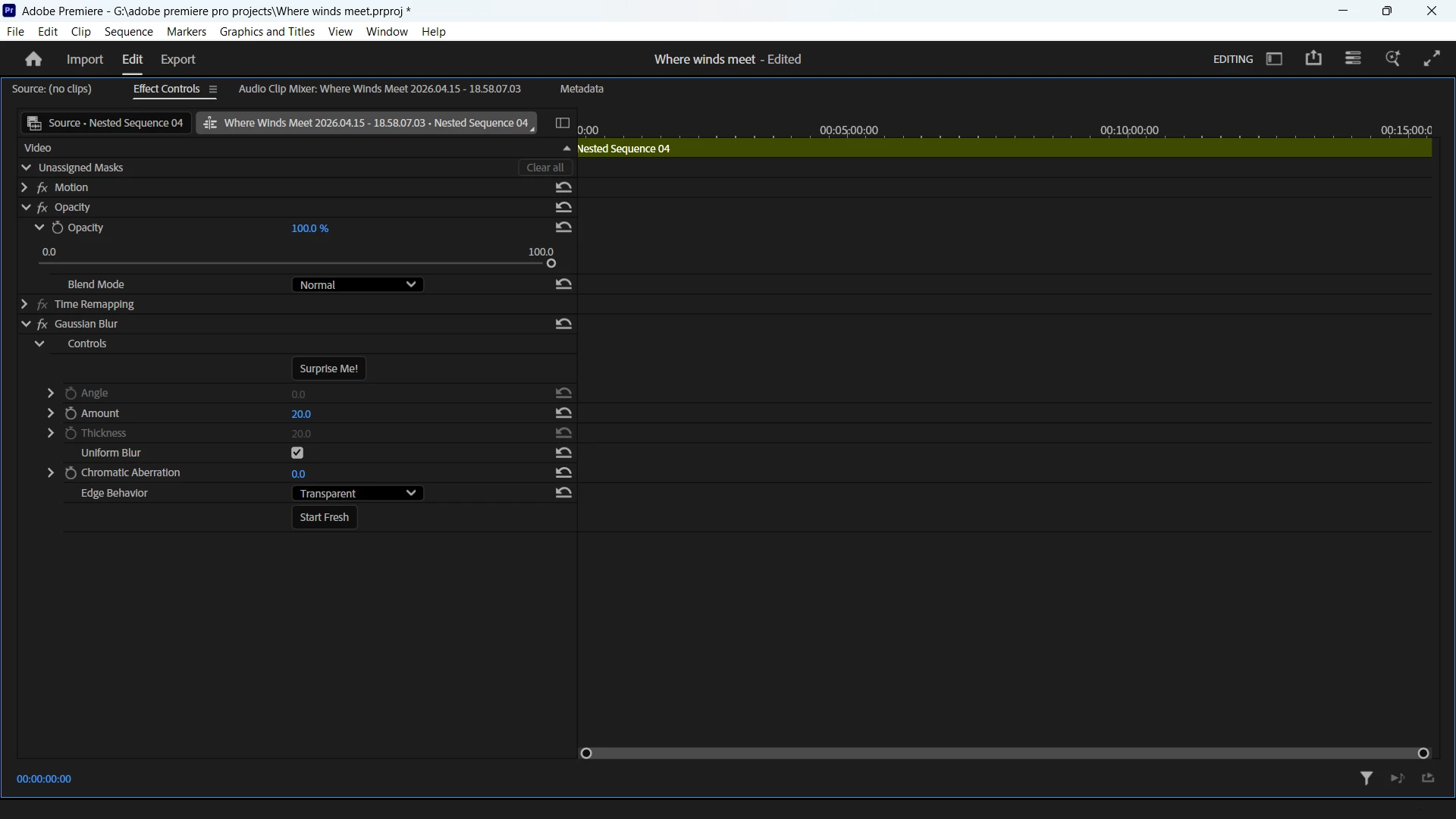
In my user interface mask options like pen, circle & square are missing in gaussian blur and opacity

  • April 16, 2026
  • 3 replies
  • 34 views

I tried everything - resetting, updating, but the masking options like- pen , rectangle , circle are not visible under opacity or gaussian blur in premiere pro’s effects control panel, even in fullscreen( ` ). 
 

    Correct answer Peru Bob

    See here too:


    3 replies

    R Neil Haugen
    Legend
    April 16, 2026

    All masks now are created with the Mask tools on the timeline Toolbar. You select which type of mask, and then you can right-click the mask and say select “make opacity” or however it’s phrased, and you have an opacity mask linked to the Opacity effect in the ECP.


    Or after creating a mask, you go to the ECP and aissign it to one or more effects there.


    It defaults to auto-tracking, but to manually modify, you go to the Program monitor and there’s a new toggle option for Clip/Frame ... and Clip is the auto-tracking, frame is the manual toggle.


    When you hover over the Mask icon in the Timeline toolbar, there’s a popup with a link to the documentataion ... DO YOURSELF A HUGE FAVOR and just go read the whole bit. Then you will actually be able to use this new and very powerful, but VERY different!!!!! ... masking tool.

    Everyone's mileage always varies ...
    Known Participant
    April 18, 2026

    Thanks for the tip! Im pretty new to Premiere. I have now added the mask on a certain object so it tracks in red when i play and rewind, but how do I now add an Gaussian Blur effect to this mask? I cant seem to find any type of effects under the controls of my applied mask. I think im missing something?!

    Peru Bob
    Community Expert
    Peru BobCommunity ExpertCorrect answer
    Community Expert
    April 16, 2026

    See here too:


    Community Expert
    April 16, 2026