
Inspiring
November 3, 2020
Answered

Incredible shrinking track matte key

  • November 3, 2020
  • 2 replies
  • 3923 views

Hi,

I have 3 layers of the same video aligned on: video 1 (background), video 2 (track matte key) and video 3 (HSL secondary).  My goal is to be able to make Lumetri color changes to video 2 "sandwich filling layer" which  will be viewed through the masked off portion of the top layer.  On the top layer, I keyed out the blue sky using White/Black masking in HSL Secondary.  On the "filling" layer, I added the track matte key set to Video 3 and Matte Luma.  For this demo, I set the exposure way down on this layer in the basic Lumetri control. Result:  if I leave the scale of the top (mask) layer set to 100%, the track matte key is quite a bit smaller than it should be.  If, however, I set the scale of the top layer to exactly 102.1%, the matte looks much better.  I am using the 102.1% scaling of the top (mask) later as a workaround and it works pretty well.  The keying holds up while playing a test clip and even matches if I scale up the test clip.  Please see attachments.  Any observations or advice on this phenomenem will be greatly appreciated.  

Zaffer
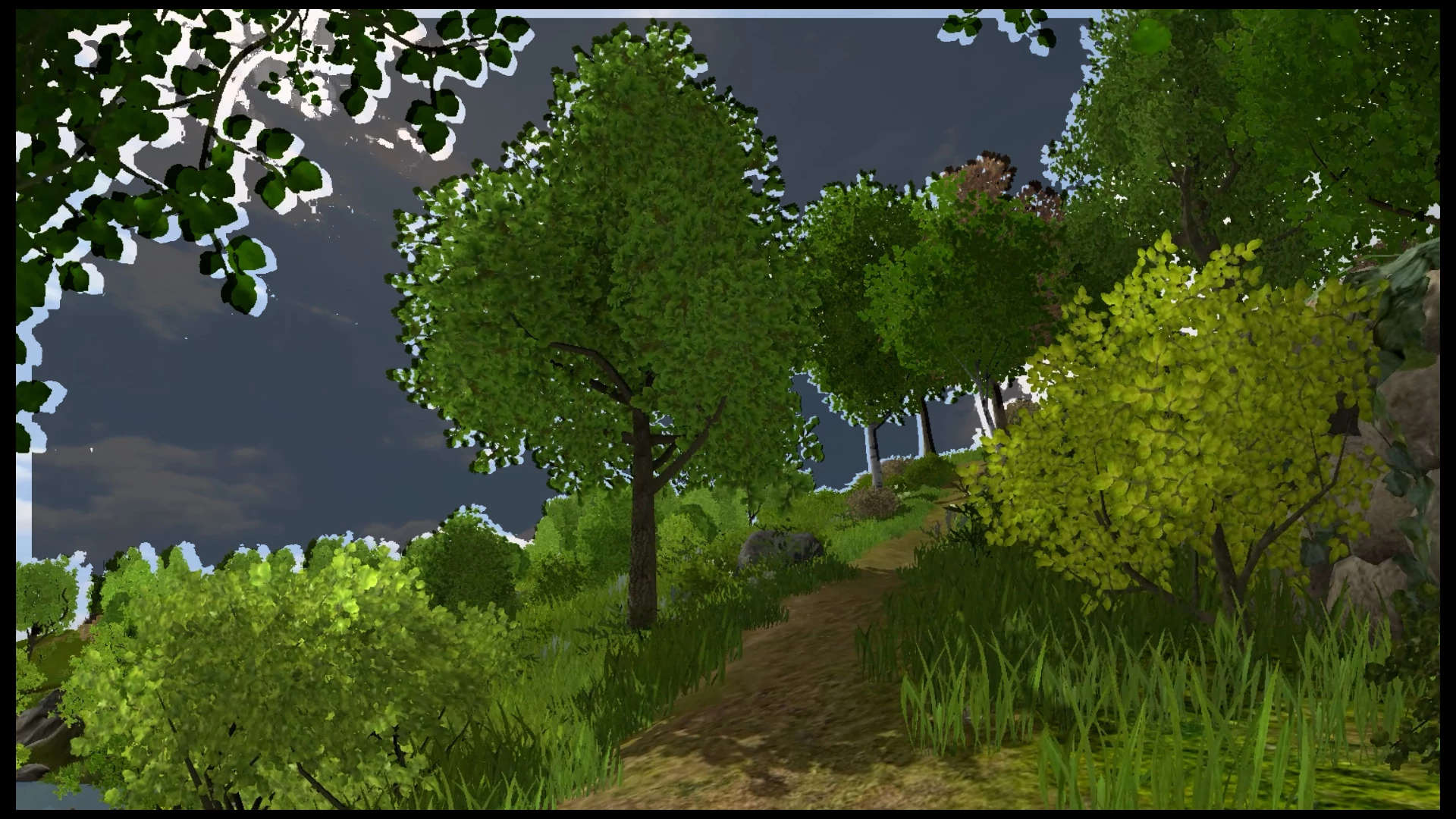
Top layer scale set to 100%
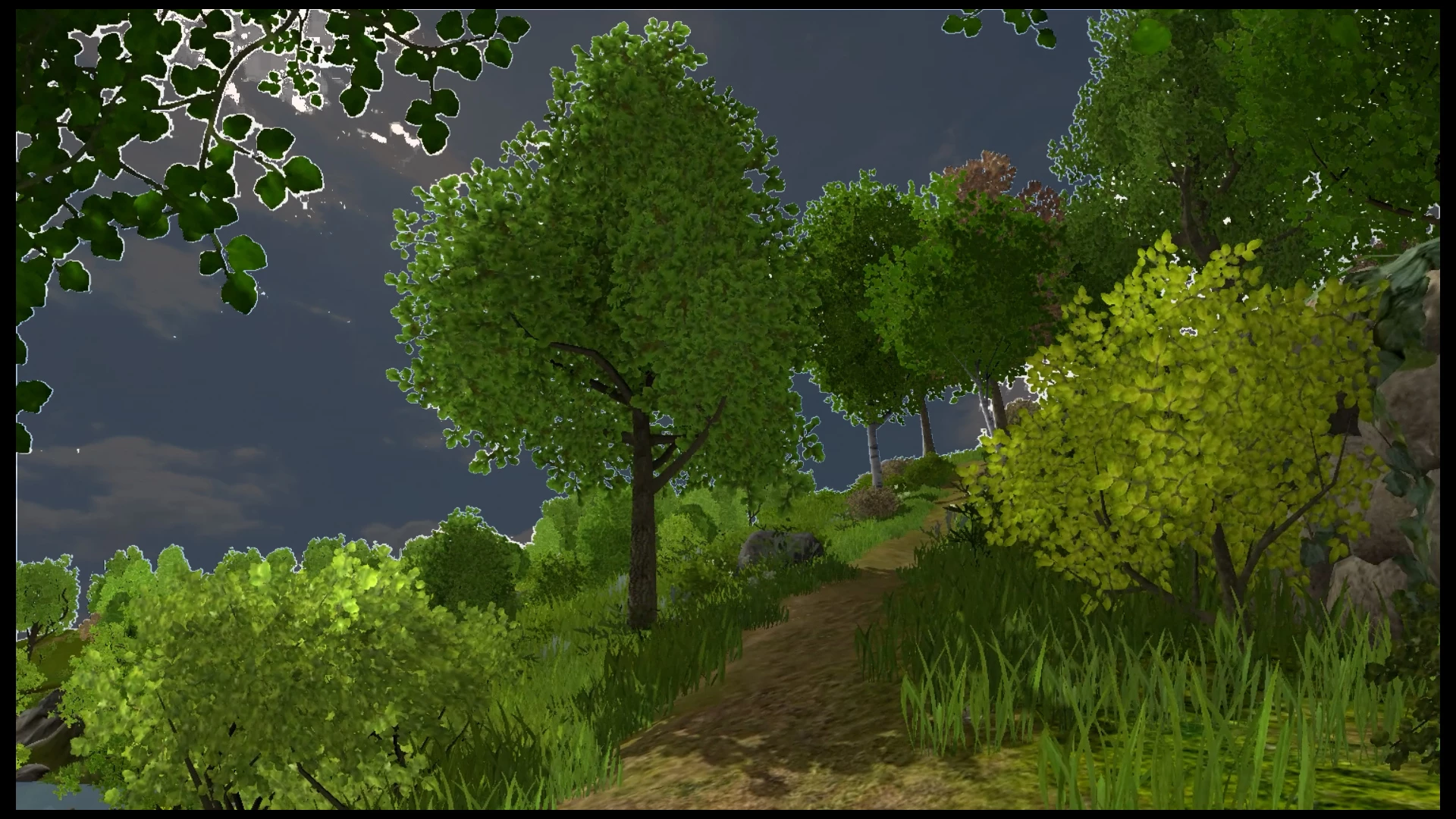
Top layer scale set to 102.1%
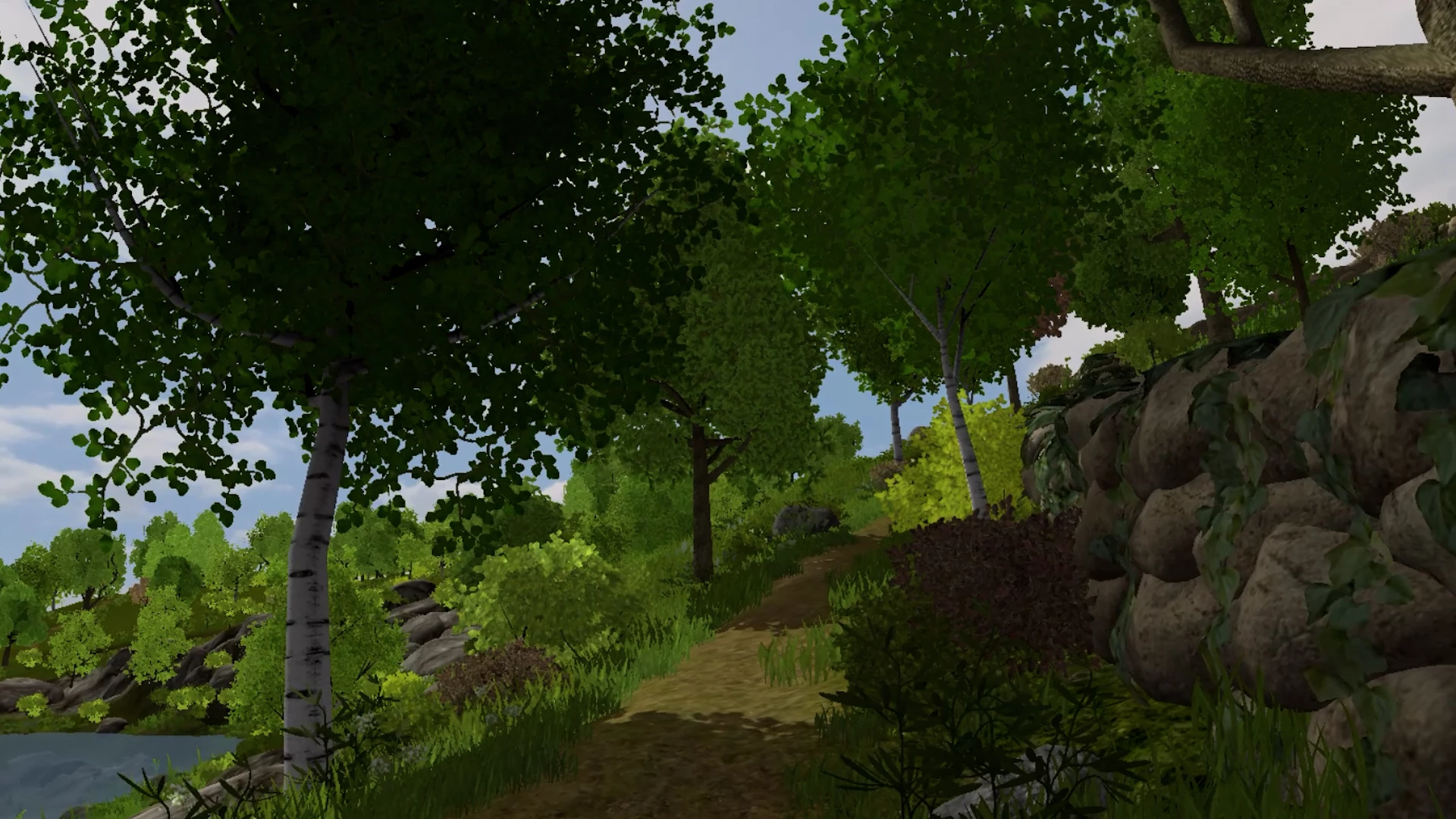
 

Ivy walk test video_01 (day)
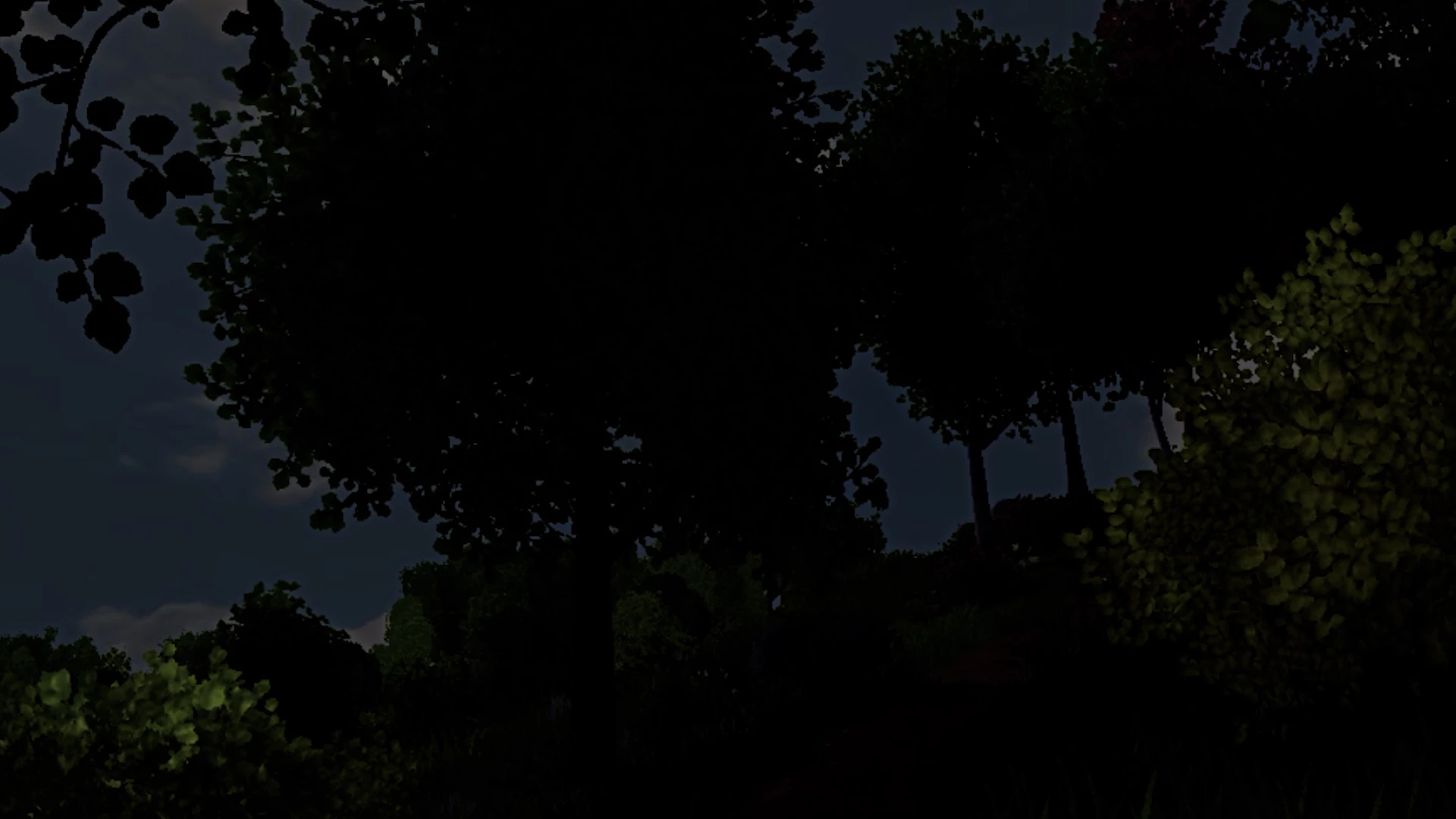
 

Ivy walk text video_02 (night)

This topic has been closed for replies.
Correct answer Michael Grenadier

Hi Neil,

News Flash!  I tried the same stacking/matte track key procedure with another movie clip.  This one was recorded live (don't know what camera) of people dancing, and it came to me as MP4.  The clip I'm having the trouble with  was a screen capture made with Snagit -- also an MP4.  Do you think that could have made a difference?  Screen capture vs recorded live?


This might also be of interest.  I tracked down a video by someone who also had the shrinking track matte key problem.

https://www.youtube.com/watch?v=T1XnJmUfI_M. In his his video he recommends putting a Turbulent Displace on the track matte key layer and setting the amount down to zero.  This worked on my clip, but the Turbulent Displace effect used a lot more computer resources than just increasing the scale of the top clip.  Any thoughts will be appreciated.

Zaffer


just a shot in the dark, but screen capture clips are often variable frame rate which can cause all sorts of weird issues.  


use mediainfo to determine whether your source is variable or constant frame rate

https://mediaarea.net/en/MediaInfo/Download

if it's variable use handbrake to convert to constant frame rate

https://handbrake.fr
and here's a tutorial on how to use handbrake

https://www.youtube.com/watch?time_continue=34&v=xlvxgVREX-Y

2 replies

R Neil Haugen
Legend
November 4, 2020

I always Alt/drag the clip up to V2, then Alt/drag that to V3.


I've never had a scaling issue, like what you seem to have, and that puzzles me.


Neil

Everyone's mileage always varies ...
ZafferAuthor
Inspiring
November 4, 2020

I just tried Alt/draging -- same result as before!

Zaffer


Legend
November 4, 2020

Thanks MGrenadier,

I just checked and Snagit does use variable frame rates.  I'm planning on getting better quality screen capture software, so maybe that will fix the problem.  Thanks!


just be sure and check that the new screen capture is constant frame rate.  Here's the adobe party line on screen captures.

https://community.adobe.com/t5/premiere-pro/faq-issues-with-screen-recorded-footage-in-premiere-pro/td-p/10874355?page=1

R Neil Haugen
Legend
November 4, 2020

Have you any scaling applied to the clip on V1? And to create your track stack, did you Alt/drag the clips up a track?


Neil

Everyone's mileage always varies ...
ZafferAuthor
Inspiring
November 4, 2020

Hi Neil,

No, I didn't apply any scaling to the clip on V1 (bottom clip).  I tried to scale V2 (sandwich filling) and that worked somewhat, but scaling V3 worked better.

When I created my stack, I think I remember dragging from the source monitor.  For some of my early tests, I actually used 3 different copies of the clip (imported from 3 different files in File Explorer).  I didn't use Alt/drag.  I found that using 3 different clips from 3 different files made no difference -- same as using 3 different copies of the same file in Premiere.  Thanks for answering.

Zaffer