Participant
September 9, 2024
Answered

Installed Transition from Adobe Stock is not applying to clips in Premiere Pro

  • September 9, 2024
  • 2 replies
  • 1027 views

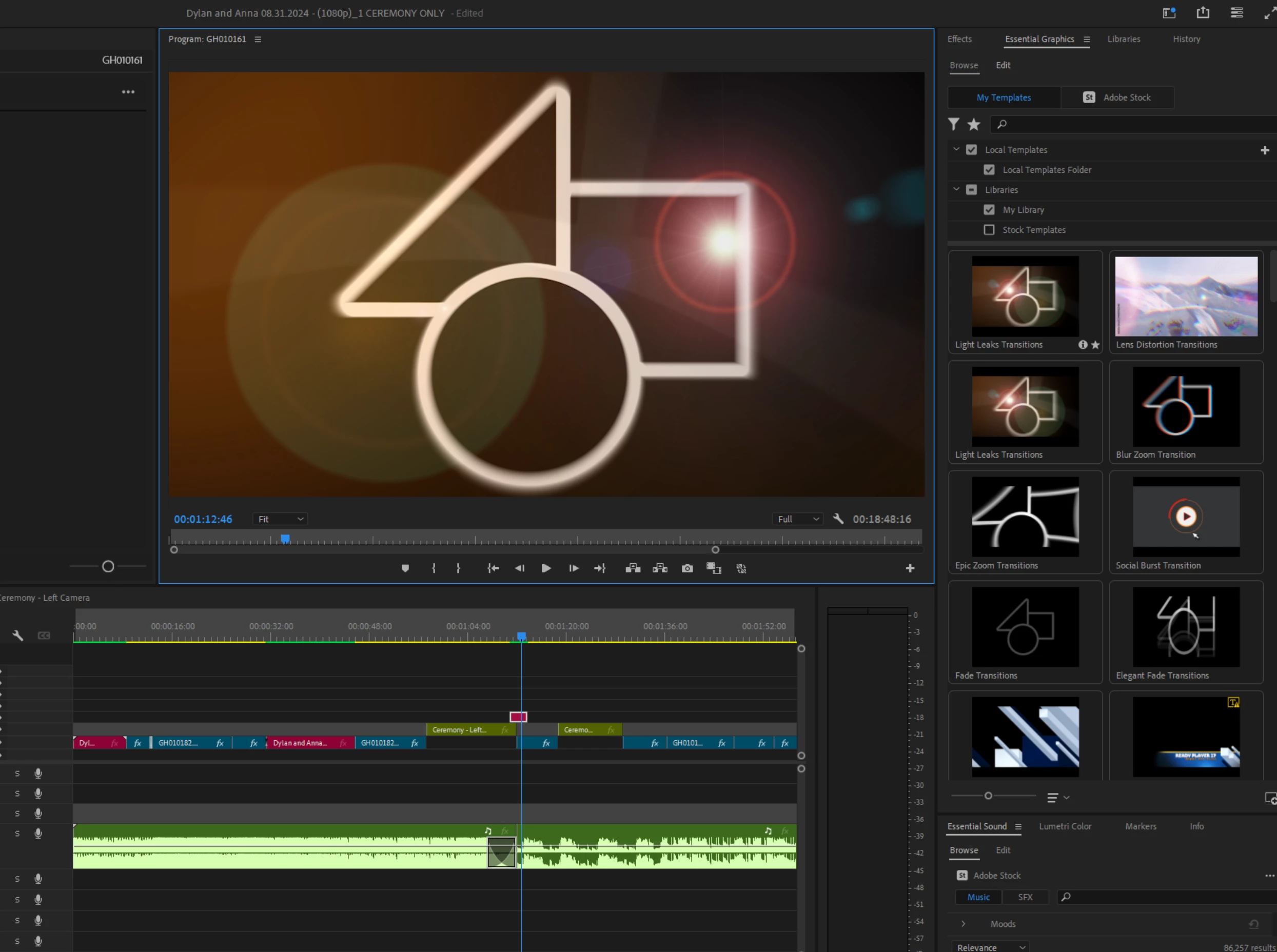
Learning premiere pro here. I downloaded a light leak transition from Adobe Stock. I have it in my local templates. Every video I watch shows people just dragging and dropping the transition onto their timeline and it magically works. I see the effect, but the circle/square/triangle thumbnail is still there.  How do I get this transition effect to apply over the two clips in my timeline? Here is a video of what I am doing. I am stuck.  Here is a link to the stock transition I downloaded: https://stock.adobe.com/templates/light-leaks-transitions/553595457?prev_url=detail


Thanks in advance!
This topic has been closed for replies.
Correct answer Theresa Rostek

Hi @kittysitterextraordinaire,


This is a mogrt and not a Premiere Pro project, so it functions differently than a regular transition.


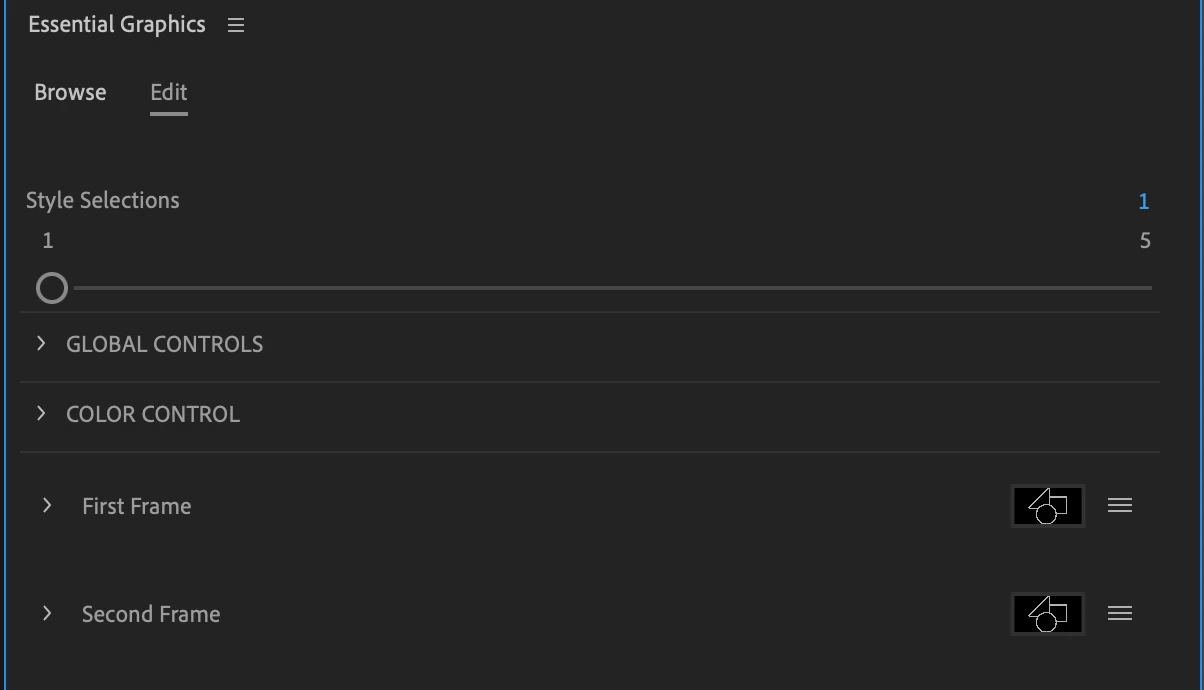
You'll want to select "Edit" in the Essential Graphics panel (in future versions of Premiere, you will open the Properties panel instead). The symbol you see on the screen and the one in this control panel means it is a placeholder. 


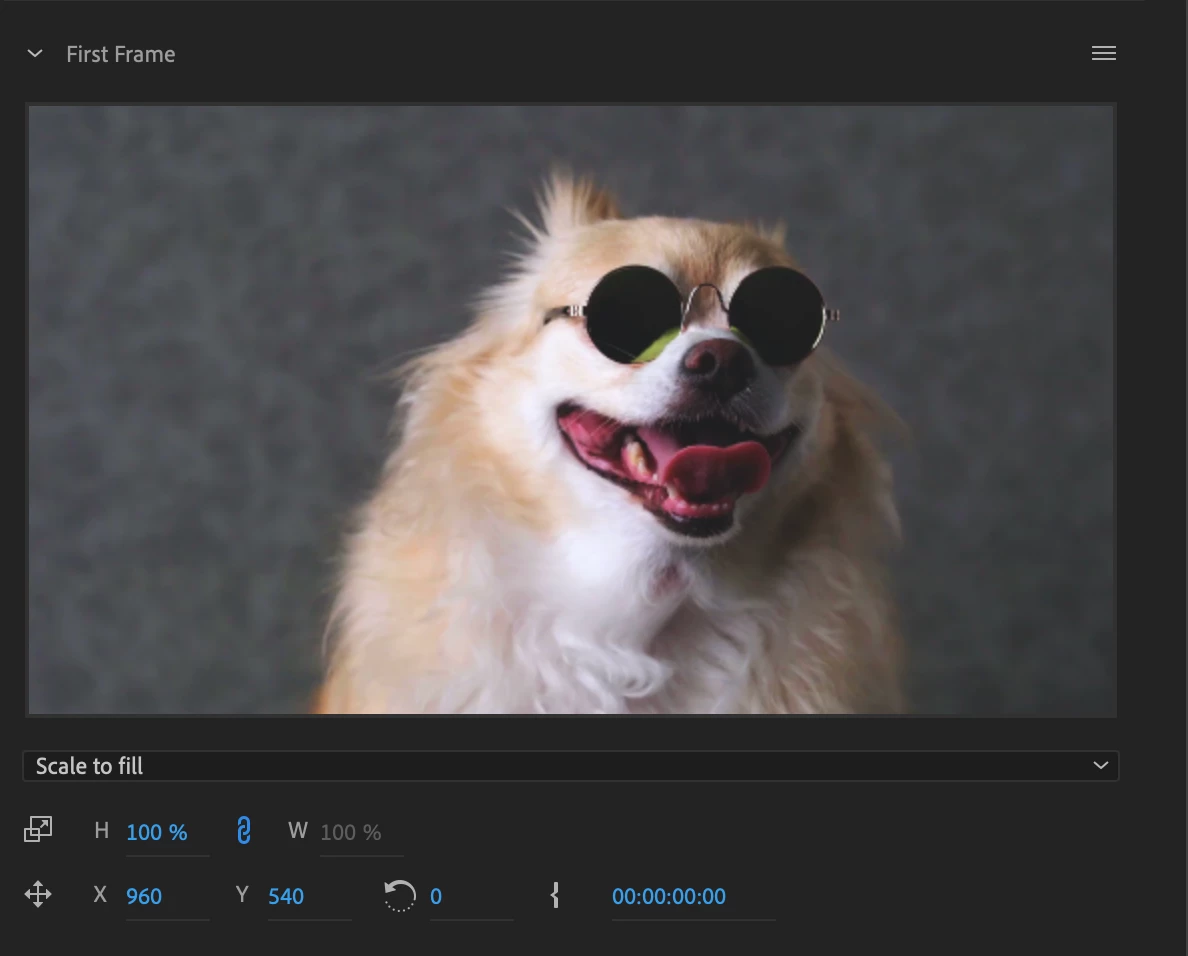
In general, you'll drag and drop your media/sequence onto that placeholder symbol from the Project panel or the explorer/finder (it won't work if you drag it from the timeline). It's important to note that media dropped into the control will start at the beginning of the clip, UNLESS it is nested with it cut to where it should start. You can delay the in point by 

twirling open the control, and change the in point next to the {


If you'd like to cycle through the different light leaks, drag the slider, and there's also a control for changing the color of the light leak.


Here's the documentation about the Media Replacement feature. Let us know if you run into any issues.


Cheers,

Theresa

2 replies

Theresa Rostek
Community Manager
Theresa RostekCommunity ManagerCorrect answer
Community Manager
September 9, 2024

Hi @kittysitterextraordinaire,


This is a mogrt and not a Premiere Pro project, so it functions differently than a regular transition.


You'll want to select "Edit" in the Essential Graphics panel (in future versions of Premiere, you will open the Properties panel instead). The symbol you see on the screen and the one in this control panel means it is a placeholder. 


In general, you'll drag and drop your media/sequence onto that placeholder symbol from the Project panel or the explorer/finder (it won't work if you drag it from the timeline). It's important to note that media dropped into the control will start at the beginning of the clip, UNLESS it is nested with it cut to where it should start. You can delay the in point by 

twirling open the control, and change the in point next to the {


If you'd like to cycle through the different light leaks, drag the slider, and there's also a control for changing the color of the light leak.


Here's the documentation about the Media Replacement feature. Let us know if you run into any issues.


Cheers,

Theresa

Participant
December 9, 2024

So I have two clips already on my timeline that I want to transition between. But I have to replace the media in the Mogrt and get the in points exactly correct for the transition to work? 

This just seems like adding a step into the process that doesn't need to be there. 

Participant
December 9, 2024

Nevermind. I realized that what I was looking for were plugins. 

Luckily I found an incredible free pack on Adobe Stock. I still don't understand why the Adobe Stock "transitions" can't just be applied over the two clips you want to transition between, but at least I have a solution to my problem. 

Community Expert
September 9, 2024

You may want to set the blending mode of the mogrt to 'Add' or 'Screen',

or check if there are Media Replacement options within 

the mogrt in the Essential Graphics where you can drop

your in and out clips.

If you need more assistance, pm the mogrt 

to check how it is structured and guide you.