
pupeno
Inspiring
August 28, 2022
Answered

Is it possible to sync clips in Adobe Premiere Pro when there are more than one clip per track?

  • August 28, 2022
  • 3 replies
  • 967 views

I have the recordings from 4 cameras. The recordings were broken into smaller files, something the cameras do by themselves, but the cameras were also turned on and off. I don't know when the boundaries between two consecutive clips is the automatic file cut or a camera on/off.


I want to do a pass watching all the footage on all the angles in multicam mode, to learn what's on each camera and start editing this. The problem that I'm having is that Adobe Premiere Pro doesn't seem to be able to synchronize clips when I select more than one clip per track.


This might help. I'm trying to synchronize this:
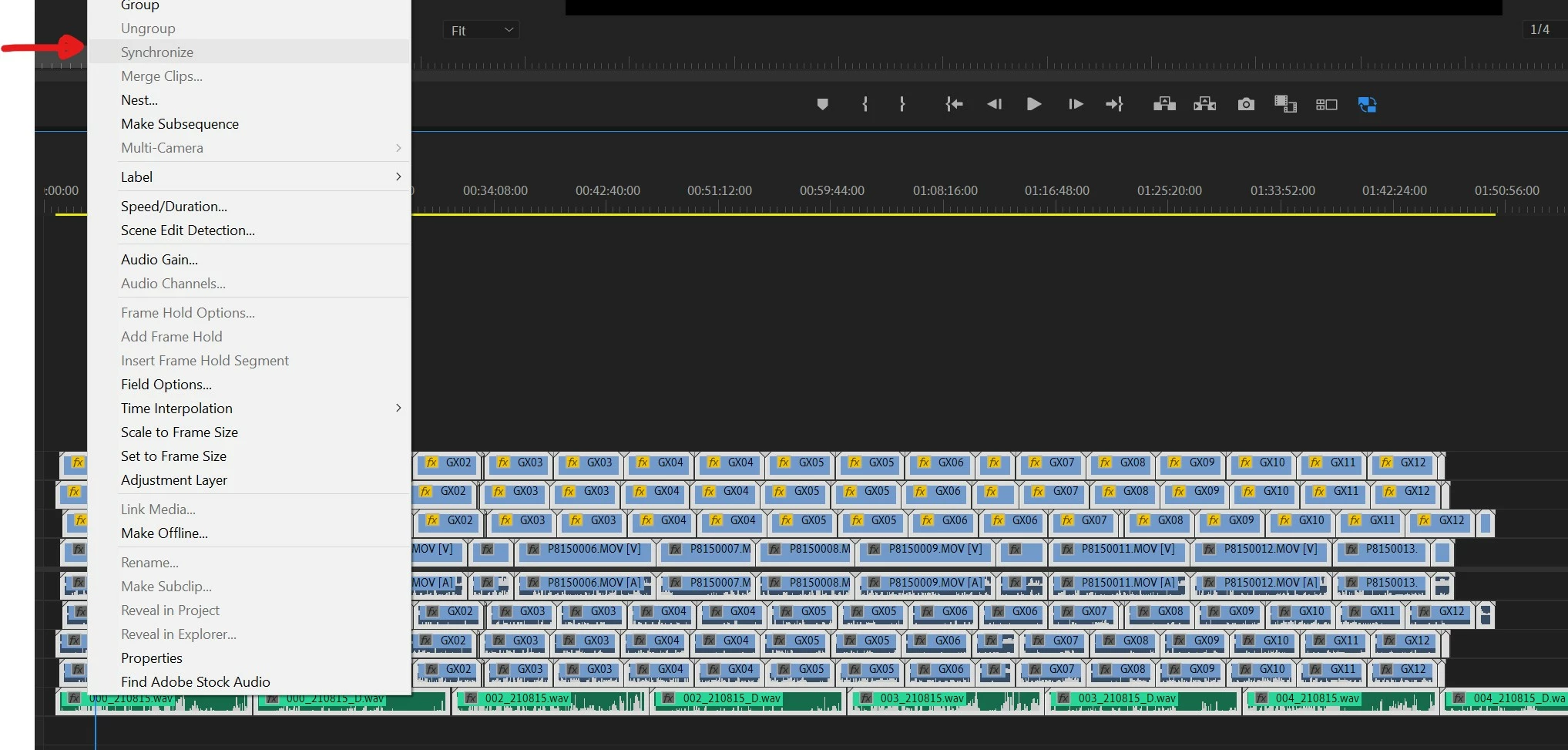


and yes, there might be gaps, when a camera was turned off for a bit and turned back on again. That's ok.

I can only synchronize this:
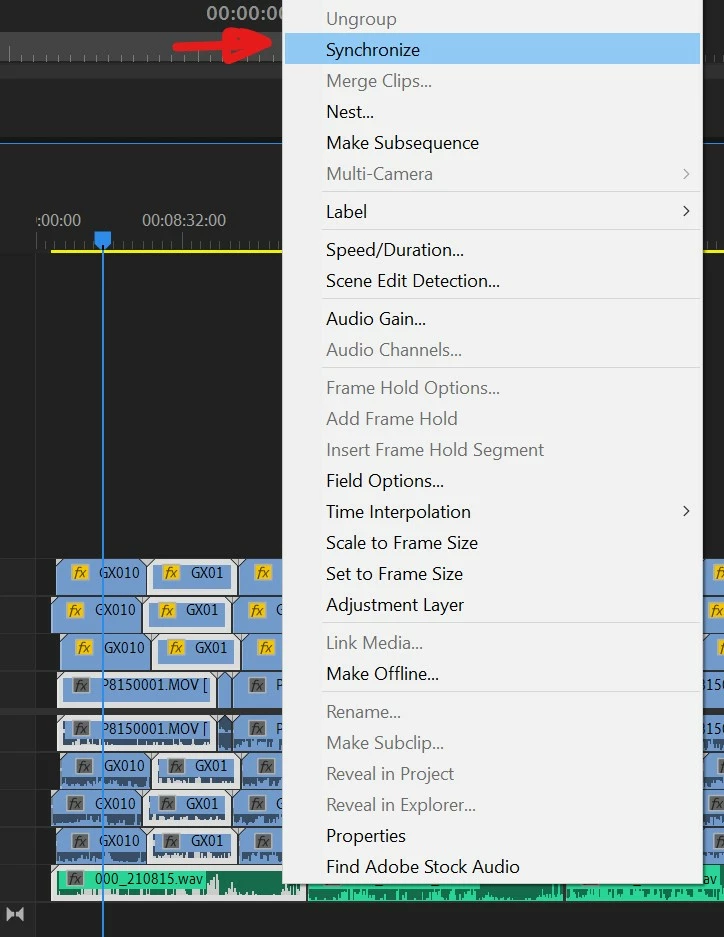
Correct answer pupeno

As far as I can see, the answer is no, which means syncing each column of clips by hand.

I understand Premiere Pro wants to avoid one clip conflicting with another, but that's trivial to detect and they could just abort syncing those when that happens. They already avoid synchronizing when the audio doesn't match.

3 replies

pupeno
pupenoAuthorCorrect answer
Inspiring
August 31, 2022

As far as I can see, the answer is no, which means syncing each column of clips by hand.

I understand Premiere Pro wants to avoid one clip conflicting with another, but that's trivial to detect and they could just abort syncing those when that happens. They already avoid synchronizing when the audio doesn't match.

Legend
August 31, 2022

As a solution to your problem, try the PLURALEYES app from Maxon. It allows you to synchronize a bunch of clips with audio tracks.

The Rational Observer
Participating Frequently
August 28, 2022

What content do you think premiere software will reference when you're trying to sync across too many layers and tracks?

Use the Nest feature and create a nest for each camera.

With these nests, rearrange the contents in the Final project, then you can synchronize as much as you want.

We haven't time because world is rush to end.
pupeno
pupenoAuthor
Inspiring
August 31, 2022

Nesting wouldn't work because not all clips are adjacent to each other. Some cameras were turned off for a bit and then turned on again.

Warren Heaton
Community Expert
Community Expert
August 28, 2022

If you follow the steps for the Multi-camera editing workflow, you should get something closer to what you are expecting.

pupeno
pupenoAuthor
Inspiring
August 28, 2022

@Warren Heaton10841144 thank you for your response.

The relevant part of that document, as far as I can see, is this:

quote
  • Select a bin containing assets and choose a sync method from the Create Multi-camera Source Sequence dialogbox. All clips in the bin are processed based on the sync method and ordered alpha-numerically in each resulting source sequence.
  • Select assets manually and choose a sync method from the Create Multi-camera Source Sequence dialog box. The order in which you selected the clips determines the order in the resulting source sequence.


Neither of these work for me. If I select the bin, "Create Multi-camera Source" is grayed out. If I select all my clips, it just fails with an error saying it can't sync some clips and ended up creating a single sequence with just 2 clips (2 cameras, one clip each, out of about 50 clips belonging to 4 cameras).

I also tried selecting some clips and syncing them and it's quite erratic. It created between 1 and 4 multi-cam sequences, all with just 2 cameras. One was not even synced.

Warren Heaton
Community Expert
Community Expert
August 29, 2022

If that's not working, you may have to do it manually by finding a distinct sync points  in the audio, setting makers, and the aligning the clip boundaries based on those.