
Inspiring
August 9, 2024
Question

Is there a way to mass change the colour of a SHAPE tool in the timeline?

  • August 9, 2024
  • 2 replies
  • 1524 views

I have various shapes within the timeline all created in a specific colour. However, all of these need to now be in a different colour (still all the same colour). Is there a way to update the colours all at once without clicking on these shapes individually?


Whenever I click on more than one graphic, the Essential Graphics panel shows nothing and the Effects Control panel states "Multiple clips selected."

It can't be that difficult to implement this mass change similar to the Text where I can mass update the font and colour.

Example 1: When one graphic shape is selected
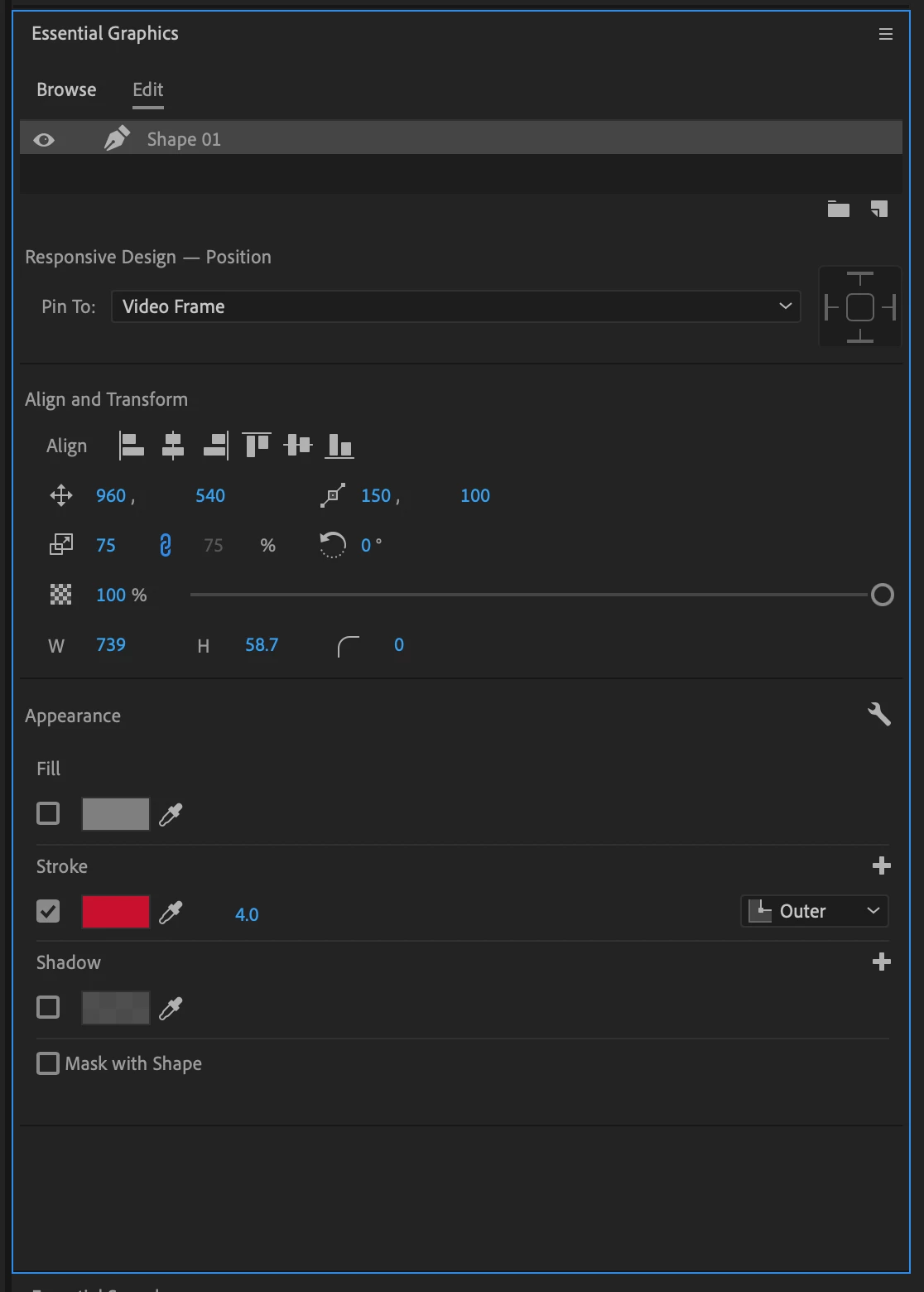

Example 2: When two or more graphic shapes are selected. Now a blank.

2 replies

Known Participant
May 22, 2025

@raymondocampo  Hi, there is a workaround that saves a *bit* of time. Basically, with Effect Controls open, park the blue playhead on the shape whose color you want to emulate/match, then (without moving the playhead) click on the shape whose color you want to change (the order seems counterintuitive, but it's crucial).  The Effect Controls will now be controlling the clip you selected (and that you want to change), but the Program Monitor will still be showing the shape whose color you want. So you can now use the eyedropper in the Effects Control to grab the color from the Program Monitor.  Take a look at the included screengrabs (in this example, changing a yellow stroke to a teal stroke).


Community Expert
August 9, 2024

Hi Raymondo,

You can easily change the color of multiple shape layers in your timeline by following these steps:

  1. Select the First Graphic:
    • Click on the graphic in your timeline that you want to change first.
  2. Open Lumetri Color:
    • Go to Window > Lumetri Color to open the Lumetri Color panel.
  3. Adjust Hue:
    • Scroll down to the Hue Saturation Curves section and check the Hue vs Hue option.
    • Use the Eyedropper tool to select the color in the Program Monitor that you want to change.
    • This action will add three control points to the curve.
    • Click the center point and drag it up or down to shift the color to your desired hue.
  4. Adjust Luminance if Needed:
    • If you need to adjust the brightness of the color, you can also use the Hue vs Luma curve in the same way.
  5. Copy the Lumetri Effect:
    • In the Essential Graphics panel, right-click the Lumetri effect you just applied and choose Copy.
  6. Apply the Effect to All Graphics:
    • Select all the graphic layers in your timeline where you want the color change applied.
    • Right-click and Paste the Lumetri Color effect.


For more detailed information on using Hue Saturation Curves, check out this Adobe Help page.


Cheers,
Paul

Inspiring
August 9, 2024

Hi @PaulMurphy, appreciate the response. I'm afraid my question may have been misunderstood. I agree on the Lumetri Color which can be copied and pasted. However, this is on the Shape colour under the Essential Graphics panel. I create shapes throughout my video with specific HEX colours on their stroke and/or fill.


I thought it was as easy as doing a copy and paste as the Lumetri effect, but there seems to be no way to mass update the stroke/fill colour under the "Appearance" tab. You can only copy the whole shape and resulting properties which I don't need as they are all varying shape. I just need to copy the specific HEX colour, but to no avail.

AnnikaKoenig
Legend
August 12, 2024

@raymondocampo you are correct. There is currently no way of doing this in the Essential Graphics panel and you'll either need to change the graphics one by one, copy and paste, or use Lumetri.