Participant
September 17, 2021
Answered

Issue - Videos Exported From Xbox Live (720p 60fps) Used in Premiere Pro - Export with Stutters

  • September 17, 2021
  • 3 replies
  • 2797 views

I'm new to premier and having an issue as I'm trying to put together video clips from Xbox gameplay. The xbox video clips are exported directly from Xbox Live and they come exported as 720p 60fps video clips. In VLC player all video clips play smoothly, no issue.


When I add them into Adobe Premiere Pro as a sequence, some of the video clips in the preview player play with a stutter/jumpy and pixelation issue. While others will randomly seemingly play smooth consistently.


What's worse is when I export the media using that method or the Adobe media encoder, the video clips in the sequence that played in the preview stuttery have the exact same export quality where they play really messed up.


I have uploaded my video issue to YouTube so you can directly see it and I have the source video files on dropbox if you want to try it yourself. Is there anything I am missing for settings that need to be done to get all xbox sourced video clips to be smooth when exported in Premier?


It's not an issue of videos in Premier being laggy for playback, but the export itself having issues. The weird thing is all the source video clips are all the same frame size and frame rate, but yet get vastly different quality experiences in Premier?


I also tried VBR of 20 - 62.5 Mbps for bitrate for example while the frame rate is 59.94 in the export settings. It does not fix the exported video issue. CBR of 62.5 Mbps bitrate also didn't fix the issue.


Any ideas?


YouTube Upload: https://www.youtube.com/watch?v=3tilDTzKWOQ
Both video code specs from VLC are the same:
Stream 0
H264 - MPEG-4 AVC (part 10) (avc1)
1280x720
59.940268 frame rate
Stream 1
MPEG AAC Audio (mp4a)
Stereo
48000 Hz
32 bits per sample
Premier Export Settings:
Output:
1280x720, 59.94 fps, Progressive, Hardware Encoding
VBR, 1 pass, Target 10.00 Mbps
AAC, 320 kbps, 48kHz, Stereo
Source:
1280x720 (1.0), 59.94 fps, Progressive
48000 Hz, Stereo
Sequence Settings:
Timebase: 59.94 frames/second
1280x720 frame size
48000 Hz


Clip that plays badly and exports badly in Premier source:
https://www.dropbox.com/s/q1kpfzyby6416ji/11%20-%20quakscop-6.mp4?dl=0
Clip that plays smoothly and exports smoothly in Premier source:
https://www.dropbox.com/s/7jn11a7gvkehmqe/17%20-%20quakscop-8.mp4?dl=0

Correct answer Averdahl
quote

When I add them into Adobe Premiere Pro as a sequence, some of the video clips in the preview player play with a stutter/jumpy and pixelation issue.


By @DesertJetSetter


The reason behind this is that your source media has variable frame rate and Premiere Pro has issues with that and wants/demands source footage that has a constant framerate. You mentioned a framerate of 59.940268 and that´s the issue. 


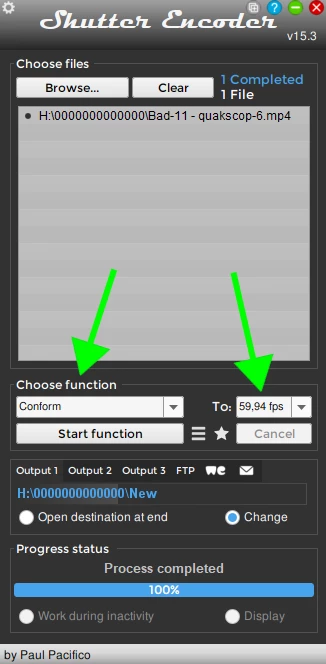
The solution is to download the free app Shutter Encoder encoding|converting video FREE PC|Mac and Conform the source video to 59,94 fps using the settings in the screen dump below.


I downloaded the clip you provided and when i playback the clip it stutters. If i use Shutter Encoder and conform the clip to 59,94 it works great. The tip of the century is to always conform all source media that have variable framerate such as 59.940268 to 59,94.


3 replies

Participant
March 21, 2025

Alternate Solution:


To add some context. I was trying to upload my Xbox Series X captures from my OneDrive to my Adobe Premiere Pro. For whatever reason Premiere was not liking the clip and it kept having similar issues; random moments of pixelation and stutters.


This is going to sound ridiculous but all I did was upload the video to my TikTok. I posted it so that only I can see the video. I then save that video onto my phone, send it back to my PC, upload it to Adobe and boom. No more pixelation. This is a caveman solution with some extra small steps but I really was just tired of looking around and finding no proper solutions. The video quality is still nice imo. Hope this helps for anybody reading. Also for more context the clip for me was a 1080p Halo Infinite clip with 58.96fps.

Averdahl
Community Expert
AverdahlCommunity ExpertCorrect answer
Community Expert
September 17, 2021
quote

When I add them into Adobe Premiere Pro as a sequence, some of the video clips in the preview player play with a stutter/jumpy and pixelation issue.


By @DesertJetSetter


The reason behind this is that your source media has variable frame rate and Premiere Pro has issues with that and wants/demands source footage that has a constant framerate. You mentioned a framerate of 59.940268 and that´s the issue. 


The solution is to download the free app Shutter Encoder encoding|converting video FREE PC|Mac and Conform the source video to 59,94 fps using the settings in the screen dump below.


I downloaded the clip you provided and when i playback the clip it stutters. If i use Shutter Encoder and conform the clip to 59,94 it works great. The tip of the century is to always conform all source media that have variable framerate such as 59.940268 to 59,94.


Participant
September 17, 2021

Thank you!!!


Participant
September 17, 2021

Also not sure if its just me but the video that plays badly both in premier and in the export, at least in the export mp4 it seems like its also playing a bit faster than the good clip speed wise.  But in the clips settings they are set to 100% speed, not modified for example.  And these were literally just drag and drop into the sequence media wise, not modifying each clip in the sequence to tinker with settings.  


I would just setup the sequence settings to be 59.94 fps and when exporting ensuring the same frame rate selection and ensuring frame size was 720p.  Nothing works to smooth out the problem clip for example. 

Even tried different machines, was originally doing the export on a laptop, and tried on my 10 core windows pc and both have same behavior. 

Participant
September 17, 2021

Also after looking again at the exported video versus the source that I attached here too, the source video for the problem clip that plays smooth in VLC player is also the same speed as the on in VLC player.   But in Adope Premiere the video is playing noticably faster without it being specified too.  Almost like it tries to play it faster, loses its place, pauses to catch up and continues if that makes sense.  I don't see anything I'm doing in premiere at the moment that would say I'm changing how fast that clip should be played versus the file that plays smoothly both in preview player and the actual export.