Participant
November 11, 2022
Answered

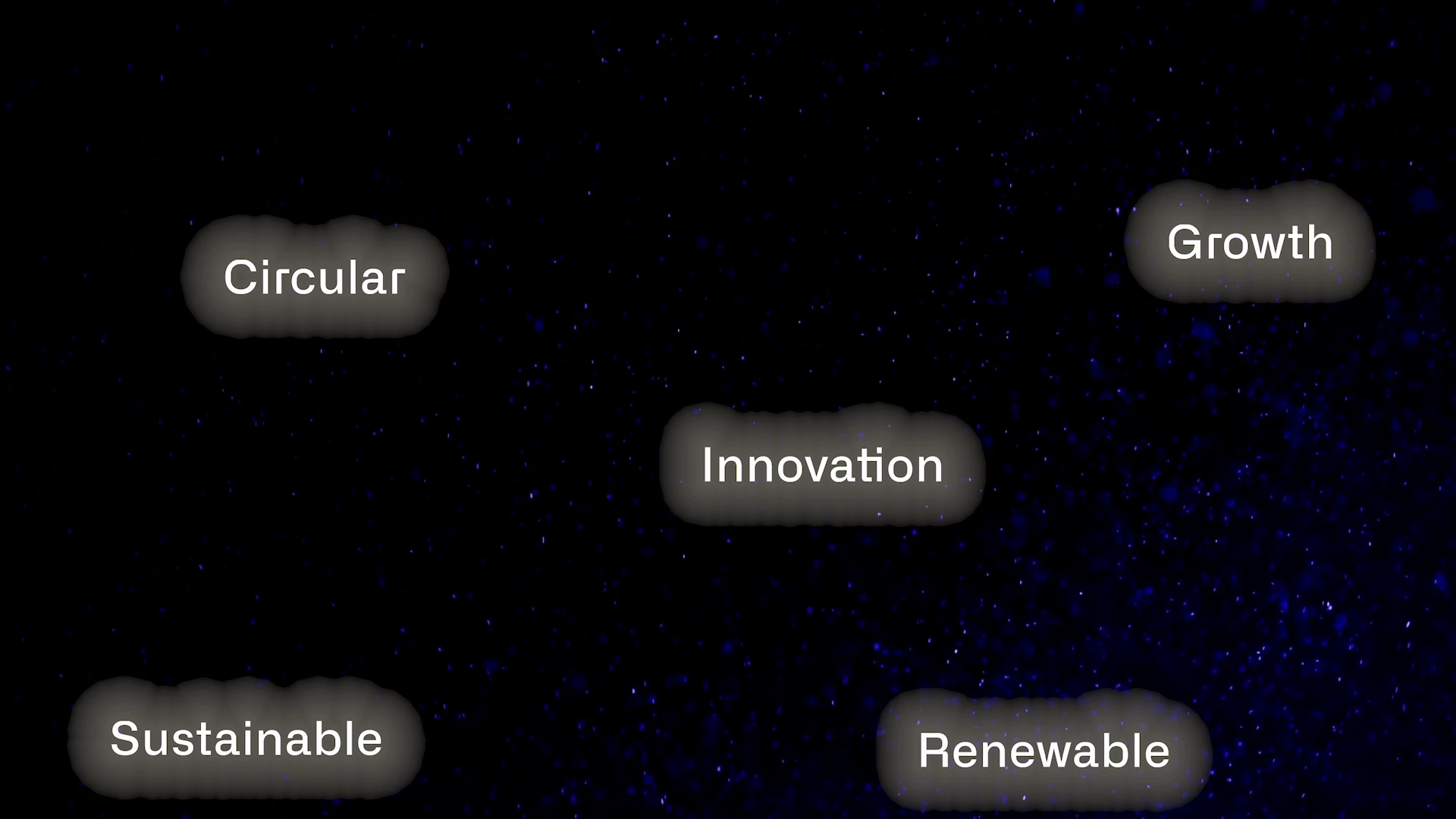
Issues while export my Video: the text shows ugly outlines that look like weird compression.

  • November 11, 2022
  • 2 replies
  • 1050 views
I need your help!
I'm making a video but every time I export it the text shows these ugly outlines that look like weird compression. I need a glow around the text but even trying different methods I always get the same result. I created the PNG text on photoshop (300dpi), first trying to give it the glow from Photoshop and then import it to Premiere pro. I also tried to export the normal text and then give it a glow in Premiere (even trying nesting the text) but nothing to do, I still have this problem. Would anyone know how to solve? Thank you!
PS: I tried to export both h264 and ProRes 422 but nothing changes


This topic has been closed for replies.
Correct answer Averdahl
quote
I created the PNG text on photoshop (300dpi)...

By @knowledgeable_Rose6C2C


What happens if you create a 72 dpi png or preferably a .psd file? If your sequence is 1920x1080, create a file with the same dimesions in Photoshop with 72 dpi and use that.


300 dpi in premiere Pro do cause more harm than good many times.


EDIT:

Or, go to Sequence > Sequence Settings and un-check "Composite in Linear Color".

2 replies

Warren Heaton
Community Expert
Community Expert
November 11, 2022

You can try setting the Blend Mode of the PNG source to Lighten or Screen (Effect Controls > Opacity > Blend Mode).


For a better level of control, save the PNG with the text but wihtout the glow.  Then in Premiere Pro select the PNG in the higher Video Track wtih the background in the lower Video Track, right-click and choose "Replaced with After Effects Composition".  In After Effects, select the PNG layer and choose Effect > Stylize > Glow.  Adjust the Glow Threshold and Glow Radius as preferreed.


Or... import the background video into Photoshop and work with that below the Text Layers.  Adjust the glow as preferred and then use File > Export > Render Video to return to Premiere Pro. 


Side note:  DPI in Photoshop is a setting for print.   As far as Premiere Pro concerned, it's about image size (or frame size) in pixels and 1920-by-1080 at 72 dpi is the same as 1920-by-1080 at 300 dpi.  


Participant
November 11, 2022

I don't use AF, i fixed going to Sequence > Sequence Settings and un-check "Composite in Linear Color". Then I used gaussian blur on Premiere to recreate the blur. I thank you all the same for the answer

Averdahl
Community Expert
AverdahlCommunity ExpertCorrect answer
Community Expert
November 11, 2022
quote
I created the PNG text on photoshop (300dpi)...

By @knowledgeable_Rose6C2C


What happens if you create a 72 dpi png or preferably a .psd file? If your sequence is 1920x1080, create a file with the same dimesions in Photoshop with 72 dpi and use that.


300 dpi in premiere Pro do cause more harm than good many times.


EDIT:

Or, go to Sequence > Sequence Settings and un-check "Composite in Linear Color".

Participant
November 11, 2022

Changing the Sequence Setting worked! Thanks so much!