Participating Frequently
Jan 31, 2018 1:35 PM UTC
Answered

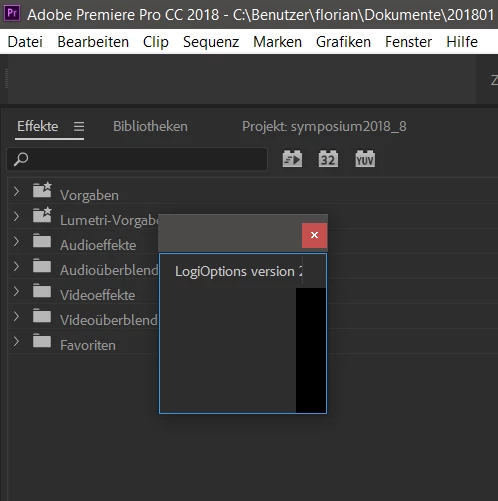
logiooptions panel pops up

In premiere cc (v 12.0.0) a small panel keeps poping up. Any Ideas how to permanently remove it?

Thanks for you help with this!

Florian

This topic is closed to new replies. Start a new post to keep the conversation going.
Dan McSweeneyCorrect answer
Adobe Employee
Mar 30, 2021 11:13 PM UTC

Thanks Dan! I'm sure that when you figure out the fix it will work with the entire Logitech line that utilizes LogiOptions Software.  As I do not own a Craft Keyboard (Yet....Lol), But I do own the MX Ergo Trackball.  If you need anything from my end (i.e. Log Files, etc.), Let me know.


Update after speaking with Logitech, and testing with a Logitech Craft Keyboard:


Summary: Close the logitech panel, close Premiere Pro, relaunch Premiere Pro, the panel will remain hidden - but still function.


Details: Logitech Options, or LogiOptions, is software that gets installed with your Logitech device.

If you have one of these 3 devices, though, Craft Keyboard, MX Master 3 (mouse) and MX Anywhere 3 (mouse) then Logitech will prompt you to install a CEP panel (Common Extensibility Protocol - meaning that a Logitech developer has written a panel extension, aka plugin, to create additional usibility with specific Adobe applications, like Premiere Pro)


That panel is designed to run hidden in the background. Right now, for example, the scroll wheel on my Logitech Craft keyboard allows me to jog through my sequence in the timeline - and I do not see the panel. HOWEVER - if I went to Window> Extensions> LogiOptions > v8.xxx,  that tiny panel will appear. And closing it will cause my Craft keyboard to stop its special functions within Premiere Pro. The solution is to not relaunch the panel, but to close Premiere Pro with the panel closed, and then reopen Premiere Pro. The panel will remain hidden, but the Logitech keyboard will continue to provide its special Premiere Pro functions.


If you do not have one the 3 Logitech devices listed above, @suginuma 's suggestion of removing the CEP panel is also valid. For example, @CrosstownAlliance-KMiller you write that you have an MX Ergo Trackball - there is no additional functionality for your device provided by the CEP panel; hide or remove the panel.

Thanks for you patience on this, and stay safe,

-Dan



60 replies

Participant
Feb 23, 2022 1:36 PM UTC

The followinf pathway is now invalid

C:\Program Files\Common Files\Adobe\CEP\extensions\LogiOptionsAdobeYou

Any ideas on how to stop the pop up now?


Thanks, 

A

Translate
Inspiring
May 5, 2022 2:19 PM UTC

C:\Program Files\Common Files\Adobe\CEP\extensions\LogiOptionsAdobe\jsx is exactly where I found it in Windows 11 and latest Adobe updates. Delete the Premiere one and it goes away. If you change your universal transmitter it comes back though, at least that is the only reason I can think for it coming back. It is Logitech not Adobe who are both lame and at fault. 

Translate
ZenGeekDad
Inspiring
Jul 13, 2021 10:13 PM UTC

The "correct answer" cited here did not work for me either.  And simply closing the pop-up works only for 10-60 seconds, as it just keeps popping back up, randomly.

So, I dragged the little window by its upper left corner on the lower right pixel of my monitor.  There, you can't even see it.  So it can pop or stay up to its heart's content, and I can get my work done, never seeing it.

Translate
Inspiring
Jul 27, 2021 12:39 AM UTC

Good tip....just started happening to me again.  YEARS later and this is still a bug, but hey it's Adobe!

Translate
FlyingFourFun
Legend
Jul 27, 2021 8:05 AM UTC

It started for me also; just now version 15.4.  I am not convinced it's an Adobe bug (I think it's on Logitech).

The advice to delete the extension folder worked for now, so hope it stays that way.

Translate
PRWZ
Participant
Apr 8, 2021 7:20 PM UTC

UGH!!! I keep getting this in Illustrator on my MacBook! It pops up every time I flip through files, even after I close it! Please help

Translate
dmcsween4
Inspiring
Apr 8, 2021 9:40 PM UTC

@PRWZ  Please try this and report your results; 

  1. After the logitech panel pops up, close the panel
  2. Close Illustrator
  3. Relaunch Illustrator

If you see it again, respond with what caused it to launch; it opened when Illusttrator opened, or when opening an exusutng file?  Or when opening a new file? And please include the version of Illustrator you're using.


Translate
Participating Frequently
Sep 7, 2022 12:51 PM UTC

Hello @dmcsween4, I noticed @PRWZ didn't respond to your request so I'll do it instead since I have the same issue.


I'm on the latest Illustrator on a Mac Mini M1 (latest OS, latest system updates), and have been having the same issue very consistently. Here's what I've tried so far:

  • Closing the Logitech panel, closing Illustrator, relaunching illustrator
    • This didn't solve the issue, and the panel seems to automatically pop back up after a moment, even without any file open.
  • I also tried looking into the Logi Options software. From what I can tell the panel started popping up after trying to enable Application Custom Settings (I hope I translated this correctly, since my Logi-software is in Dutch). After disabling it due to continuous crashing of Illustrator (seemed to be a bug on Logi's side), the panel very annoyingly never went away.
  • I can't find any related file in the Illustrator application folder (nor in the Illustrator folders in Application Support).


I hope this helps narrow things down 🙂

Translate
Participating Frequently
Mar 21, 2021 10:41 PM UTC

You just need to update your Logitech Options software.

Translate
Participant
Mar 29, 2021 4:15 PM UTC

Tried that...still no joy.

Translate
dmcsween4
Inspiring
Mar 29, 2021 4:31 PM UTC

I just got my hands on a Logitech Craft keyboard, and I've been in touch with our partners at Logitech. I'll do some testing and post to this thread.

-Dan

Translate
dmcsween4
Inspiring
Jan 14, 2021 11:52 PM UTC

Thanks for the comments everybody. (especially @suginuma for the surgical fix. ) We're in touch with Logitech about this, and we'll continue to watch this conversation.

Happy New Year, and stay safe,

-Dan

Translate
Participant
Feb 9, 2021 3:42 PM UTC

Dan,

Has there been any headway on this issue? Why does it exist, what is the pop-up's purpose? If I follow @suginuma 's fix what is going to be affected, if anything?

Translate
Monae917
Participant
Oct 22, 2020 5:20 PM UTC

Thank you! this has been bothering me for months!

Translate
Participant
Sep 10, 2020 5:52 PM UTC

I think it mostly relates to implementing scroll wheel smoothing

Suginuma's solution worked for me but: If that causes problems in another program you can disable it only for affected software by editing

C:\Program Files\Common Files\Adobe\CEP\extensions\LogiOptionsAdobe/index.html


Removing or commenting out the line <script src="js/PrImplementation.js"> fixes it for Premiere Pro.

You might need to copy, edit, save, and replace to get it to work.

Translate
PJ-AVT
Participating Frequently
Nov 24, 2020 11:04 AM UTC

This one was straightforward and didn't seem to change anything relating to my Logitech mouse / keyboard in PPro. You just need to edit the index.html in Administrator mode.

Translate
Pat Finnegan
Known Participant
Aug 12, 2020 5:41 PM UTC

Even easier solution. Dock that panel and then close it with the "hamburger menu."

Translate
Participant
Jul 29, 2020 2:13 PM UTC

Hello all,

@suginuma thanks for your solution, I just did it and it worked, no re-install needed as stated. I shut down Premiere Pro and then moved that foledr to the previous folder.

My Premiere Pro version = 14,3,1 Build 45


Leon

Translate
Participant
Jul 17, 2020 6:19 PM UTC

Thanks this helped!

Translate