
pedzsan
Inspiring
October 20, 2025
Answered

Looking for help with timelapse

  • October 20, 2025
  • 1 reply
  • 97 views

I have 2351 images from a Canon R52 which are 8192 x 5464.  I created a new project and imported the frames so they each will consume one frame.  I then grabbed the images and dragged them to the timeline.  A sequence is created (I'll call the original sequence).

I went to eventually render out videos with standard dimensions such as 4K at 3840 x 2160 which will obviously need a crop so I want to be able to tell Premiere Pro how I want the crop done.

What I did was select all of the images in the timeline, right click, and select nest.  Then I modified the sequence's attributes.  Then I scaled the nest so it fills the frame.

My question is, is this the best way to accomplish my goal?

I realize that I could render out the original sequence, import it back in, and then put it into its own sequence but I'm assuming doing the two renders is less than optimal.
Correct answer Ann Bens

Might want to try to import your images as an Image Sequence.

Images need to be sequential and simple names such as Image0001.jpg, Image0001.jpg, Image0002.jpg etc.

Your import will be one clip instead of a massive amount of stills.

Now you can drop this clip into a UDH timeline and frame the clip as desired.


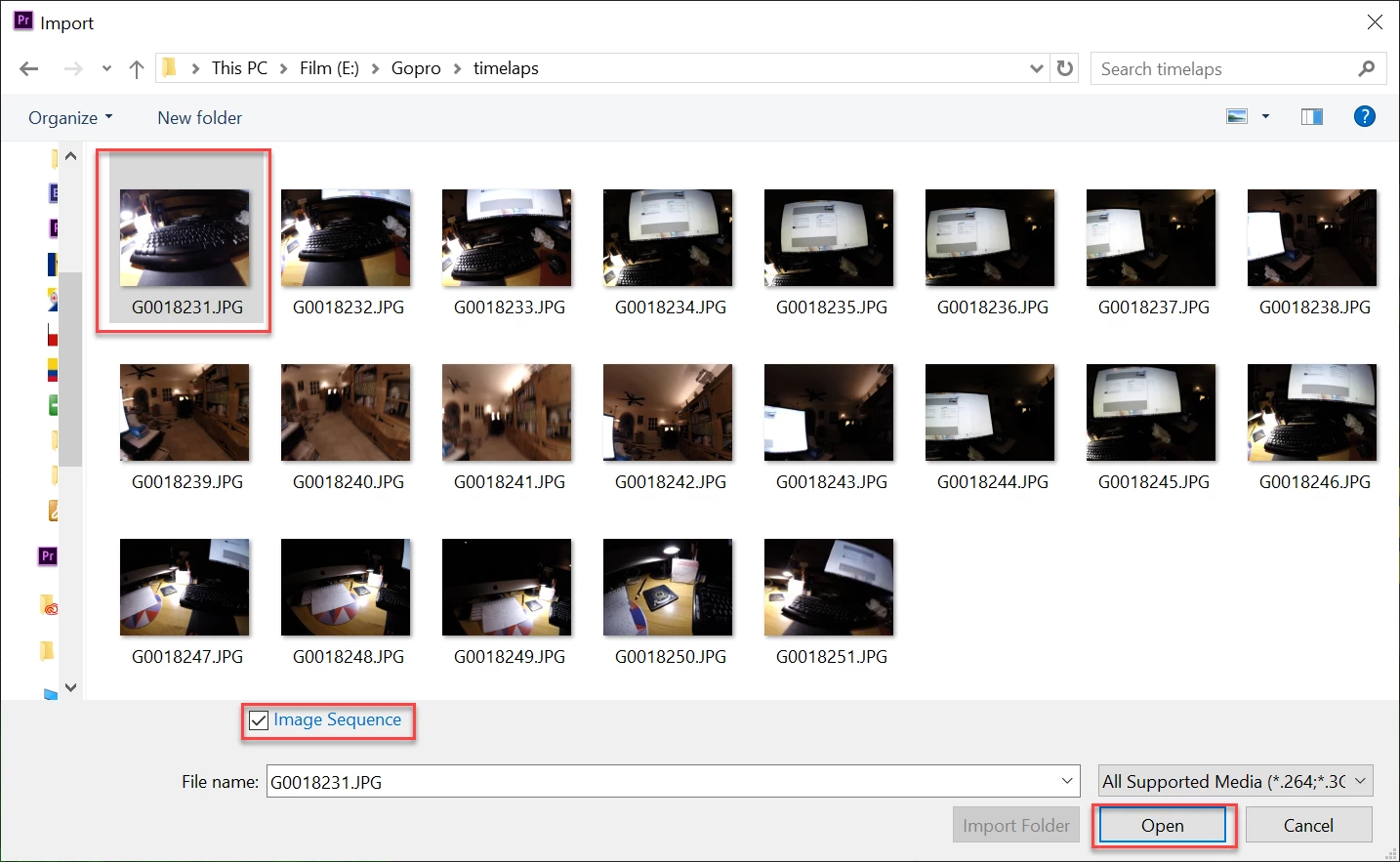
Select first still, check image sequence and hit OK

1 reply

Ann Bens
Community Expert
Ann BensCommunity ExpertCorrect answer
Community Expert
October 20, 2025

Might want to try to import your images as an Image Sequence.

Images need to be sequential and simple names such as Image0001.jpg, Image0001.jpg, Image0002.jpg etc.

Your import will be one clip instead of a massive amount of stills.

Now you can drop this clip into a UDH timeline and frame the clip as desired.


Select first still, check image sequence and hit OK

pedzsan
pedzsanAuthor
Inspiring
October 20, 2025

A little bit more detail... the import dialog box has Options.  Click it, select the first image (just the first image -- not the whole sequence).  Then, as shown, check the Image Sequence and hit open.