Participant
June 12, 2020
Answered

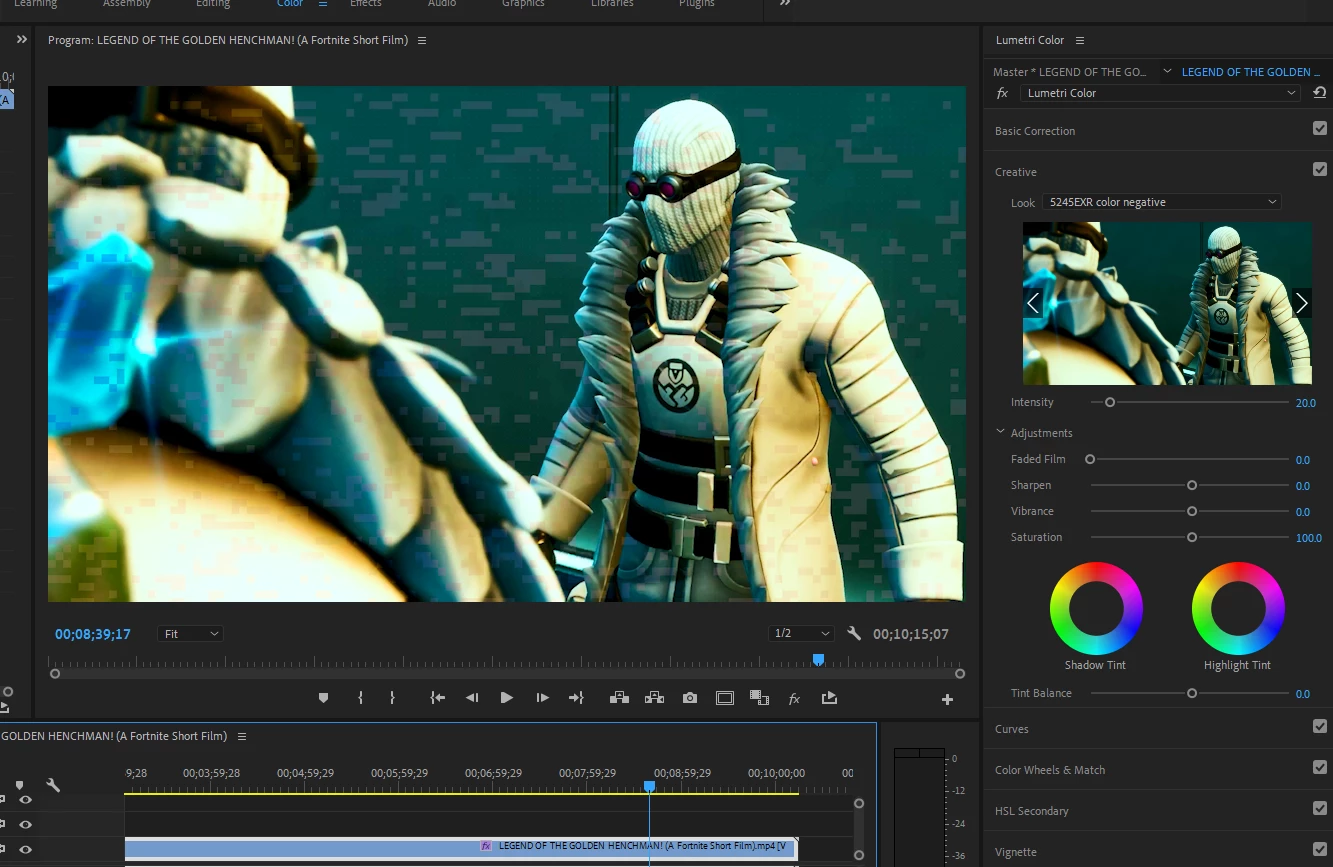
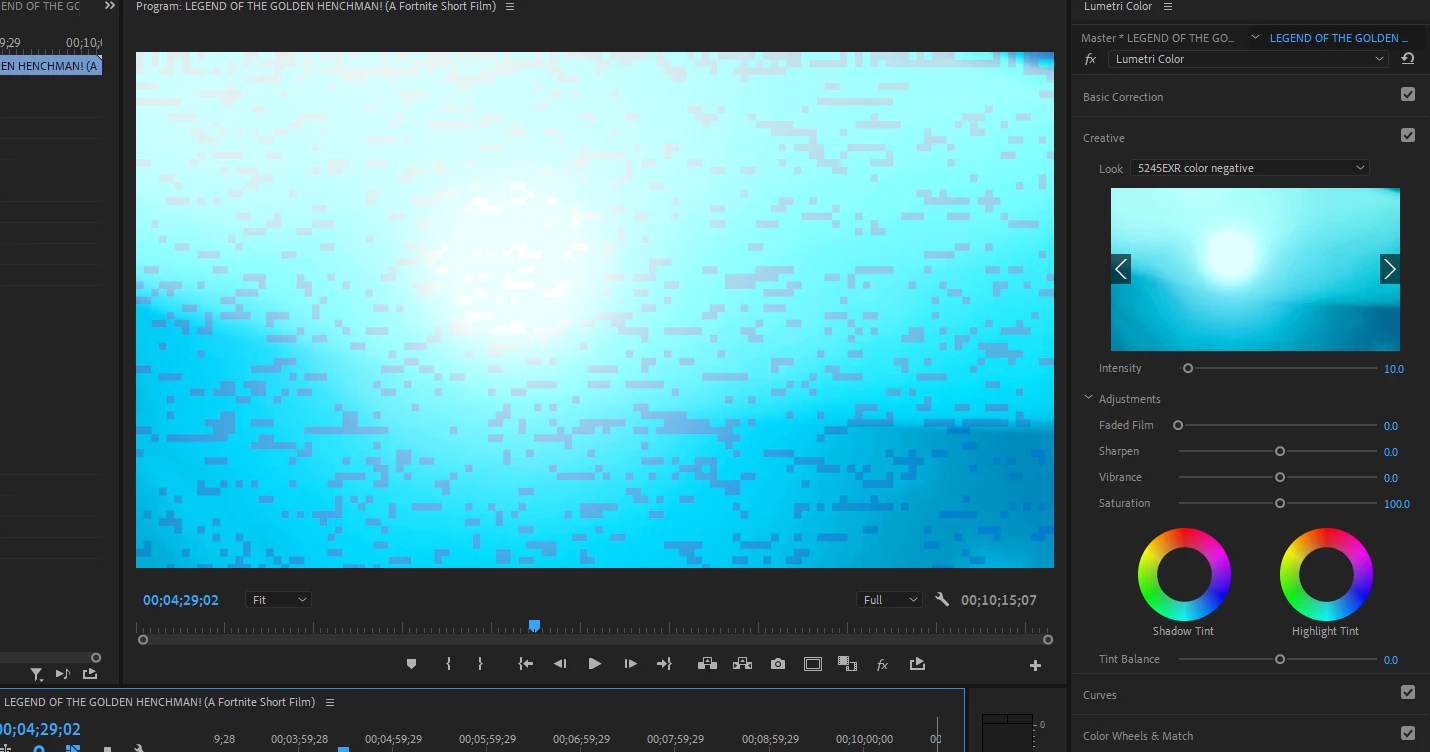
Lumetri color causes pixelation (CUDA)

  • June 12, 2020
  • 7 replies
  • 4956 views


Hi,


Recently I updated my Nvidia graphics card because it was having issues with some transitions and "GPU ACCELERATION". After the update the transition issues were resolved, however now I am not able to use Lumetri color because it causes many pixels on the preview and on the final render.


-I deleted all media cache, I started a new project.


-I've checked all my drivers and have the latest update on: my graphics card, premiere and system. I don't know what else to do!


-If switching to "Mercury playback engine" on the Project settings tabs the issue seems to dissappear, however It's very slow for rendering.


My specs:

Intel(R) Core(TM) i7-7700K CPU @ 4.20GHz

NVIDIA GeForce GTX 1080 4.0 GB

Total Memory 15.9 GB

Total Hard disk 4879.4 GB

OS Name Microsoft Windows 10 Pro


This topic has been closed for replies.
Correct answer percryan

Update, I went back to the 446.14 driver instead of the latest one from a few days ago, and it's working again. 

Here's the link where I downloaded it:

https://www.nvidia.com/Download/driverResults.aspx/159887/en-us?ncid=afm-chs-44270&ranMID=44270&ranEAID=je6NUbpObpQ&ranSiteID=je6NUbpObpQ-OIk4oouk34eH1.6XQfl.wQ


I'll have to wait and see if they release an update beyond 451.48, because that one isn't working.


Thanks!

7 replies

R Neil Haugen
Legend
November 7, 2020

Just updated to 456.71 on my laptop, it's working fine with the 2080 Super GPU.


Neil

Everyone's mileage always varies ...
ericfrankcinema
Known Participant
November 7, 2020

Anyone know if its 'safe' to update drivers beyond 446.14 yet? Has anyone had this issue with 456.71?

Participant
August 7, 2020

Te cuento que tuve tu mismo problema, y desinstale todo, volvi a instalar y el problema persitia, lo que hice fue volver a cargar la actualizacion de mi tarjeta 446.14 y se me soluciono el problema, recien termino de hacerlo

ericfrankcinema
Known Participant
July 6, 2020

Thank you, this fixed this for me too. Is the only way to find out if a new driver has fixed this is by trial and error?

Kevin-Monahan
Community Manager
Community Manager
July 6, 2020

Hey there, Alex.
Sorry for the frustration and thanks for reporting back. The community really appreciates your effort!

Regards,

Kevin

Kevin Monahan - Sr. Community and Engagement Strategist – Adobe Pro Video and Audio
Christian.Z
Community Expert
Community Expert
June 12, 2020

Have you tried re-installing your graphics drivers? make sure you download it from Nvidia's website and not through windows

stephene80719801
Participating Frequently
June 28, 2020

Hi Guys, I'm having the same problem, I almost cried as I have been on my project for a few months and thought my adobe files were corupt, I'm downloading the Nvidia driver now, if that does not work I will go back to an older driver. Thank you guys for pointing me in the right direction as I was going to uninstall Adobe! 


12:21 28/06/20

I have just re-installed Driver 446.14 and have all my work back. thank you so much guys for your help

Community Manager
June 12, 2020

Hi AlexPH,


Sorry to hear about this. Please check that you have the latest NVIDIA driver (v446.14) installed. If you have the latest version and still getting this issue. Try doing a clean installation of NVIDIA drivers and clear the cache files. Let us know if it helps.


Thanks,

Sumeet

Participant
June 13, 2020

Thanks a lot!

I fully uninstalled the grapchics driver, then reinstalled the latest version (v446.14). The issue isn't there anymore.