
Known Participant
Nov 2, 2026 6:41 PM UTC
Answered

MC Synced clips made with only two tracks are complicating match frame to same part of original audio with all tracks - how to match frame without opening every MC clip in timeline?

I used Multicam to sync picture and sound on my footage and create the scene bins for my editor to cut with. The audio clips have varying track amounts, some just two, some four, some six and some up to eight. Originally the turnover to sound would allow the editor to use these MC sync clips while bringing only the mix, tracks one and two, into her timeline, (FIG 1) and the mixer could access the full tracks of all audio clips through the AAF. Now, however, our mixer needs all of those tracks for each sound clip in the timeline which I’m turning over. How do I access the audio clips with all tracks attached AND the same in and out points as I have in the timeline to overwrite the audio one by one?


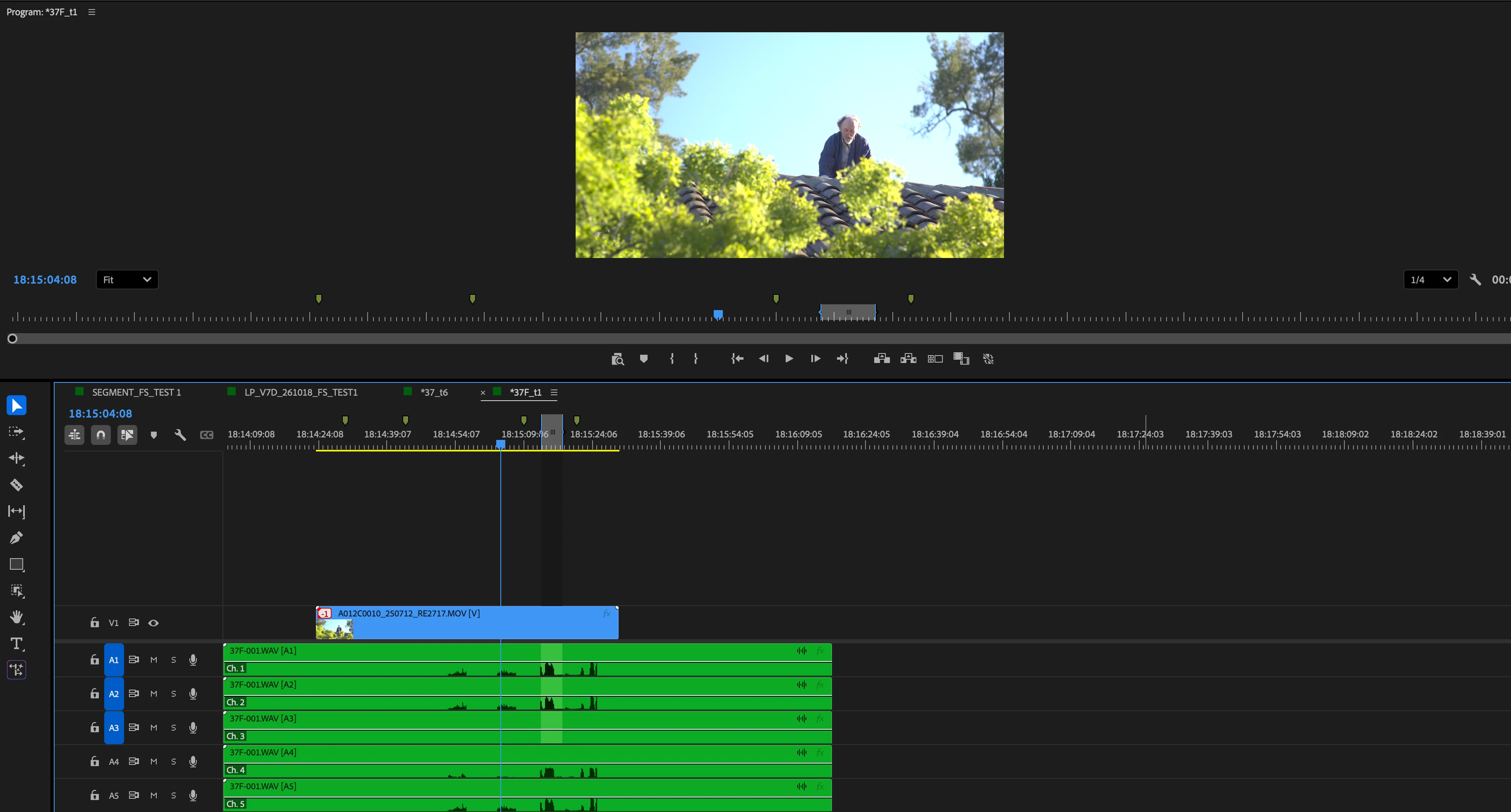
Right now when I match frame from the MC clip in the timeline, and match frame on that clip from the source monitor, it only brings me to the original video clip, pre-syncing. If, instead of match framing again on the MC sync clip, I “open in timeline” that MC clip, I have all audio tracks in the MC clip (FIG 2). The opened up MC clip has in and out points unrelated to the actual in and out in the timeline, so to bring it in I would have to copy the full audio take, bring it into empty audiotracks in the edit timeline, sync it to the audio above, and trim it before dragging it over. This makes an already tedious job, overwriting every single audio clip of a feature, double the amount of work - having to open up every MC clip and bring it in, sync it, trim it, drag it. Is there a way I can just access all of those audio tracks and use the audio only from the MC clip in the project window to overwrite the two track version in the timeline? 


FIG 1: The MC synced clips, which make up all the scene bins the editor used to cut, were set to Mono and 2 to keep the timeline clean. 
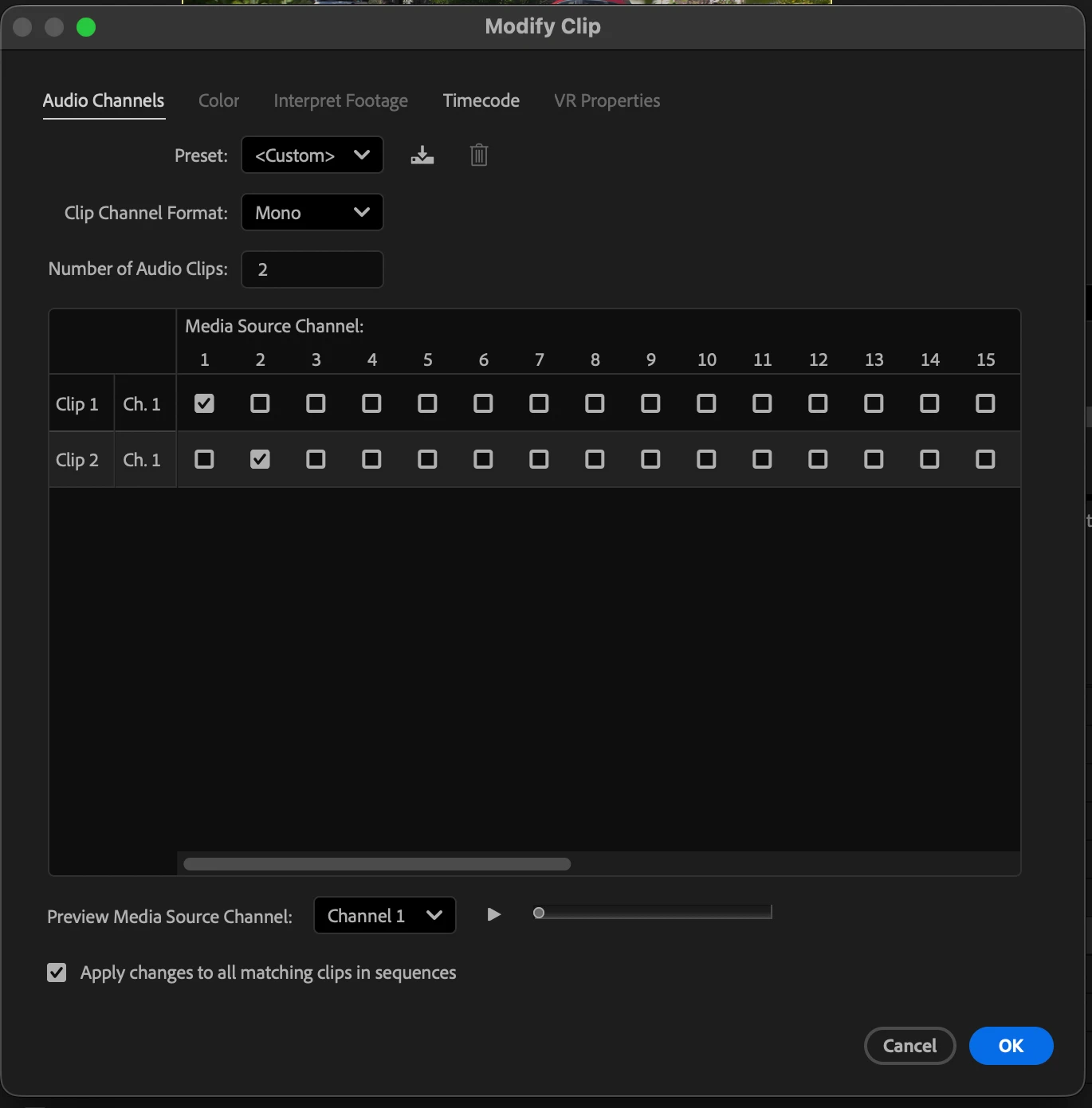


FIG 2: This is the MC sound synced clip used to cut in the timeline. It does have all tracks of original sound, but would only carry two tracks into the timeline do to the setting in FIG 2. 
    PaulMurphyCorrect answer
    Community Expert
    Nov 3, 2026 7:30 AM UTC
    1. There is a simpler way.

      1. Click the context menu in the Timeline and enable Multi-Camera Follows Nest Setting.
      2. Disable the Insert and overwrite sequences as nests or individual clips button, located under the timecode in the Timeline. This brings in the original clips from a sequence loaded in the Source Monitor, instead of a nested sequence.
      3. Use Match Frame to load a multi-camera sequence in the Source Monitor.
      4. Overwrite. This brings in all files associated with the multi-camera clip.

      Note: You may want to disable the video track targets so you don't overwrite your video.

    2. The AAF references the original files from a multi-camera sequence, as long as multi-camera is enabled and each clip can be routed to a single track. Things can go wrong if your multi-camera audio becomes unlinked from the video, or if you built the multi-camera sequence manually. For that reason, it's usually safest to flatten before exporting the AAF.

    3. Here's why you were running into this issue. Using Match Frame on a multi-camera or nested sequence loaded in the Source Monitor always reverts to the selected video file, never the audio. That's why it was only bringing in those tracks.

    7 replies

    PaulMurphyCommunity ExpertCorrect answer
    Community Expert
    Nov 3, 2026 7:30 AM UTC
    1. There is a simpler way.

      1. Click the context menu in the Timeline and enable Multi-Camera Follows Nest Setting.
      2. Disable the Insert and overwrite sequences as nests or individual clips button, located under the timecode in the Timeline. This brings in the original clips from a sequence loaded in the Source Monitor, instead of a nested sequence.
      3. Use Match Frame to load a multi-camera sequence in the Source Monitor.
      4. Overwrite. This brings in all files associated with the multi-camera clip.

      Note: You may want to disable the video track targets so you don't overwrite your video.

    2. The AAF references the original files from a multi-camera sequence, as long as multi-camera is enabled and each clip can be routed to a single track. Things can go wrong if your multi-camera audio becomes unlinked from the video, or if you built the multi-camera sequence manually. For that reason, it's usually safest to flatten before exporting the AAF.

    3. Here's why you were running into this issue. Using Match Frame on a multi-camera or nested sequence loaded in the Source Monitor always reverts to the selected video file, never the audio. That's why it was only bringing in those tracks.

    Translate
    Known Participant
    Nov 3, 2026 9:58 PM UTC

    This worked like a dream, thank you so much ​@PaulMurphy!

    Translate
    Known Participant
    Nov 2, 2026 8:24 PM UTC

    I’ve figured out if I modify the MC multiclip (like in FIG 1) and change the number of audio clips to however many that take had, and THEN match frame, and make sure the source video layer is deselected and the source audio layers are selected, I can bring the audio in with all original tracks (FIG 3). This method requires modifying each synced MC clip, but that is an improvement on having to open each MC nest, copy the full audio track, sync it, trim it and drag it. Would this be an issue in the AAF to have the version in the timeline be from the synced MC instead of the original audio file version? Is there no way to match frame from a synced MC to the original audio instead of the original picture? To matchframe to that audio would eliminate having to modify each individual MC clip’a audio channels.


    The only way I can matchframe to the original audio clip is through opening the nested MC sequence, which brings me to in and out points unrelated to the ones actually used in the edit timeline. 


    FIG 3: You can see the audio clip brought out with complete tracks here, still baring the MC clip name “113C_t2” and matching frame back to that clip in the scene bins. 


    Translate
    Known Participant
    Nov 2, 2026 8:58 PM UTC

    Now I figure - what if I flatten these from the MC? But when I click on them, they don’t have a Multicam flatten option, only a Multicam enable option. When I enabled MC though and THEN flattened them, they become the original sound file! So I guess that’s not too bad a workflow - I can just select them all after bringing them all in and enable multicam, then flatten them and they’ll be in the right form. 


    This feels so convoluted though - is there any simpler way to do this that I am missing?

    Translate
    Community Manager
    Nov 2, 2026 11:34 PM UTC

    Hi there, Zachary,

    Thanks for the detailed explanation. I'm not sure of the best workflow for this, but one of our experts can help.


    @PaulMurphy, could you take a look and weigh in? Is there a simpler way to accomplish this? Thanks so much for your assistance.

    Thanks,
    Kevin

    Translate
    Known Participant
    Nov 2, 2026 6:44 PM UTC

    Computer Specs:

    Apple M2 MacBook Pro; MacOS Tahoe 26.2; GPU; Bus: Built-In; Total Number of Cores: 10

    Premiere Version:

    26.0.0 (Build 72)

    Footage:

    Ronin 4D 8K Camera; stored on HDD external drive, ProRes (RAWHQ)

    Translate