


Known Participant
March 21, 2026
Question

Merged Clip Splitting iPhone Audio Across A1/A2 — How to Keep Both Channels on A1 Like Original?

  • March 21, 2026
  • 2 replies
  • 57 views

Hey all,


Quick question — screenshot attached.


  • IMG_4403.MOV is an iPhone 16 Pro Max clip

  • In all my sequences, its audio behaves normally: both channels show on A1 (single track)

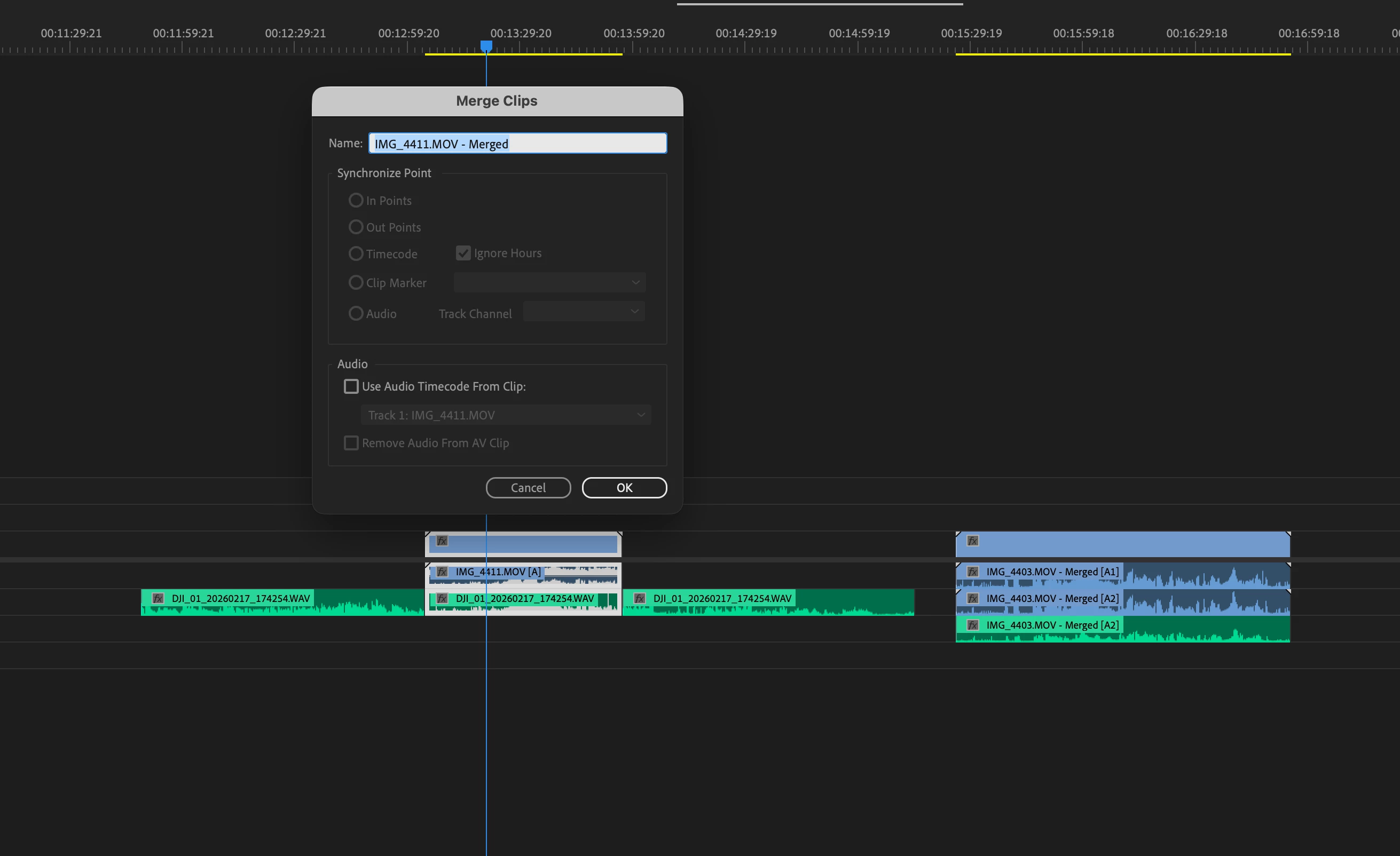
I synced it with a DJI lav on A2, sliced the beggining and end, and created a Merge Clip.


Problem:

The merged clip splits the camera audio as follows:

  • A1 = left

  • A2 = right

  • A3 = lav


I am trying to get the Merged Clip audio to follow the original format: scratch audio on A1, lav audio on A2. 


I’ve tried to look into it on my own but I can’t figure it out. Please and thanks :)


Screenshot:

The clip on the left shows the highlighed clips that were selected when I clicked Merge Clips, as well as the dialog popup as it appeared before I clicked OK. Then, further to the right on this timeline, I pulled the Merged Clip in to show the audio track issue. 
 

    2 replies

    R Neil Haugen
    Legend
    March 21, 2026

    Do NOT use merge clips for this ... it’s dumping audio metadata when you do.

    Select both in the Project panel/bin, right-click Create Multicam ... use that process.

    Everyone's mileage always varies ...
    Known Participant
    March 23, 2026

    Thanks so much, Neil.

    My situation is that I’ve already spent months syncing hundreds of clips (by waveform) inside a few large dailies stringout sequences. At this point, I’m really hoping to build on that work rather than start over by revealing each clip in the Project Panel and creating multicams from scratch—that just isn’t feasible given the volume.

    That’s what led me to explore merged clips. From the stringouts, I can trim the camera and audio tracks (scratch + lavs), merge them, and get a new item in the Project Panel. That’s exactly what I’m after—breaking long interviews into smaller, usable pieces for editing. But I understand now that merged clips drop metadata and aren’t the recommended approach.

    So it seems like multicam is the better path—I just need to figure out how to make it work with the setup I already have.

    Ultimately, I’m trying to leverage all the sync work I’ve already done—aligning camera with A1 (scratch), A2 (my lav), and A3 (subject lav)—and turn those synced sections into usable clips in the Project Panel. Ideally, those clips would retain the same audio track layout (A1, A2, A3) as they appear in the dailies stringouts.

    There’s just been so much manual syncing that I really need to build on it, not redo it.

    R Neil Haugen
    Legend
    March 23, 2026

    @Warren Heaton and ​@Jarle Leirpoll and Paul Murphy,whom I can’t get a ping to at the moment, are some of the best at advising this kind of major shuffle.

    Everyone's mileage always varies ...
    Known Participant
    March 21, 2026

    Update: I might be wrong, but I might have mispoken when I indicated that the merged clip splits the camera audio as A1/left and A2right. The iPhone was set to record stereo sound in camera settings. I just assumed that, when I stop brainfarting and actually looked at the waveforms, as well as isolating A1 and A2, it seems the audio is identical, coming through both my left and read headphone equally. But when I play the merged clip and look at the levels, I guess it perhaps appears that the two tracks are in fact slightly distinct (with slight levels differences betwen A1/A2 while playing), even though on the timeline the waveforms appear identical. But I am sound newbie, so who knows. I remain confused. Thank you for any insight into this, as you can tell I’m fairly new to editing so I greatly appreciate any help. 

    Community Expert
    March 23, 2026

    So what's happening when you do the merged clips is that Premiere should be taking your scratch camera audio as well as your secondary sound, whether it's a stereo wav file or a multi-channel wav file, it is just separating all of that audio out into individual mono channels. That's why, when you try to edit a merged clip in the timeline, you're going to see all mono channels, even though you may have had a stereo channel as your original clip. If A1 and A2 are different mics, then the levels might be different, but what I would do is just solo each of the channels and give them a listen. If the mics sound okay, then you're fine because you'll do a mix later. 

    As ​​​​@R Neil Haugen mentioned above, generally merged clips are avoided, as you do lose some vital audio metadata. It sounds like, from what you describe, this is a simple project and you're probably doing your own mix in the timeline and not needing to re-conform that mix in Pro Tools or something like that. If that's the case, you're going to be fine using those merged clips, as you are, even though you've got a merged clip and you're losing some of the original metadata, you're still getting the original audio file, so I think you'll be okay.