
Participant
February 18, 2021
Question

Missing transform button next to Motion in Effect Controls Panel

  • February 18, 2021
  • 1 reply
  • 2055 views

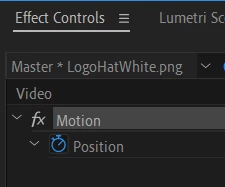
The Transform icon is missing from the Motion effect in the Effect Controls panel on my Premeire Pro workspace.


This has previously prohibited me from being able to use arrow keys to position an object, but I have used After Effects as a workaround for that issue.


Now it seems this lack of transform icon is prohibiting me from copy/pasting keyframes from one clip to another.  I could probably find another workaround with After Effects, but I would prefer to be able to use Premiere Pro as intended instead of having to keep finding workaround.


How can I restore the Transform icon in my Motion effect in the Effect Controls panel?


This topic has been closed for replies.

1 reply

R Neil Haugen
Legend
February 18, 2021

Transform is an effect you would apply from the Effects panel. And then to apply to another clip, you would copy that instance of Transform and paste to the other clip.


The "intrinsic" or always-there effects are Motion (position, size/scaling) and opacity.


Neil

Everyone's mileage always varies ...
Participant
February 18, 2021

Neil,

Thanks for the quick response! I have tested your suggestion by adding transform as an effect the the clips I am trying to manipulate, but this did not solve the problem.


The Transform icon is referenced repeatedly in this User Guide Topic. Not only does clicking this icon, that should be present with the intrinsic Motion effect, enable the ability to move items in the program monitor using keyboard arrow keys, but from research in the community forum suggests that its absence is inhibiting me from copy/pasting keyframes.


Here is an image from the linked user guide topic above showing the Transform icon (top) and my workspace (bottom):


Kevin J. Monahan Jr.
Community Manager
Community Manager
February 18, 2021

Nicholas,

I think developers removed that icon. Not sure why. I will let the tech writer know.


Try clicking on the word "Motion" for the same action. You can also double click the image directly in the Program Monitor. If there are multiple clips at that time on multiple tracks, I find that locking the other tracks helps select the right one.


Thanks,
Kevin

Kevin Monahan - Sr. Community and Engagement Strategist – Adobe Pro Video and Audio