
tymilat534787
Participant
July 20, 2017
Question

.mov files not rendering or exporting

  • July 20, 2017
  • 3 replies
  • 3472 views

Hello,

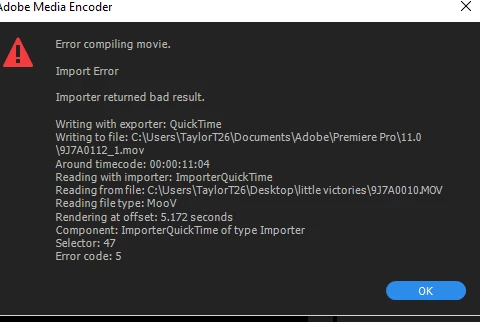
I am fairly new to Premiere, I just bought the Canon 5d Mark IV and I recorded my files in .mov format. When I imported the footage I automatically had issues with skipping, jerking and discoloration.. When I try to render and export it will only render the part of the project that does not involve video. My sequence settings match the video files, and I have tried exporting in Quicktime, and H.264 and nothing works.

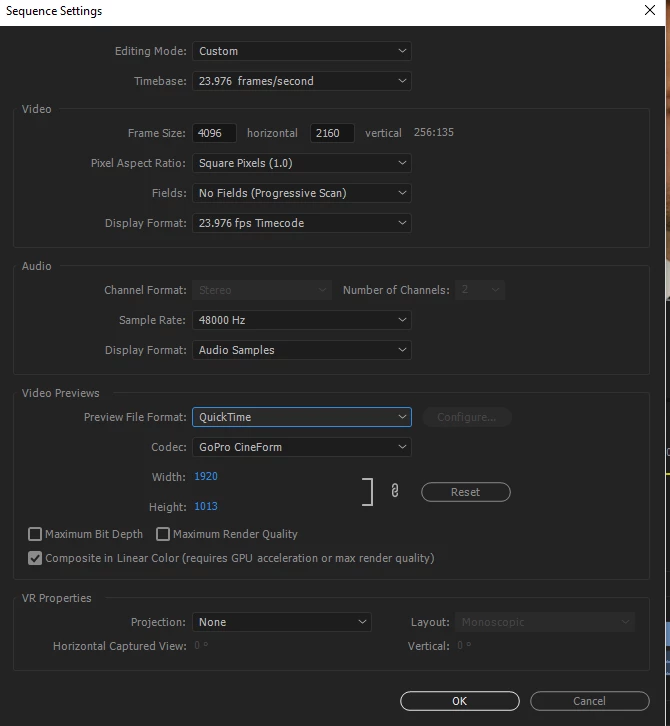
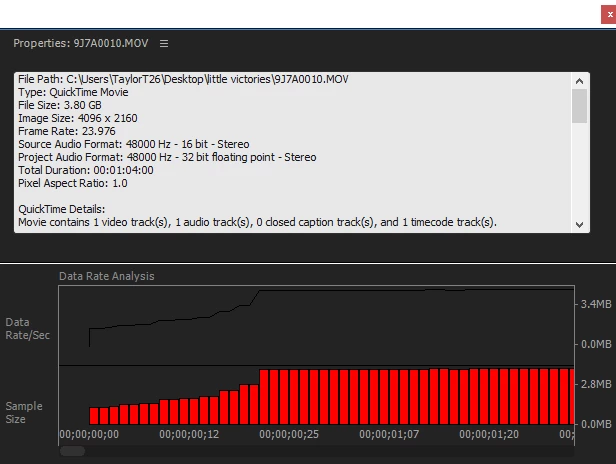
here are my sequence settings, file properties and the error message I keep getting. Please help me, I am working on this project for my internship and I am about to bash my computer in.
This topic has been closed for replies.

3 replies

Inspiring
July 20, 2017

Your sequence is set to DCI 4K 4096 x 2160, but your previews are set to 1920 X 1013, is this your intention?

tymilat534787  wrote

When I try to render and export it will only render the part of the project that does not involve video. My sequence settings match the video files, and I have tried exporting in Quicktime, and H.264 and nothing works.\

Please post the export summary from the Export Settings Panel, like this sample below:

MtD

jasontcox
Inspiring
July 20, 2017

Both Meg and Neil have good comments. Also, the Video Preview settings in Sequence Settings actually does not impact your export at all in most cases UNLESS you select "Match Sequence Settings" in the Export Window or "Use Previews." And since you're new to Premiere, Id say avoid both of those options for now anyway until you're a little more comfortable in the program. As Neil suggested, make a sequence by taking one of your clips from the Project Panel and dragging to the New Item button (also in the Project panel). This should make sure everything matches. And if you're exporting g to H.264, don't worry about Sequence Settings and don't click Match Sequence Settings in the Export Window.

Lastly, if you're also trying to export to 4K (assuming thats what you're shooting in, you have to be careful because the default H.264 Preset "Match Source High Bitrate" is not good for 4K video - the bit rate is too low and needs to be at least quadrupled. Read this for more info (especially the end):

Bits and Bytes: The Simple Math of Premiere Pro’s Exports — Video Review & Approval

R Neil Haugen
Legend
July 20, 2017

First, make sure you "import" only via the PrPro's Media Browser ... sometimes when say drag/dropping file into the project panel from Finder/Explorer not all the appropriate meta for each file gets logged properly by PrPro.

Next, did you create a sequence (timeline) by manually creating one ... or by dropping a clip onto the New Item icon (lower right corner of Project panel) or a blank timeline panel? The latter is most often better, as it makes a sequence totally built for the media involved.

Next, your hardware would be good to know ... OS/CPU/RAM/GPU/vRAM and the video driver number. In the Project settings panel, are you using Mercury Acceleration (and if so, what setting) ... or Software Only?

Neil

Everyone's mileage always varies ...
tymilat534787
Participant
July 21, 2017

Yes I imported using the import option under "File", I also created my sequence by adding one of my clips into the timeline first then deleting it. As far as my hardware I am going to copy and paste what I see on my computer.

kulpreet singh
Inspiring
July 20, 2017

Hi TymilaT,

I am sorry that you are not able to export your sequence.

Have you tried these troubleshooting steps? How to fix issues that cause errors when rendering or exporting

Let me know if that helps.

Thanks,

Kulpreet Singh