


Inspiring
March 8, 2017
Answered

Multi-cam sequence not all cameras visible

  • March 8, 2017
  • 16 replies
  • 106784 views

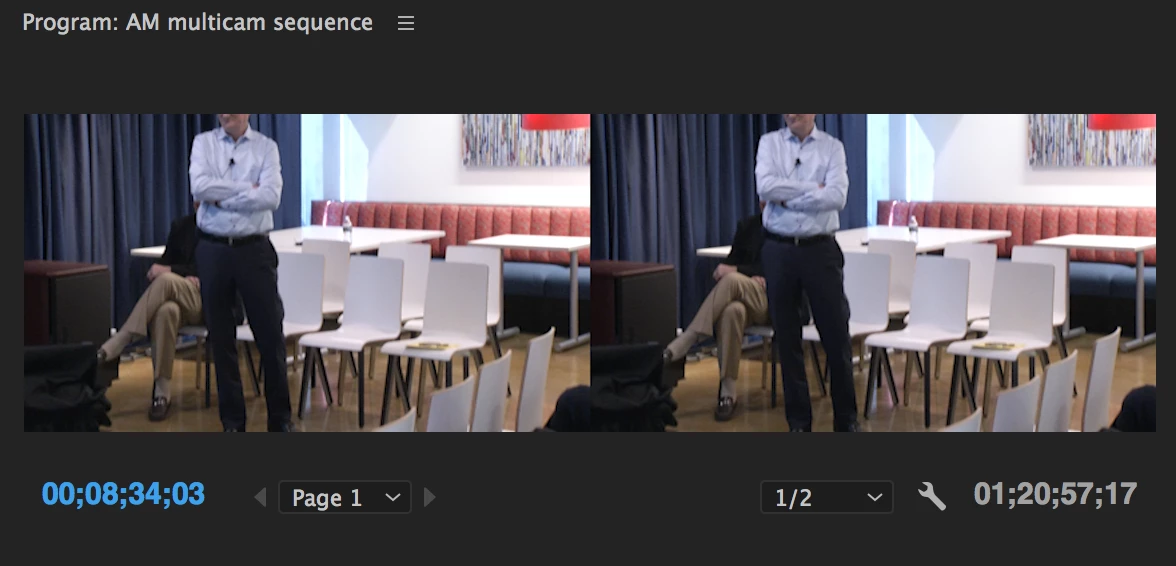
I have been editing a multi-camera sequence in Premiere CC 2017. Everything was going just fine but now I don't seem to have the two views to choose from in the program window. It is only showing me the one camera shot what happened? I really need that second camera back.

I followed the process for creating a multi-cam sequence. And like I said, it was working just fine until I obviously clicked something that got rid of the second camera. The program window is set to multi-camera. And it's enabled.
Correct answer austinb49640774

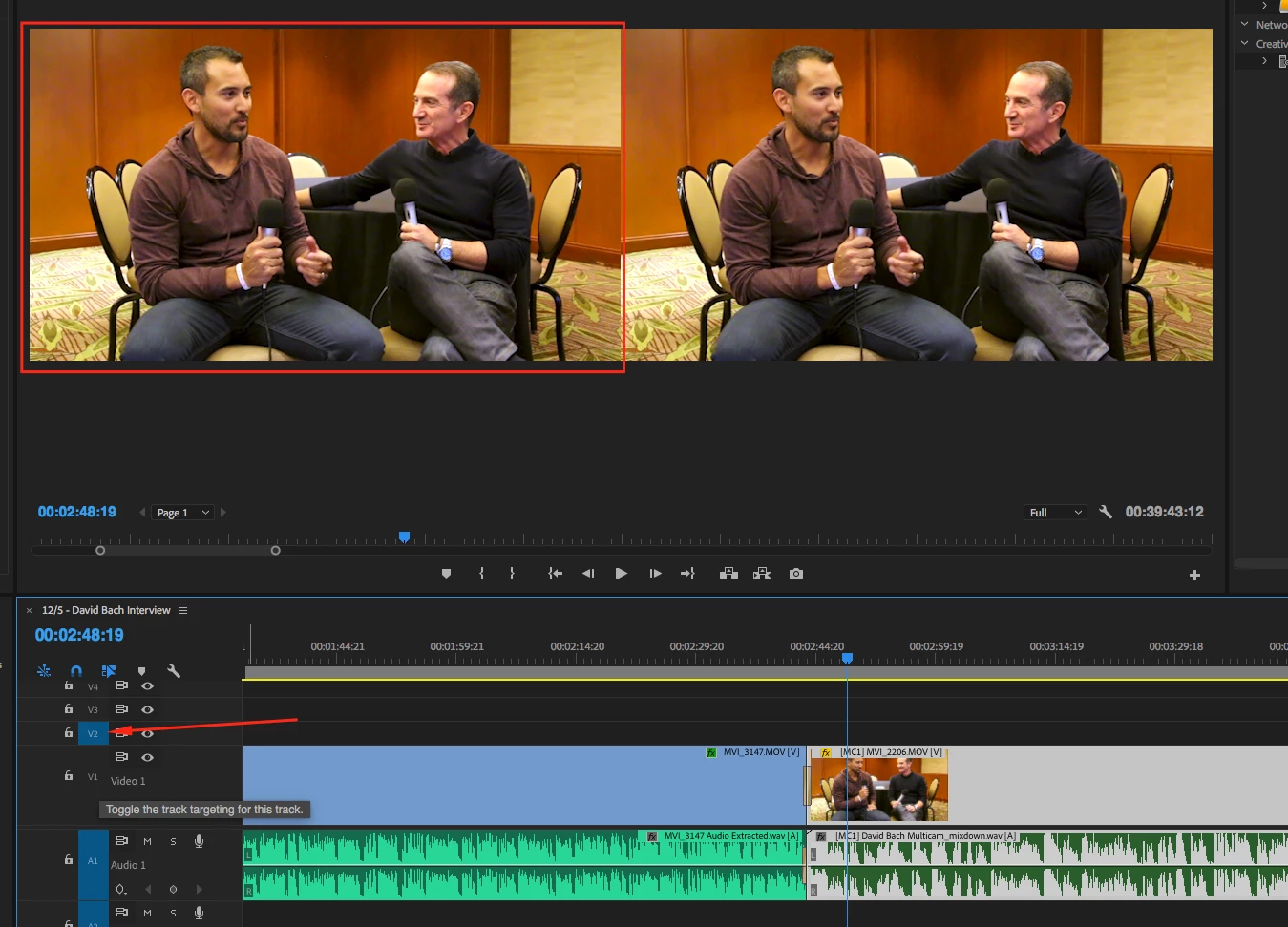
I just solved this. Yes, the tracks have to be selected in the Multicam nested sequence as David pointed out, but you also have to have the mulitcam track selected in the sequence that you are editing in:

16 replies

demi14
Known Participant
October 16, 2018

SOLUTION!!! I had this same problem; after doing an editing pass where I chose between my (2) angles, I could not go back and change them except manually as described herein. This never happened on my last project using (7) angles. So the SOLUTION was that I had a LOCKED layer (the adjustment layer with a LUT) and by UNLOCKING that layer, MY CAMERA ANGLES RETURNED!!

Also TRUE: any layer that has a multicam clip on it MUST be selected/highlighted (V1... V3.. and so on) in order to see the multiple angles. You CANNOT have a layer above it that is selected/highlighted if you want to see multicam.

Participant
October 14, 2018

I also suffered with this. For me, the multi cam sequence had to be in the V1 spot to show all angles. Even if I initially created the new sequence and placed Multicam on V2 to start, It still would only work on V1

austinb49640774Correct answer
Participant
December 3, 2017

I just solved this. Yes, the tracks have to be selected in the Multicam nested sequence as David pointed out, but you also have to have the mulitcam track selected in the sequence that you are editing in:

Participant
December 7, 2017

This solved my problem!!  You need to select the track with the multicam in the timeline....  so simple yet so frustrating.  I knew all the clips were there as I can select the different cameras with the clip menu...   That just wasted 2 hours of my life!  lol

keosok
Participant
September 9, 2017

I'm user of adobe series

I have problem with multi-cam edit when I have more video clips over 10,

before I use sony vegas pro they have shortcut (T) for next camera that help full for me to edit the video clips,

in premiere cc have 9 shortcut clipe only that is very difficult for me to fast video edit.

So Adobe should make easy shortcut like sony vegas for select multi-camera clips like that,

thank...

Participant
July 6, 2017

I think I found a possible solution thanks to a post on YouTube (Fix Multicam Sequence not working Premiere Pro CC 2015 - YouTube​)

To summarise, the multicam video track (V1) was not targeted and a different video track was targeting in the timeline.

I made a test project and a new multicam source sequence and a new sequence from it.

Multicam source sequence opened in the time line

New sequence from the multicam clip

So far that's normal. Note the multicam layer is targeted by default (the blue V1).

Sequence with multicam and another video layer targeted

The multicam view works as expected. Any other video layers can also be targeted as long as the multicam layer (V1) is still targeted.

Sequence with no video layer targeted

If the multicam layer is untargeted and no other video layer is targeted the multicam view still works as expected.

Sequence with non-multicam video layer targeted

If the multicam layer (V1) is untargeted and a different video layer is targeted the multicam view no longer works as expected.

To fix, just target the multicam video layer again.

Participant
July 27, 2017

Thank you

Legend
March 8, 2017

It's showing two shots.  They're just both the same.  Chances are, you got it wrong in the Source Sequence.

See if this helps.

Manual Multi-Camera Method

Inspiring
March 9, 2017

Jim,

Thank you for responding so quickly, however, I don't quite understand your response.

I don't want to start over on this project by creating a new timeline, I've already spent several hours editing the current timeline. Therefore, creating a new manual multi-camera sequence is not exactly the answer I was hoping for.

Here are some additional screenshots to hopefully present my issue better.

Here's what my program window looks like now. (only one camera showing)

Here is what I want it to look like again. (I created a whole new project to get this screenshot.)

I created a multi-cam sequence and that what's I was using. I just don't know how I went from having multiple camera angles to choose from to just one.

Here's the sequence I'm using. And you'll see I even duplicated it with hopes that it would give me back the second camera angle. It didn't.

Lastly, just for fun. Here's what the edited timeline looks like. And this is why I don't wish to start over.

PLEASE, PLEASE, PLEASE help, I really don't want to have to start over. 

Thanks,

Amy

Legend
March 9, 2017

I just don't know how I went from having multiple camera angles to choose from to just one.

That happens when the same clips are used for both angles in the Source Sequence.  You need to check the Source sequence.