


Participating Frequently
April 6, 2017
Answered

Multi cameras wont show in my multi camera window

  • April 6, 2017
  • 3 replies
  • 12531 views

Im editing a video with 6 different cameras. When I was half way throw my editing, my multi cameras disappeared so now I only see one camera, not the whole six like I used to. I tried to google this problem and I found out that there is a window called Edit Cameras that I can control how many cameras I see. I have no idea how to find this window or if this window will help me.

EditCamsDialog.png

This window that I am looking for and maybe that can fix this, maybe not.

Im using Premiere Pro 2017.0.2.
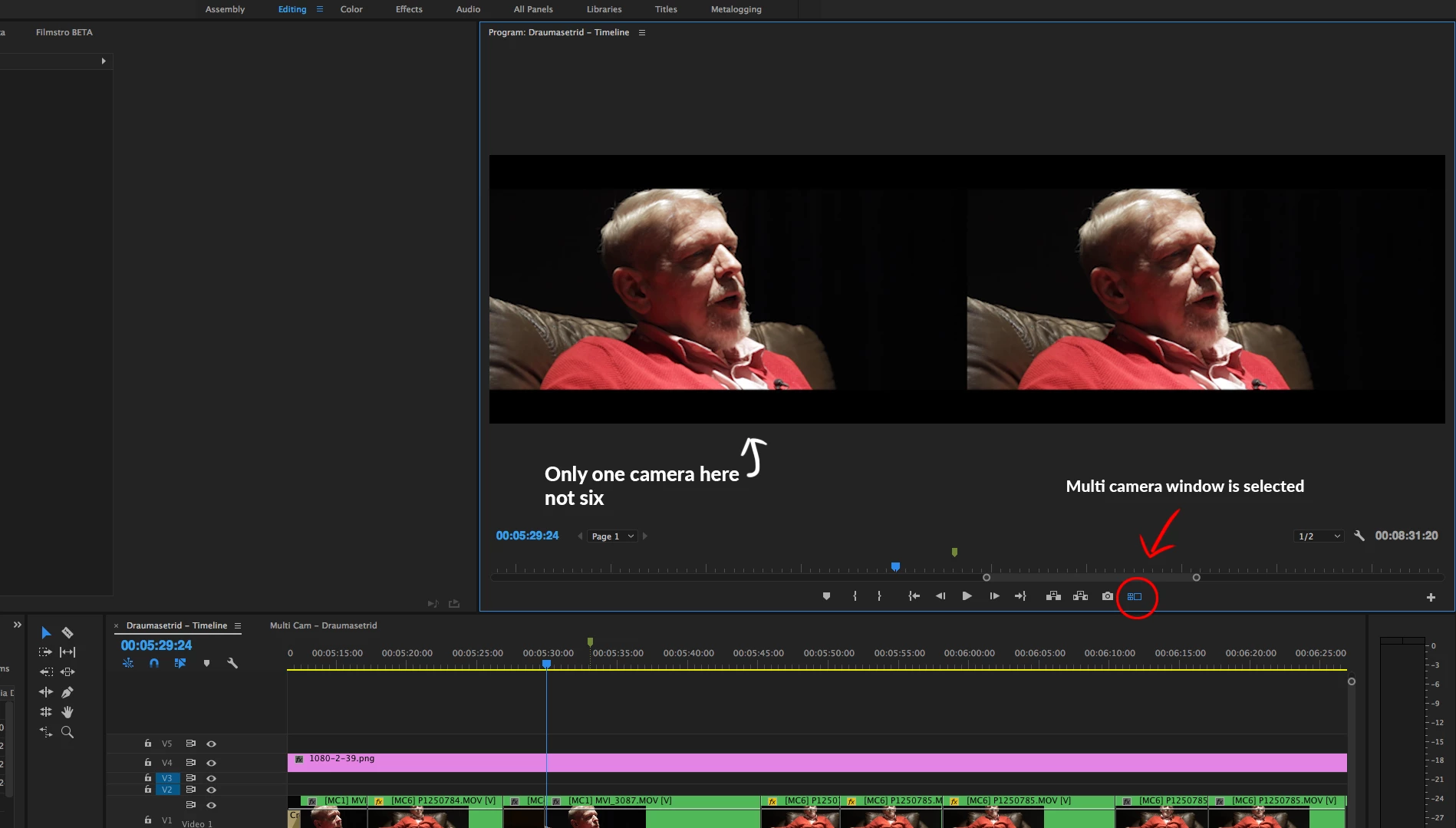
This is my timeline, only showing one camera.
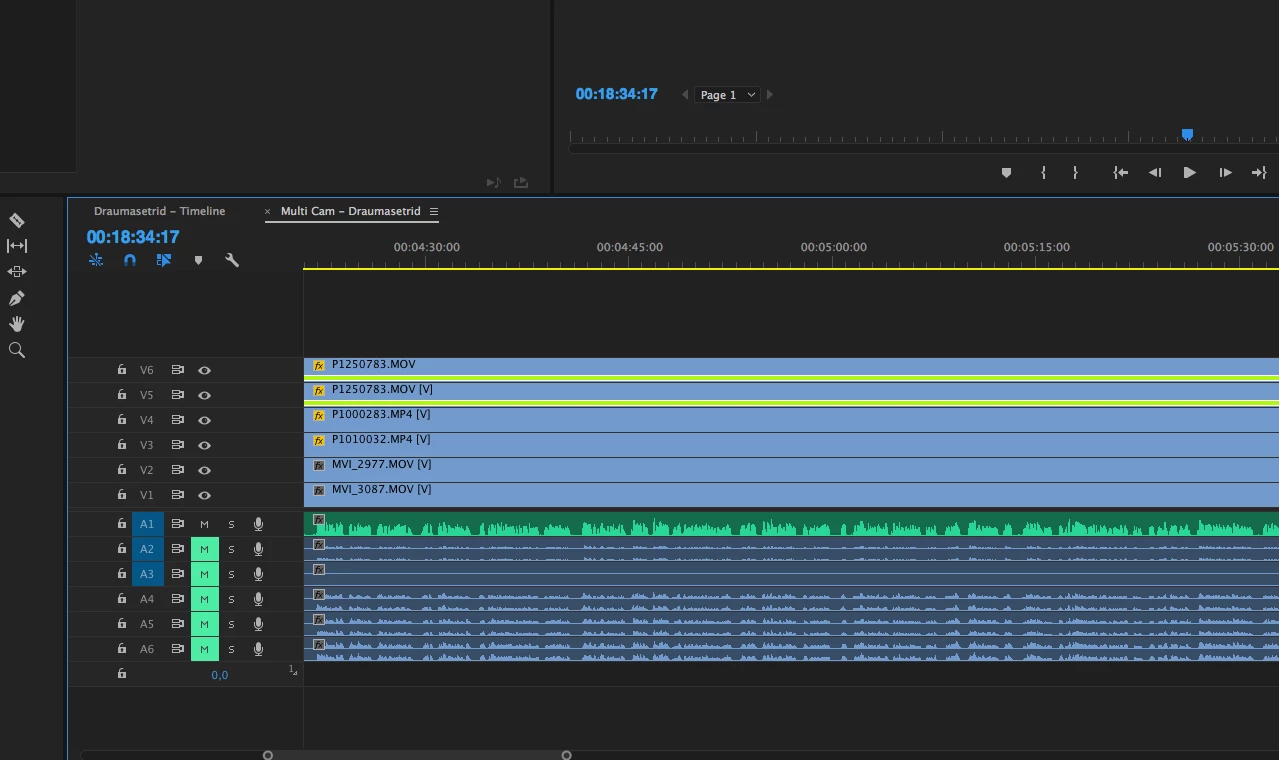
And this is my multi camera sequence. All the cameras are visible.

This topic has been closed for replies.
Correct answer Ann Bens

Many thanks for the reply.

The video clip was definitely imported with both footage and sound.


That is not what I am asking.

Open the multicam an look if the clip starts on 00.00.00.00 with a visible image instead of black or no clip due to syncing.

3 replies

Participant
December 21, 2021

LOL too funny  It was driving me crazy, restarts and relaunches no luck.  one click and it's fixed   Thank You!! Sometimes we can miss the simplist of things!


Participant
May 23, 2022

Good morning - newbie to Prem Pro and hoping someone can help on an issue I'm seeing.  I've looked at some great tutorials on Multi-cam editing and think I have understood the process - I have my two test videos of an event taken from different angles - but from the screenshot I've attached, I cannot see one of the videos?!  I've tried one or two tips that have been posted here and other parts of this forum - but nothing seems to work to get it visible!


Videos were taken on a DSLR and iPad Pro, with settings identical - but I have read that it is better to use two identical cameras for Multi-cam editing - could that be the issue?


Can anyone help me on this?  I'm sure it's something very straightforward!


Many thanks and apologies if I have posted this in the wrong place!

Ann Bens
Community Expert
Community Expert
May 23, 2022

Open multicam and look if there is actually footage.

Participant
October 25, 2021

Thanks!!!!! The same thing is appeared then empty "V" is marked blue. 
Like this 


Just uncheck empty track and multicam is OK again


Horshack
Legend
April 6, 2017

It's because you turned off track targeting for the multi-camera track. Click the "V1" on the timeline (or whatever track holds your multi-channel clip) so that it turns blue like the audio track labels.

Participating Frequently
April 6, 2017

Awesome. Thank you

Participant
October 4, 2023

Thankls you too!! Keep messing me up, new to this type of edit.  God bless!!