Inspiring
November 14, 2019
Answered

Multicam broken in late PP late 2019 and 2020

  • November 14, 2019
  • 4 replies
  • 1835 views

Since the September release of CC2019 and CC2020 Multicam is just plain broken on a PC (don't know about Mac - haven't tested.) Here's a screen grab from CC2018 (which works as expected) .
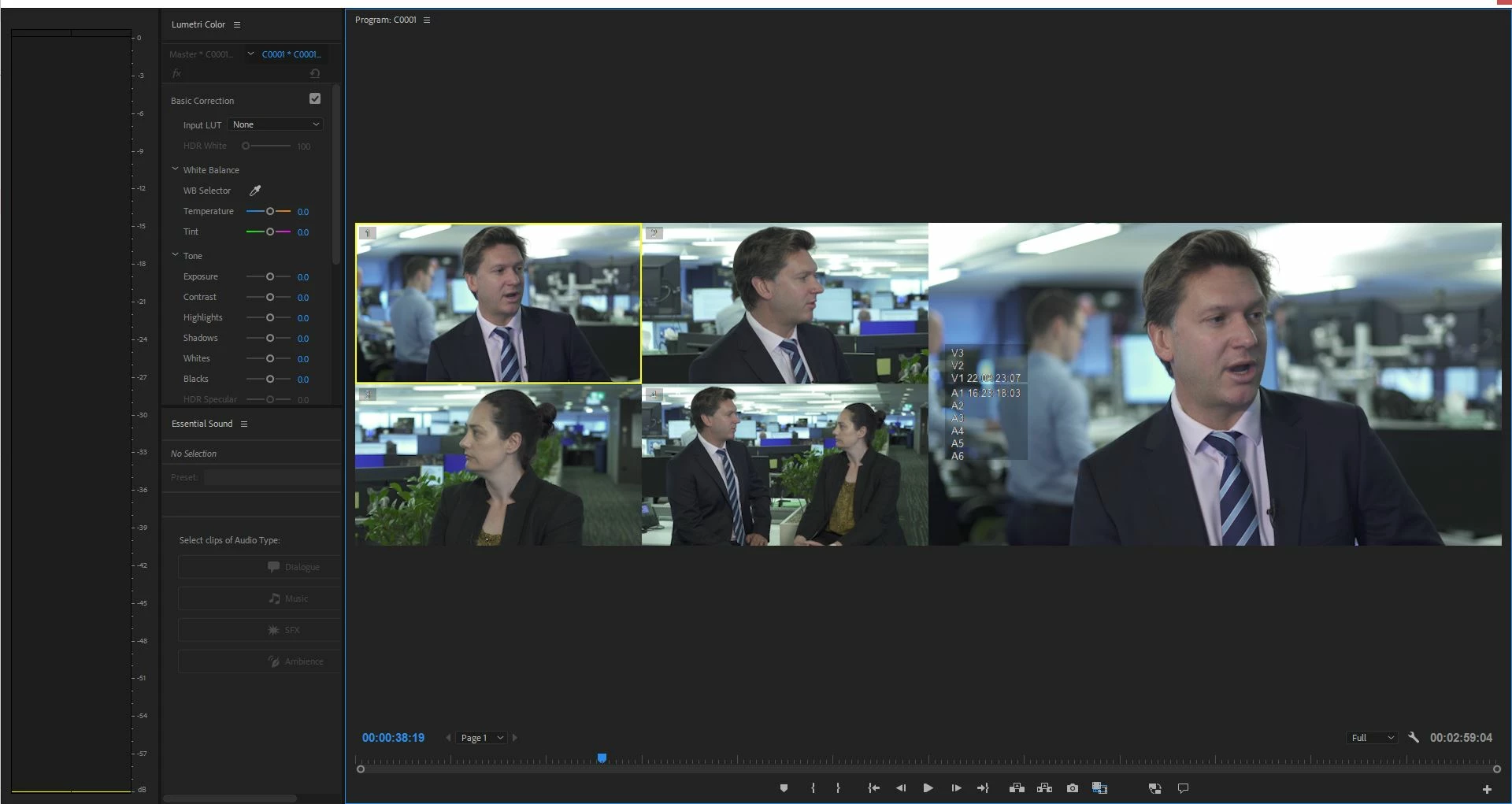
Note the background has disappeared and we have a typical 4-way multicam split. Everything works. Clicking on a box while playing cuts to that camera. When not playing it changes the whole clip. When not playing and control clicking it inserts a cut. Now lets take a look at the exact same media and setup in CC2020 (same problem in late CC2019 but we'll stick with 2020 as the problem has not been solved.)
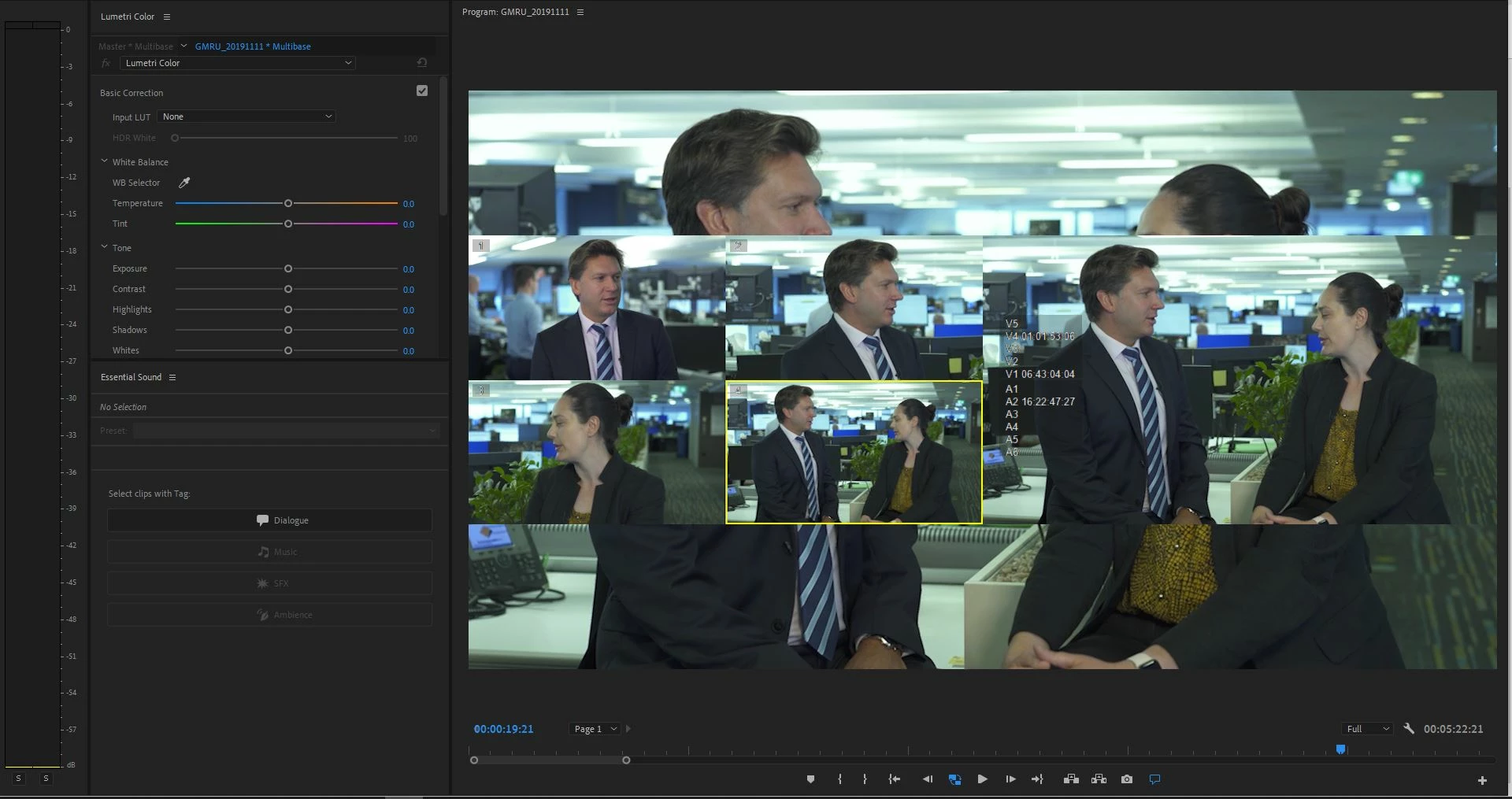
The first thing you'll notice is the background palette did not reset to grey when going into multicam mode. Mouse clicks no longer work in static mode at all (well they sort of do the very first time you enter multicam but the clicks seem inaccurate - sometimes you have to click slightly above your intended target or it just doesn't work at all) then they stop working after you play once. When you first play the multicam it actually cuts ok. But the first time you stop it, it stops working and only going in and out of multicam gets it working again. I've updated video drivers etc to try and get it working. I've had the two apps (CC2018 and CC2020) open side by side to try and work out if any settings have changed. Everything is as identical as it can be. Including project settings like CUDA playback, Mercury transmit etc. Works in CC2018, doesn't work in CC2019 on the exact same computer with the same settings.

Anyone with a solution I welcome it.

This topic has been closed for replies.
Correct answer R Neil Haugen

This is not something I've had here. So I'm trying to think through what things may be of some help.


There's several things that may help with some sort of issues, and so  ... first, trashing preferences sometimes stops odd behaviors ...


Trashing Preferences: https://forums.adobe.com/thread/2126506


Second, the media cache and cache database files can get corrupted, for some things having Premiere rebuild them fixes it ...


Delete/Trash Media/cache files: https://forums.adobe.com/thread/2152942


Another thing to try is to create a new project file, then use the Media Browser panel to navigate to and import the assets of the "old" project file.


Past these, I would use the Adobe CC Cleaner tool to both do the uninstall of Premiere, and the complete removal of all traces of it. Then reboot and reinstall.


Adobe CC Cleaner Tool: https://helpx.adobe.com/creative-suite/kb/cs5-cleaner-tool-installation-problems.html


Neil

4 replies

R Neil Haugen
Legend
November 26, 2019

You're most welcome and I'm very happy to help, especially when something cuts through the murk which seems to so often be part of editing with Premiere. Some times what fixes an ill is so ... strange ... from our experiences as a user.


But in talking at times with engineers, they seem to think it's pretty normal. Um ... I'm definitely not an engineer!  😉


Neil

Everyone's mileage always varies ...
R Neil Haugen
Legend
November 22, 2019

I understand the feeling about the Adobe "brick wall" thing. There's a couple parts there. First, they've so blasted many users even compared to any other similar app so there is an issue just of size. There's only so many of "them", and a right ton of "us".


Second, the previous management didn't seem that interested in user feedback and intentionally isolated the engineers from "us" except at things like NAB. Engineers were simply not allowed on the user forums on company time ... period.


New management (just over a year and some now) has changed much of that. Engineers do pop in here from time to time to help, ask for user files for testing, that sort of thing. Which is a HUGE improvement. But they've still only got so many and they've got all their work to do. Including trying to work through a massive backlog of bugs that had been left to accumulate.


As to the troubleshooting, there are many things that are frequently useful that are either not obviuosly connected or are even flat-out counter-intuitive. A major issue a year or so back involved ... the Microsoft onedrive.dll file. Remove or rename that file, suddenly the Premiere issue went away. The "solution" had nothing whatever to do with Premiere, one would think. And after it was figured out, quite a few users simply said "That's such a stupid suggestion, I'm not even going to try it."


But when they'd finally just do it ... bazingo, they had Premiere back in form.


Whether 2018 works compared to 2019 or 2020 is irrelevant, really. They are different installs, using different files around the computer. And frequently one can be totally botched while another works perfectly. (One of the main reasons to have multiple versions of course.)


That it happens on a new project with only a couple clips tells me that something in your Premiere 2020 files somewhere (and the 2019 if it's doing the same thing) is busted. So ... personally, I would use the Adobe CC Cleaner tool for this.


The number of multicam editing operations around the world daily in Premiere is enormous. And you're the only one that has posted this problem here. Which also leads to a strong working assumption that this is something on your machine. As someone who's experienced several major issues of glitched Premiere files (yea, it happens) ... I've been through the full-meal-deal remedy work several times.


Neil

Everyone's mileage always varies ...
Inspiring
November 26, 2019

Hi Neil - just wanted to update you that trashing preferences appears to have worked. I'll mark that answer as correct. Thankyou for all the help you give the community.

R Neil Haugen
R Neil HaugenCorrect answer
Legend
November 22, 2019

This is not something I've had here. So I'm trying to think through what things may be of some help.


There's several things that may help with some sort of issues, and so  ... first, trashing preferences sometimes stops odd behaviors ...


Trashing Preferences: https://forums.adobe.com/thread/2126506


Second, the media cache and cache database files can get corrupted, for some things having Premiere rebuild them fixes it ...


Delete/Trash Media/cache files: https://forums.adobe.com/thread/2152942


Another thing to try is to create a new project file, then use the Media Browser panel to navigate to and import the assets of the "old" project file.


Past these, I would use the Adobe CC Cleaner tool to both do the uninstall of Premiere, and the complete removal of all traces of it. Then reboot and reinstall.


Adobe CC Cleaner Tool: https://helpx.adobe.com/creative-suite/kb/cs5-cleaner-tool-installation-problems.html


Neil

Everyone's mileage always varies ...
Inspiring
November 22, 2019

Thanks Neil


I'll try tashing preferences but none of those other things make any sense as CC2018 still works as expected and even most versions of CC2019. Also it happens on a brand new test project with only a couple of clips ingested. I suspect Adobe just broke it. I'm using GTX980 so it could be the specific hardware combination. 


The most frustrating thing is you never hear from Adobe themselves - just a silent black wall. But I always appreciate you trying to help.


John

R Neil Haugen
Legend
November 14, 2019

Ar you having troubles with the keyboard shortcuts for switching cameras or only mouse clicking?


Neil

Everyone's mileage always varies ...
Inspiring
November 14, 2019

I don't use the keyboard generally for multicam - I stop too often and fine cut. But just checking it now it does seem to be limited to mouse clicks - although I couldn't get the control keyboard cuts to happen but I don't know if that's supposed to work?


I've also noticed when you stop and start again the mouse does still work sometimes but offset almost a full box above the correct area on the screen.